Logging a workout
Logging is the core of the app. What you did, set by set, becomes your training history. The loop is start, log, finish.
- Start from Today
Today shows the session for the day. Tap Start. If you left a session open, tap Resume workout instead. If several sessions land on the same day, a "Choose a session" chooser appears. To see the session before you start it, tap Preview. The session opens read-only, with Set, Target, and Result columns.
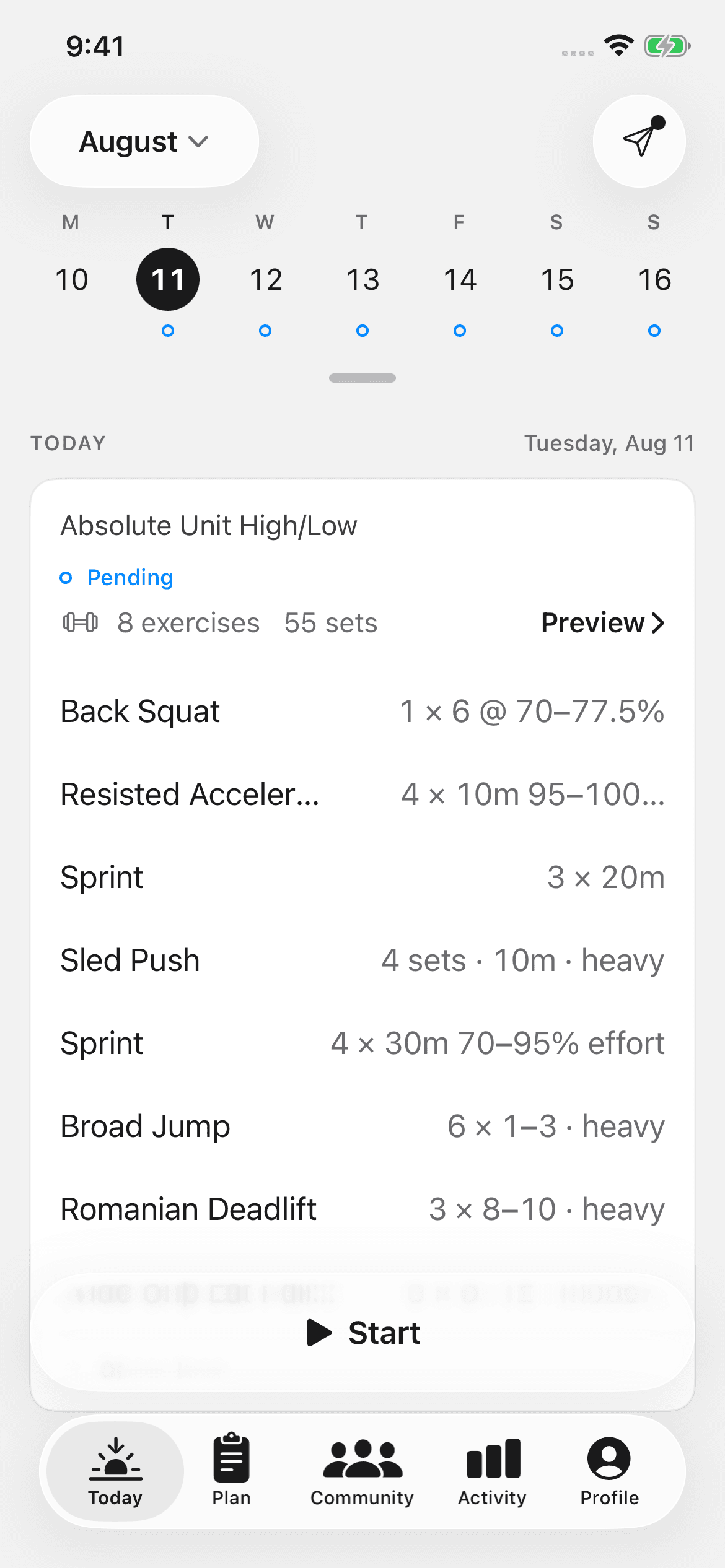
Today, with the session ready to start. - Log each set
Tap a value cell — Reps, Load, Time, Dist, Height, or Intensity. A docked keypad opens. Next walks you through the fields and sets in order. ✓ completes a set.
The Target column shows what your coach prescribed. The app ghost-fills fields from your last actuals. Repeating a number is one tap. Mark all complete completes a whole exercise at once. Tap Undo if you moved too fast.
Logging a set on the docked keypad. - Rest between sets
When you log a set, the rest timer opens and counts down the prescribed rest. +30 and −30 adjust the time. A stop control ends the countdown. If you'd rather start the timer yourself, turn off Auto-start on logged set in Profile > Training.
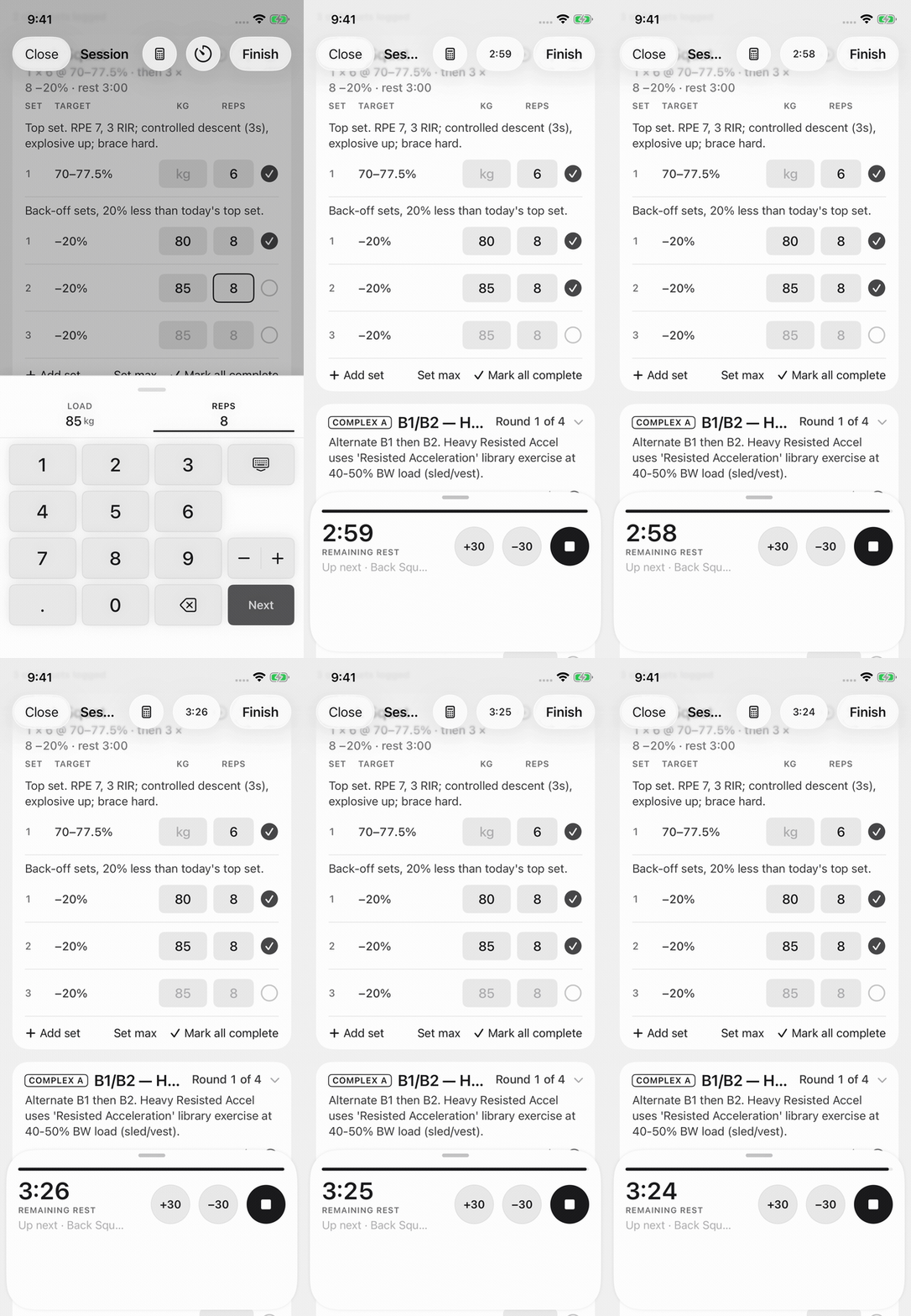
The rest timer, adjusted by +30. - Finish
Tap Finish. The app saves the session to Activity at once, then shows the summary. The summary shows Duration, Volume, and Sets logged, plus what was prescribed beside what you logged. Rate Session effort and add Session notes if you want. Tap Done. Closing the summary without changes loses nothing.
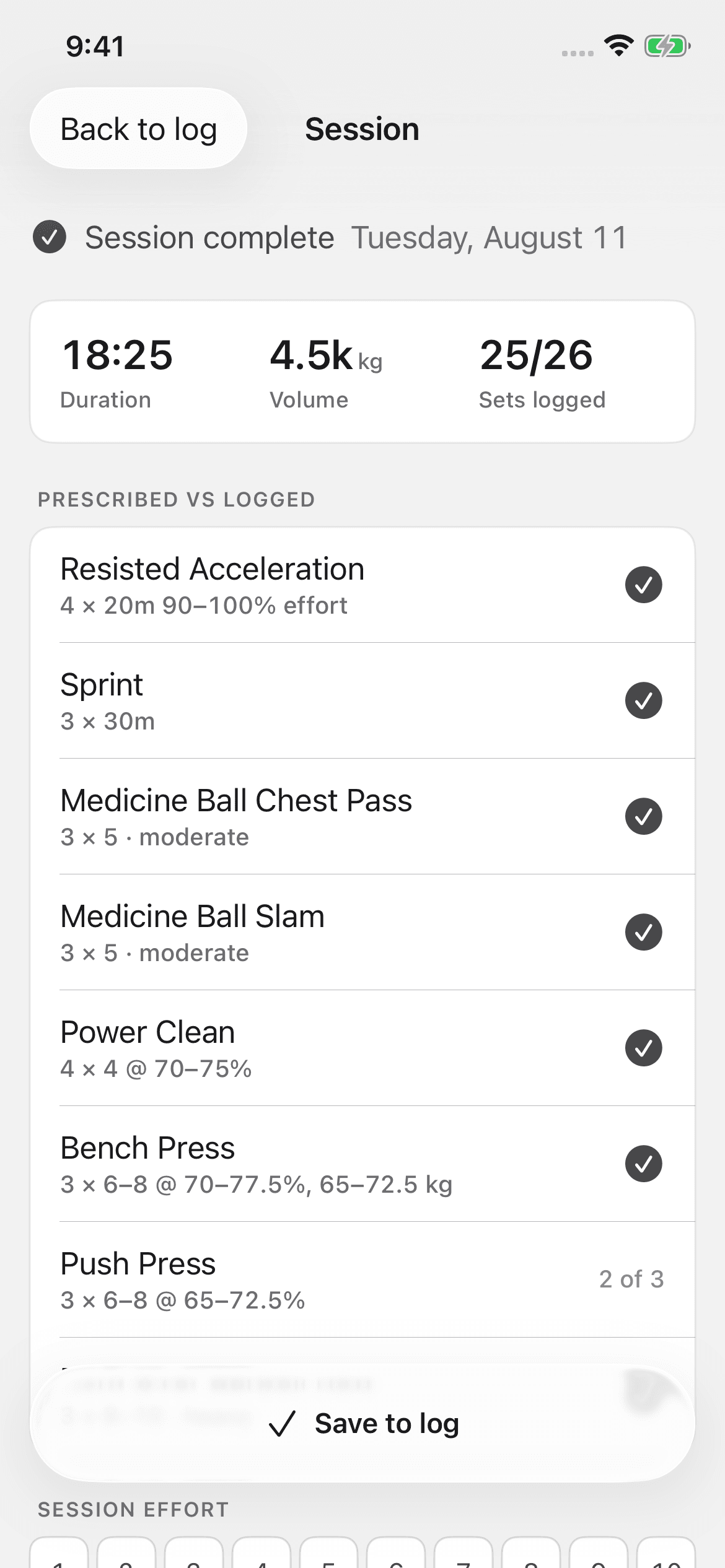
The session summary, after saving.
Set options
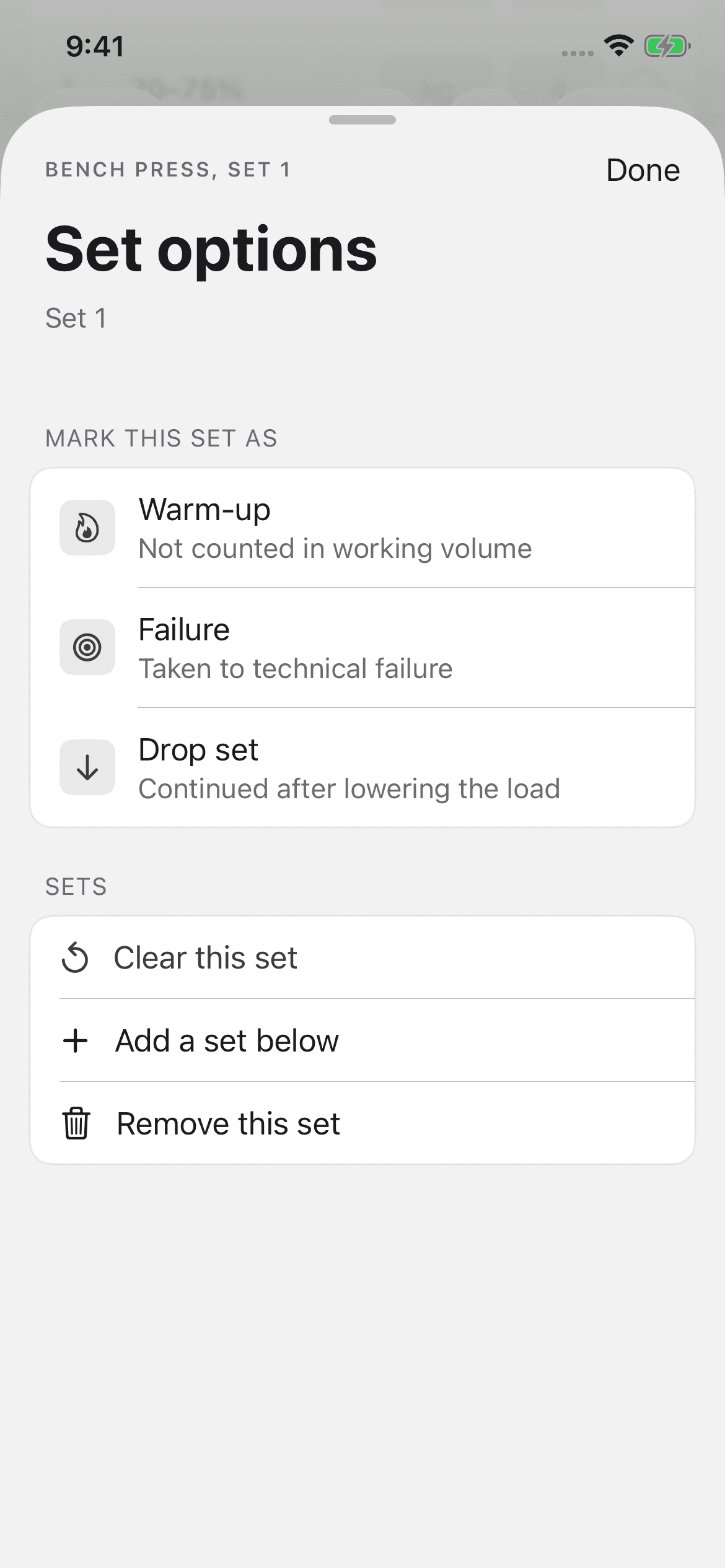
Long-press any set for more than the keypad offers. Mark it as Warm-up, Failure, or Drop set. The same sheet clears the set's values, adds a set below, or removes the set. The coach's plan is the starting point. The log records what happened.
Swapping an exercise
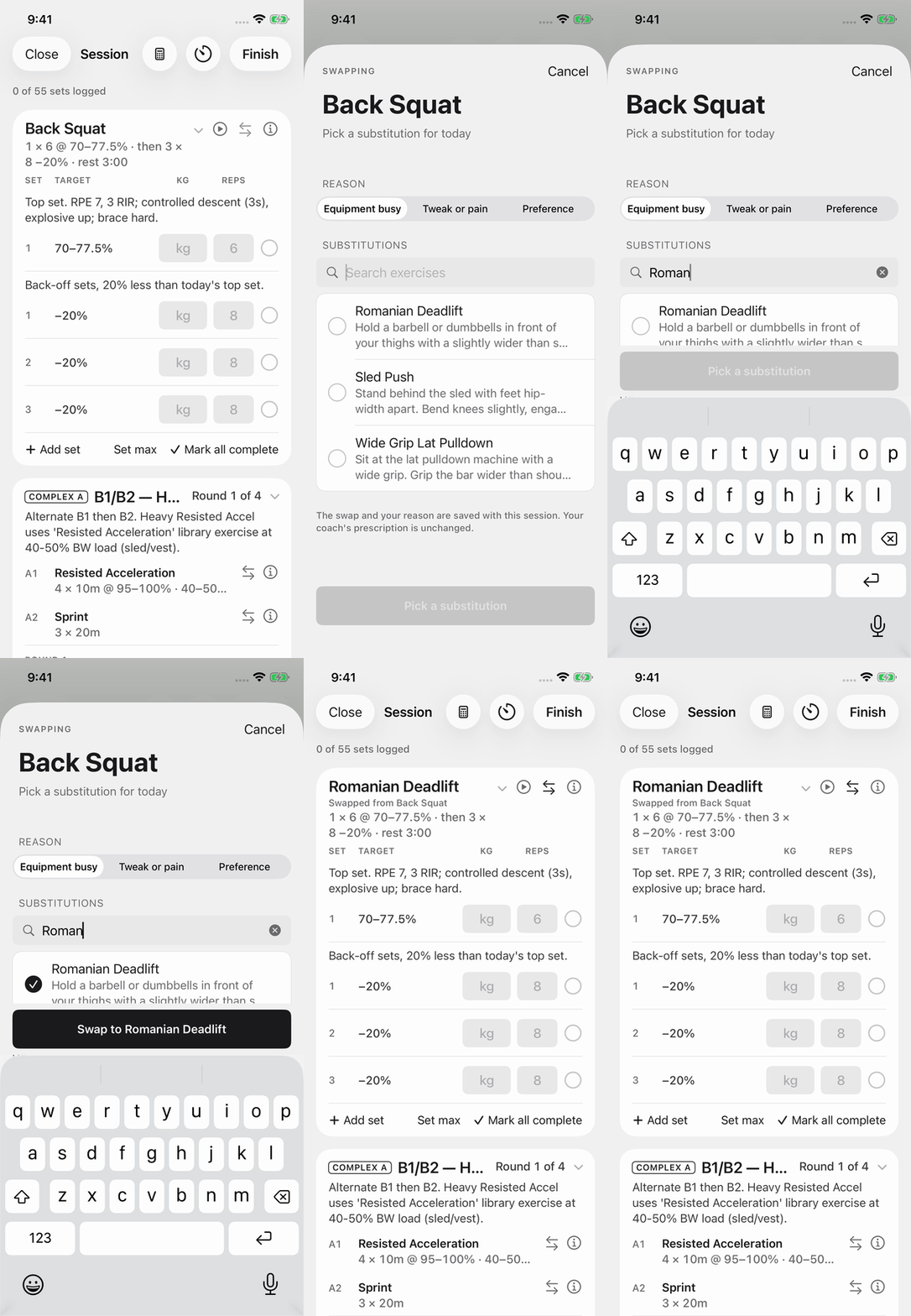
If a rack is taken or a movement doesn't agree with you today, tap ⇄ to swap. Search the substitutes. Select one. Give a reason: Equipment busy, Tweak or pain, or Preference. The app saves the swap and the reason with the session. Your coach sees what really happened. "Prescribed — revert today's swap" puts the original back.
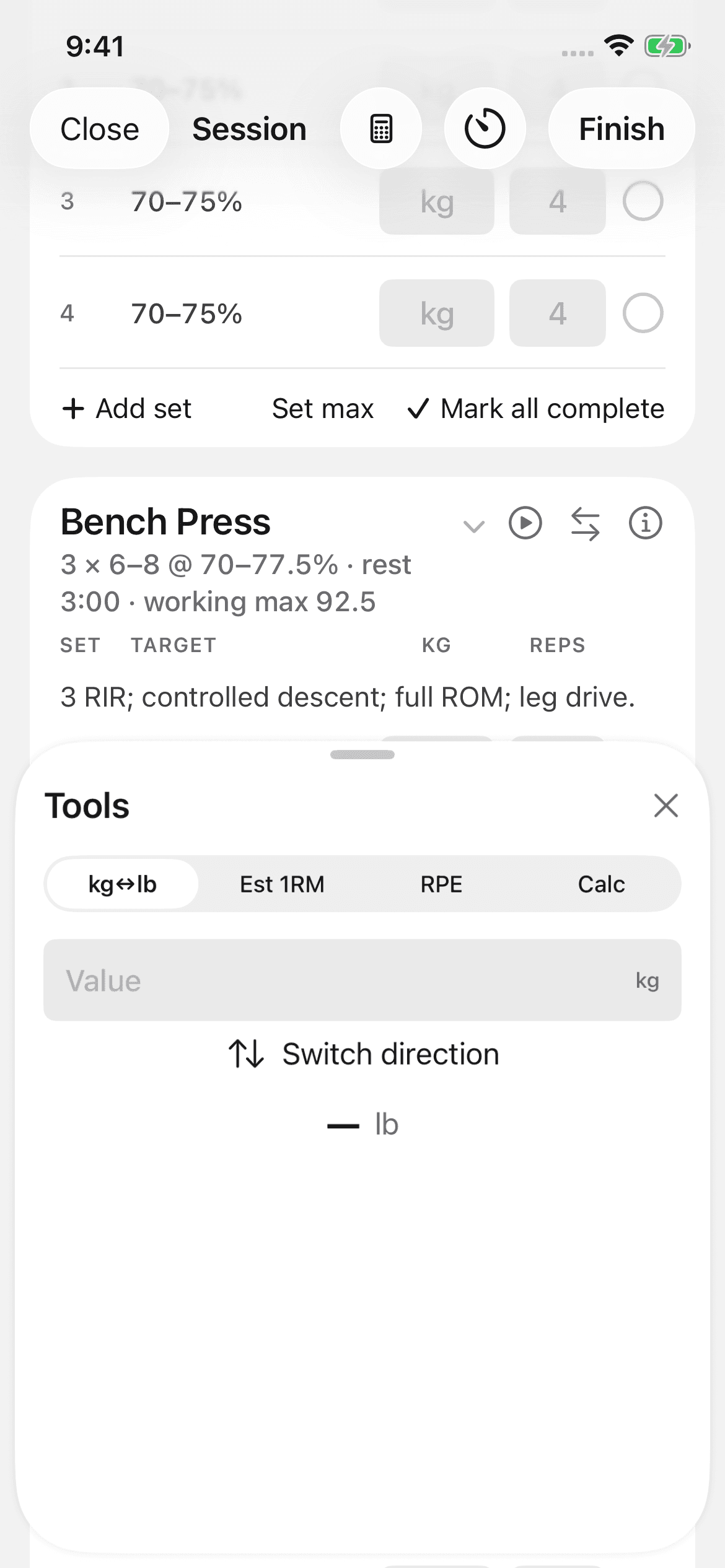
The tools sheet
The tools sheet carries the small math of a session. It holds a kg↔lb converter, an Est 1RM calculator, an RPE ladder, and a plain calculator. RPE translates to reps in reserve. Results insert straight into the field you are editing.
A lift can be prescribed in percentages with no saved max. You can set the max inline, without leaving the session. See Maxes and percentages.
Everything else in the session
- Tap an exercise's info sheet for cues and a demo video.
- Sprint and segment work gets a splits sheet.
- Supersets, circuits, and rounds render as grouped cards. Log the sets in the order the card lists them.
If you didn't finish
A partially-logged session shows Finish as logged on Today. Tap Finish as logged to save what you did. For a session you never got to, tap Mark as missed. Tap Unmark missed if you change your mind. See Managing your programs for what happens to several missed sessions.