Writing schemes
The grid accepts values cell by cell, but the fast way to prescribe is the helper bar. Type a set-and-rep scheme in something close to plain coaching shorthand. The builder parses it into the volume rows for you. Scheme syntax lists every form the bar reads.
The helper bar
With an exercise selected, the helper bar takes natural-language schemes. As you type, a live "reads as" echo shows exactly how the builder interprets what you wrote. Trust the echo, not your assumption. A few examples of what the bar understands:
3x5 @ 75%— three sets of five at 75 percent.- Rep ranges —
4x8-10. - Progression lists — different loading set to set, written out in sequence.
- Per-side reps — for unilateral work.
- Clusters — rest-pause style set structures.
- Back-offs —
then drop 10%after the top sets. - Effort-based loading — RPE and RIR instead of percentages.
- Non-lifting prescriptions — distance, pace, and height for sprint, jump, throw, and distance work.
Press Enter to apply the scheme. The bar writes it onto the row you aimed at. Aim a segment row, and the bar rewrites that row's scheme in place. Aim the exercise row instead, and each clause fills one segment. You can still hand-edit every row afterwards.
Applying a saved protocol
A protocol is a saved scheme in your organization's library. As you type, the helper bar lists the saved protocols that match, above the Create row. Choose a protocol with ↑ and ↓, then press Enter. The protocol's segments land on the aimed exercise, and one Undo reverses them.
Applying a protocol copies its scheme at that moment. Editing the protocol later doesn't change programs that already used it.

Editing cells directly
For one-off tweaks, work the grid itself:
- Click a cell, or press Enter on it, to edit.
- Tab / Shift+Tab walks across cells. Esc cancels an edit. ⌫ clears a cell.
- The Exercise cell opens the exercise picker, which searches your library as you type.
- The Notes cell opens an overlay for coaching cues on that row.
When you're not sure what a column takes
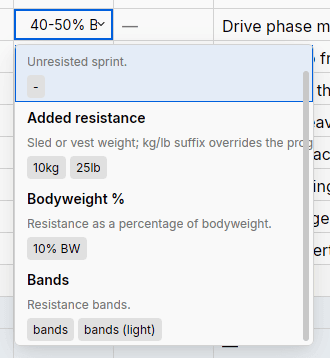
Every column has its own input format. Load takes weights and percentages, and Dist takes distances. If you're unsure what a column accepts, open the hint overlay (the ⌄ on the cell). The overlay shows valid-input examples for that column.