Account
Preferences and the account menu
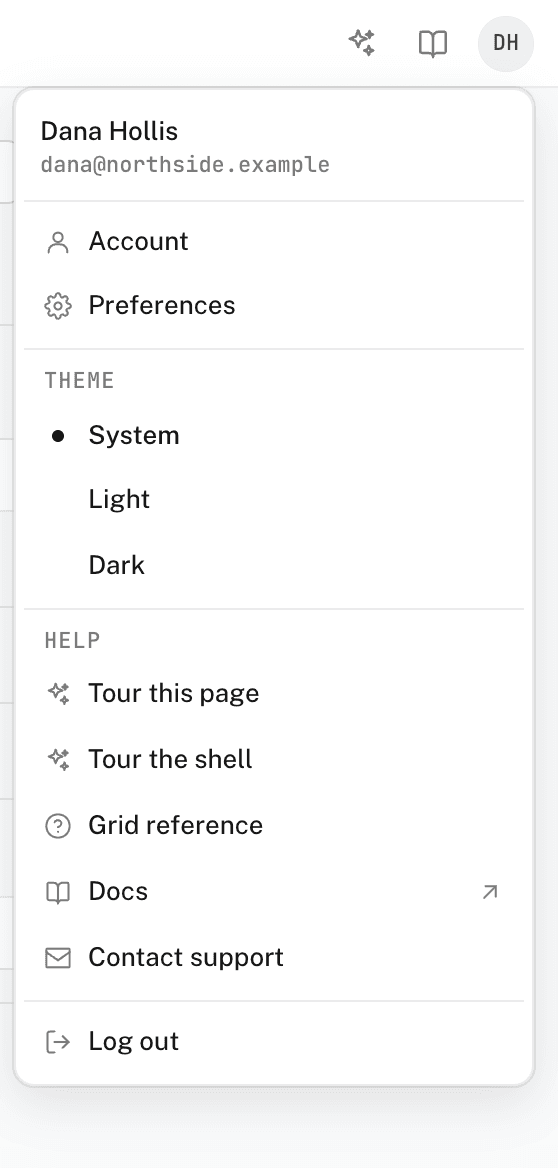
The account menu holds everything about you rather than your organization. Open it from your avatar at the right end of the web dashboard's topbar. Preferences sets how the dashboard looks on this browser, and which emails and notifications you get.
The account menu
The menu shows your name and email at the top, then:
- Account — your name, email, password, and sign-in methods. See Profile and security.
- Preferences — the settings on this page.
- Theme — System, Light, or Dark. The menu stays open, so you can compare them.
- Help — Tour this page (where the page has a tour), Tour the shell, Docs, and Contact support.
- Log out — ends your session on this browser.
Display settings
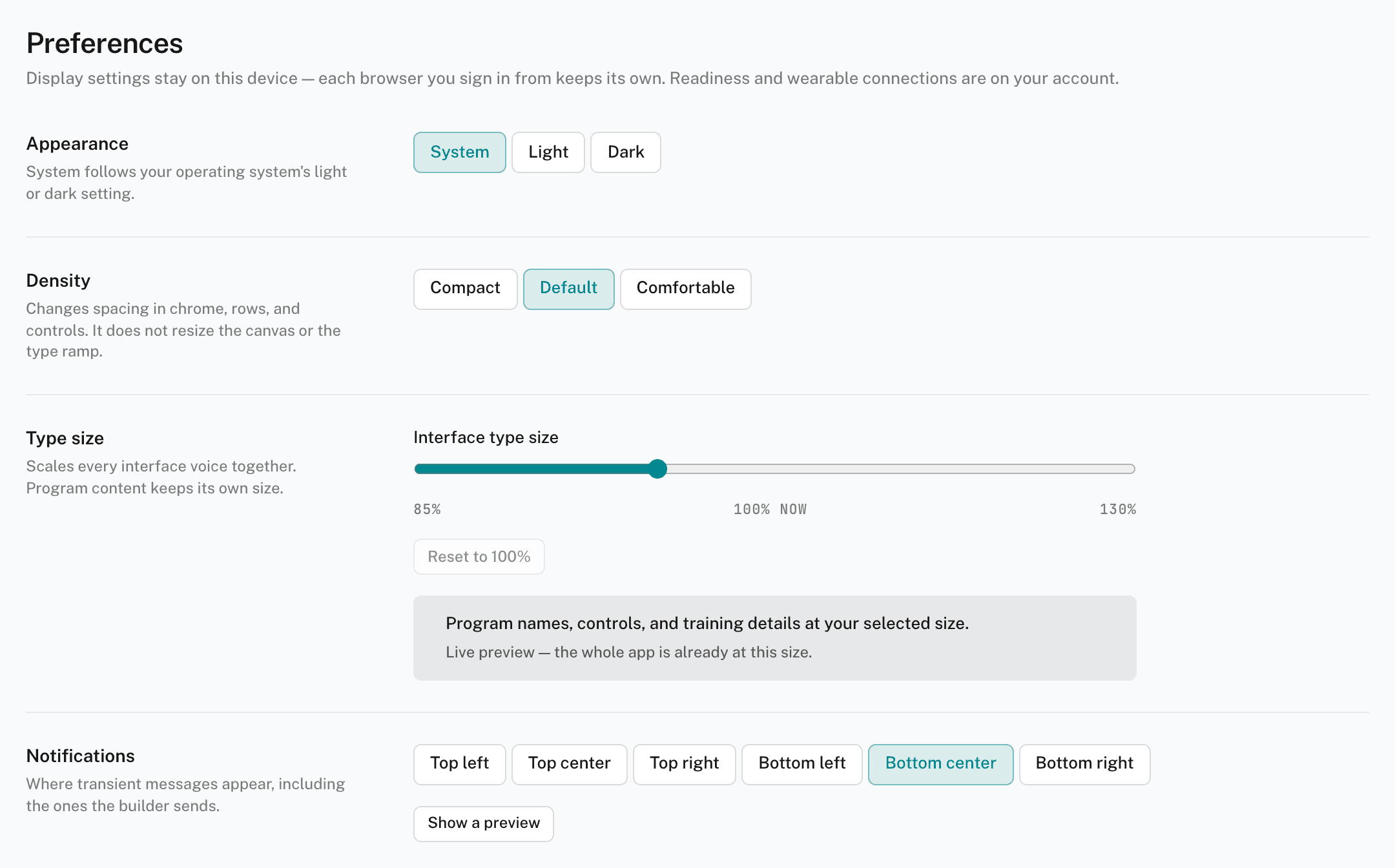
These settings stay on this browser. Each browser you sign in from keeps its own.
- Appearance — System follows your operating system's light or dark setting.
- Density — changes spacing in the sidebar, rows, and controls. It does not resize the builder canvas or the text.
- Type size — scales all interface text together. Program content keeps its own size.
- Notifications — where short messages appear on screen, including the ones the builder sends.
- Builder theme — which theme the builder canvas uses in light and dark appearance.
Settings that follow your account
These settings apply on every browser you sign in from:
- Readiness — where your daily readiness score comes from, and which devices send it. See Wearables and Apple Health.
Coaches and admins also see:
- Readiness digest — a morning email about your athletes.
- Scheduled tasks — whether a scheduled Agent task sends its result by email, by push notification on your phone, or both.
- Invites — an email when an athlete or coach accepts your invite.