Your public storefront page
Your public storefront page is the page buyers land on. It lives at
/c/{handle} and lists everything your organization sells. Search engines
can index it, so you can share it anywhere.
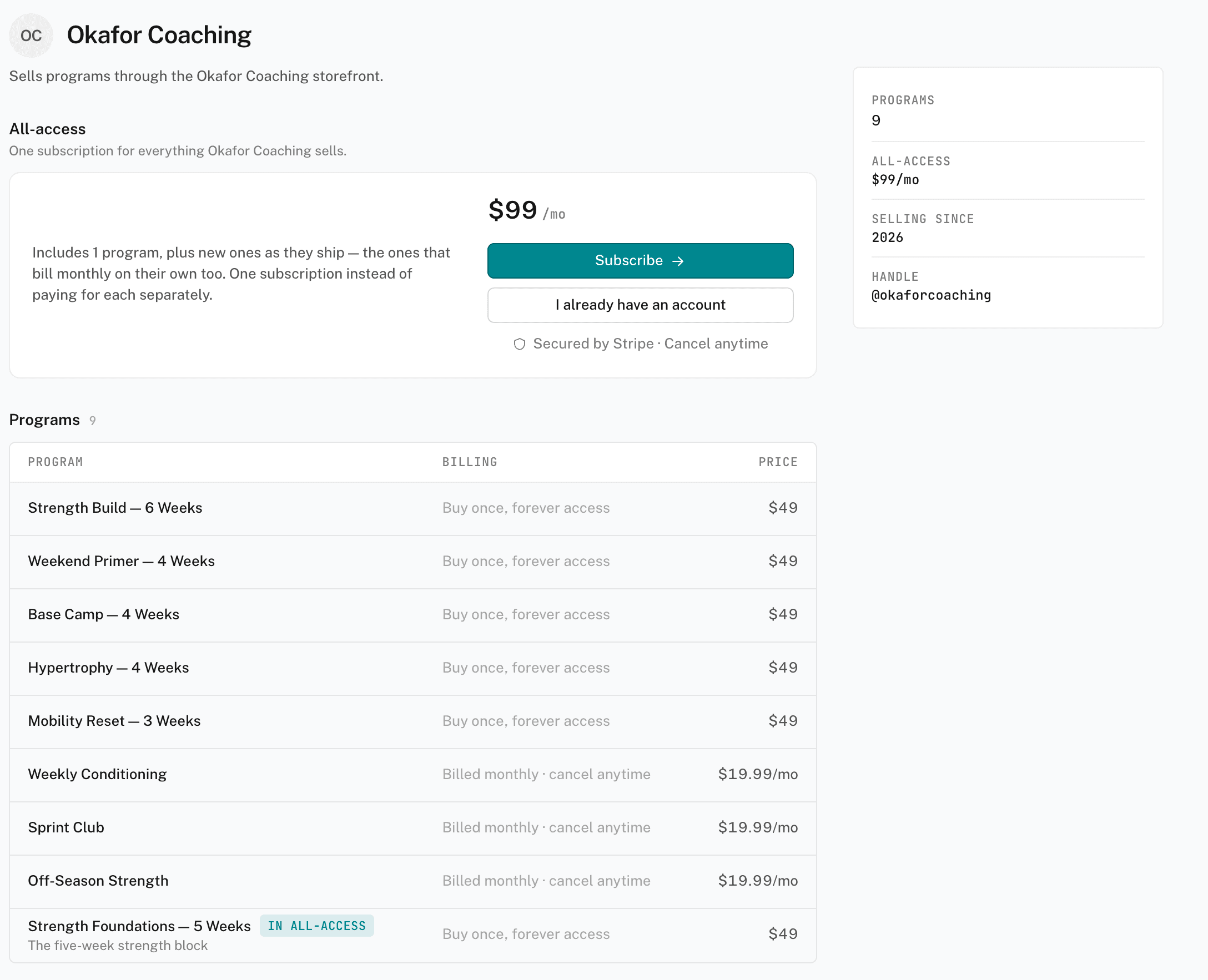
What the page shows
- Header — your banner, photo, page name, and tagline.
- Bio — the bio from your Storefront profile.
- All-access — the price and a Subscribe button. The button reads Start free trial when you offer a trial.
- Programs — each listed program with its Billing and Price. Programs in all-access carry an In all-access pill.
- Links and facts — your social links, focus, location, and the date you started selling.
The Billing column tells the buyer how each program charges:
- Buy once, forever access — a template.
- Billed monthly · cancel anytime — a calendar.
- 7-day free trial · $X/mo — a calendar with a free trial.
Which programs appear
A program appears when three things are true:
- The program is Live.
- Its listing is published.
- The storefront is live.
Featured programs come first, then the newest listings. See listing on the marketplace.
When the page is hidden
Visitors get a "not found" page when any of these is true:
- Listed and accepting purchases is off on your Storefront profile.
- The storefront was disabled by moderation.
Payout setup does not hide the page. Without a connected payout account, the page shows but nobody can buy.
When all-access can't be bought
The Subscribe button appears only when all-access is on, open to new subscribers, and includes at least one program. Otherwise the panel reads Paused, Empty, or Unavailable. Buyers can still buy programs one at a time.
What a buyer does
- Choose a program or all-access
A program row opens its buy page. Subscribe on all-access goes straight to checkout.
- Sign in or create an account
A signed-out buyer signs in first, then returns to the same page.
- Pay with Stripe
Checkout runs on Stripe. After payment, the buyer sees a confirmation page and a link to their account.
A buyer becomes your customer, not a roster athlete. To coach someone, send an invite. See invites vs. program links.