Listing on the marketplace
A listing puts a program on your Storefront page, where buyers can find and buy it. In your web dashboard, open Sell > Storefront > Program listings, and click a program. Only admins can list programs.
Four separate facts
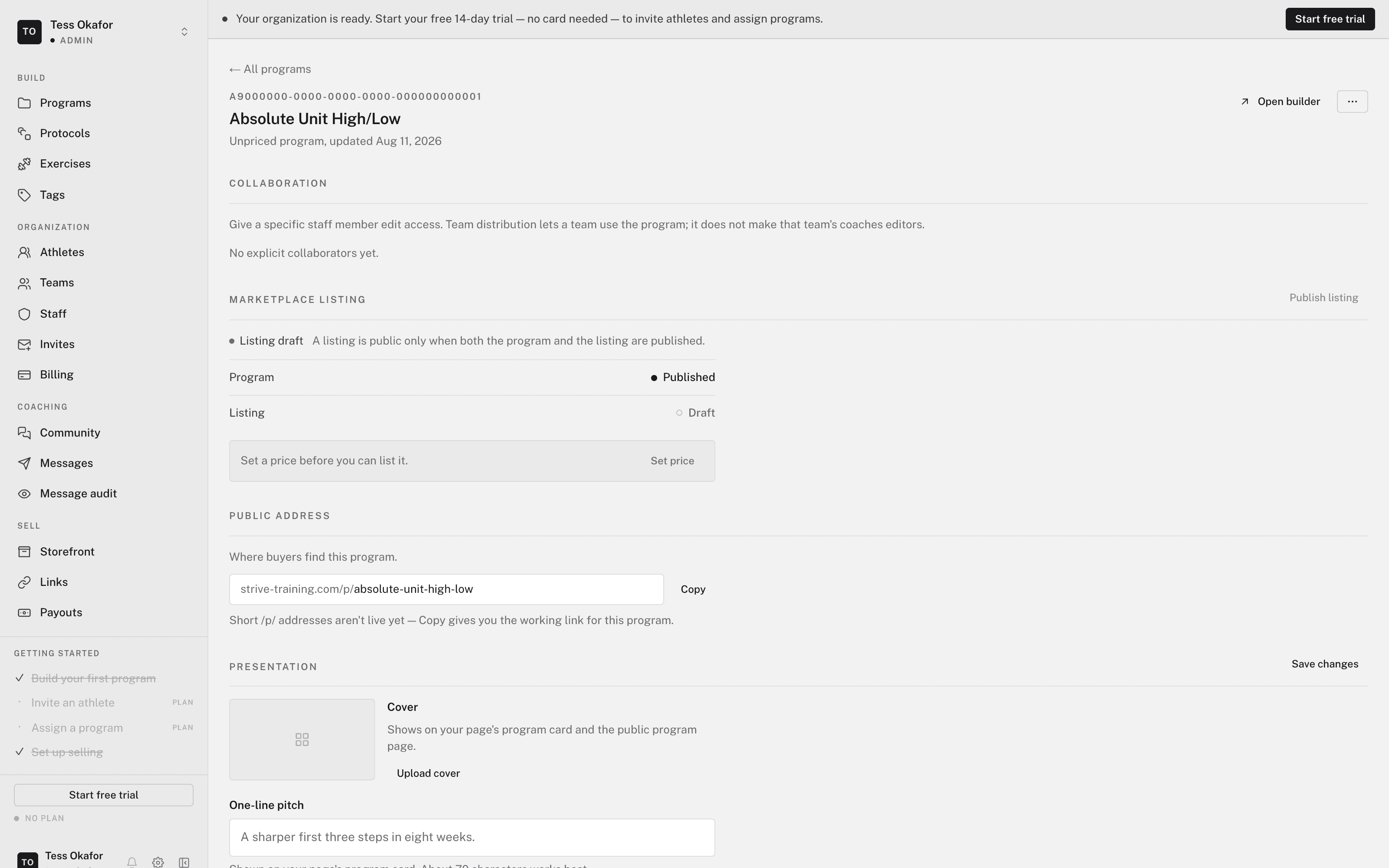
The Marketplace listing section shows four facts. Each answers a different question:
- Training publication — whether the program is Draft or Live.
- Listing — whether you published the listing: Published, Off, or Draft.
- Public page — whether visitors can see the program now.
- Purchases — whether a buyer can pay now. It reads Ready for checkout when everything is in place.
A published listing can still be hidden, or visible but not buyable. Check Public page and Purchases. Don't treat Published as proof that someone can buy.
Publish the listing
- Save the presentation and price
Fill in Presentation and Pricing, and click Save changes. See publishing and pricing a program.
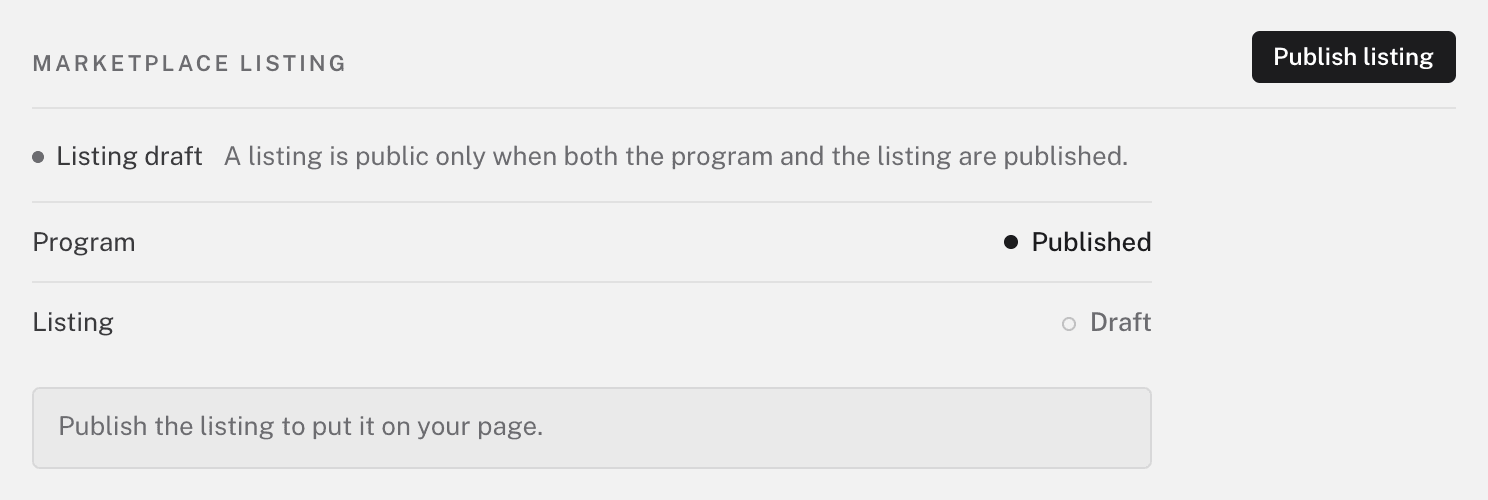
- Click Publish listing
The page asks Publish this listing? Click Confirm publish listing.
- Check the facts
Public page reads Visible to the public, and Purchases reads Ready for checkout.
Publishing a listing doesn't add training to anyone's calendar.
What blocks publishing
When something is missing, the page names it and offers a button:
- Publish the program before you can list it. — click Review training status and make the program live.
- Check selling setup in Storefront. — click Check selling setup. Connect Stripe on your Storefront profile, and check that the storefront is listed. See getting paid.
- Set a price before you can list it. — click Set price.
- Save your presentation and price before publishing the listing. — click Save changes first.
Share the program
When the listing is live, the Public address section shows the Program link. Click Copy link. The link carries your handle, so the sale is credited to your Storefront. View public page opens the program page in a new tab.
All-access
The Included in all-access switch sets whether all-access subscribers get this program. It appears once the listing exists, and it takes effect at once. See all-access.
Taking a listing down
Click Take down to hide the program from buyers. The program itself stays as it is, and athletes who already bought it keep access.