Publishing & pricing a program
Writing a program and selling it are two separate acts. You write in the builder. You price and present it in your web dashboard, under Sell > Storefront > Program listings. A program can train athletes on calendars without ever being listed for sale.
This page covers the program's presentation and price. To publish the listing and check that buyers can reach it, see listing on the marketplace.
Make the program live
Buyers get the program as it is when they buy. Finish the training first. See building your first program.
- Open program settings
In the builder, open the program's settings. The Overview tab shows whether the program is Draft or Live.
- Click Go live
Review the training, then click Go live and confirm. Going live can't be undone.
The checks before going live are basic. They don't prove that every workout is complete or correctly prescribed.
Open the listing
Open Storefront > Program listings. The register lists every program your organization owns, listed or not, with its Listing, Price, and All-access state. Click a program to open its listing.
From program settings, Overview > Manage listing opens the same page. With no Storefront yet, the button reads Create storefront. See setting up your storefront.
Write the presentation
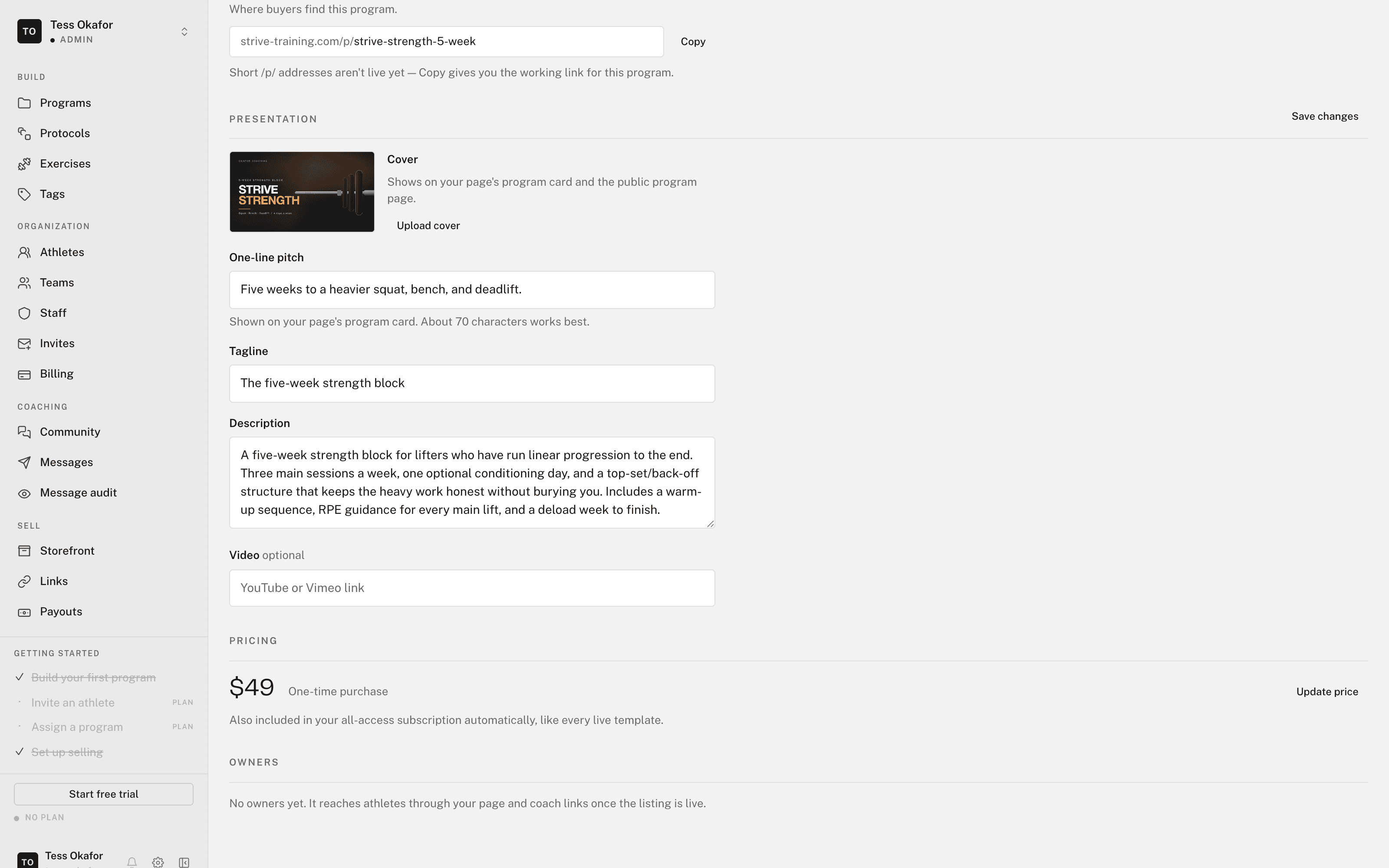
The Presentation section is the sales page a buyer reads before they own the program:
- Cover — click Upload cover.
- One-line pitch and Tagline — the short lines on the program card.
- Description — the full pitch.
- Video — optional.
Write it for someone deciding, not someone already convinced. Click Save changes when you're done.
Set the price
The program's kind decides how buyers pay. You don't choose it here:
- Template — one payment. The field reads Price.
- Calendar — a recurring charge for as long as the athlete stays on it. The field reads Monthly price.
Enter the amount in Pricing and click Save changes. The field is live, and the save bar appears once you change something. See templates and calendars for the difference between the two kinds.
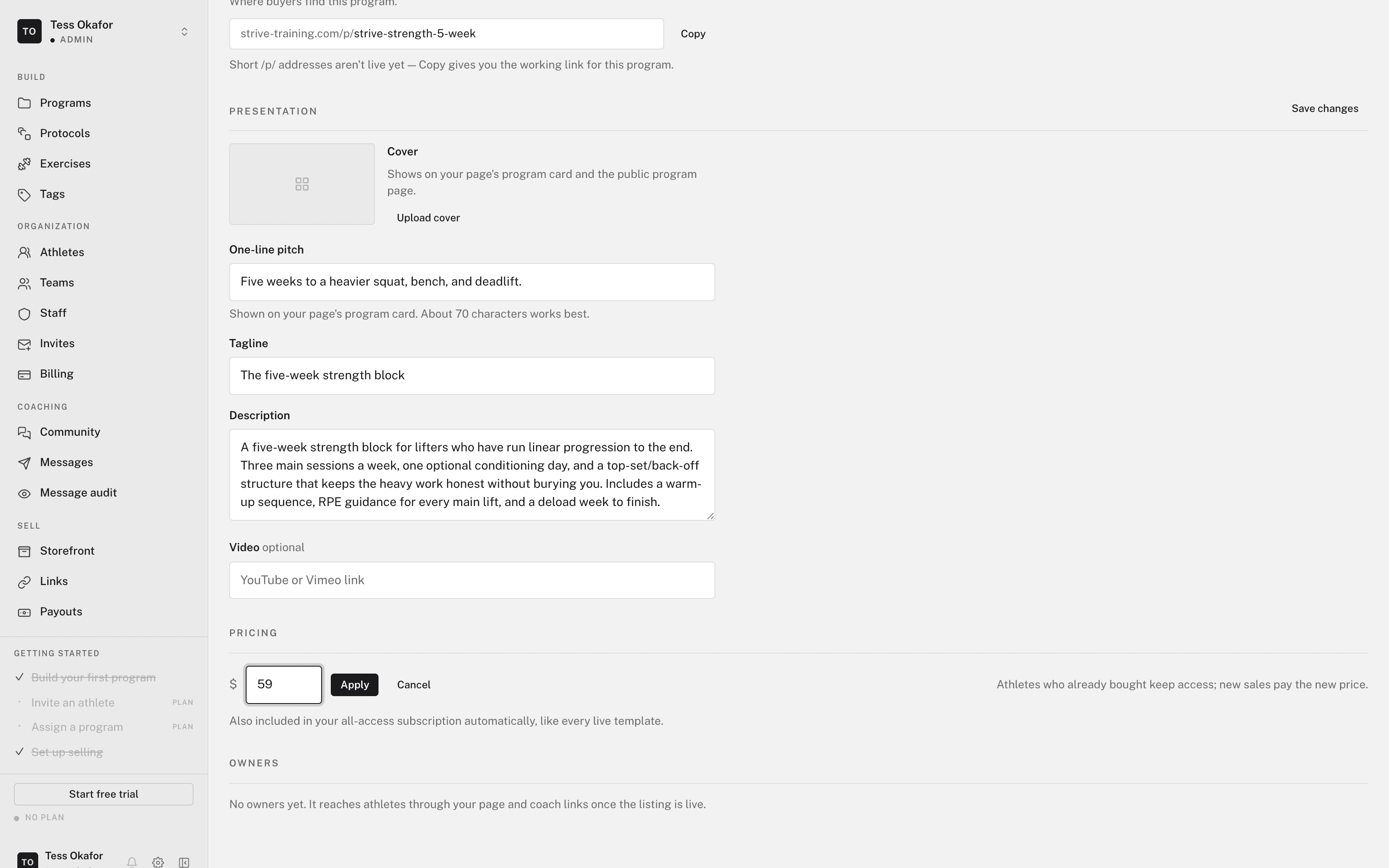
If you change a program's kind after you priced it, the price keeps its old shape until you save it again. The Pricing section says so.
Add a free trial
A Calendar can start with a free trial. A template can't, because it has no recurring charge for a trial to come before.
- Turn the trial on
In Pricing, toggle Free trial on.
- Set the length
Enter a Trial length from 1 to 90 days. The default is 7.
- Save
Click Save changes.
New subscribers give a card at signup, train free for the trial, and pay the monthly price when it ends. They can cancel before then and pay nothing. A trial change applies to new subscribers only.
Buyers see the trial before they commit. The Storefront page and the program page read "7-day free trial, then $49/mo".
Fees
The fee depends on your organization's plan, not on the link a buyer used: 0% on a paid plan, 5% on Free. Stripe's processing fee applies either way. See organization and billing.