Share links & attribution
The link you share decides attribution: which channel gets credit for a sale. It doesn't change your fee. The fee depends on your plan: 0% on a paid plan and 5% on Free, whatever link the buyer used.
The links you can share
- Your Storefront page —
/c/{handle}. It lists everything you sell. See your public storefront page. - A program link — copied from Public address on the program's listing. It opens one program and carries your handle.
- A tracked link — a short link for one channel, such as your Instagram bio or your newsletter. It opens your Storefront page and counts each click.
Make one tracked link per channel. The click counts then show which channel brings buyers to your page.
Make a tracked link
Tracked links are made in the builder desktop app.
- Open the Links pane
In the builder desktop app, open the Links pane for your Storefront. Only admins can use it.
- Click New link
Enter a Label, such as "Instagram bio", and click Create.
- Copy the link
Copy the new link from the pane, or from Links in your web dashboard.
To stop a link, click Deactivate in the Links pane. A stopped link returns "not found".
Reading the numbers
In your web dashboard, open Sell > Storefront > Links. Each row shows the Link, its Share URL, its Status, its Clicks, and its Last click. Copy a link from its Share URL field.
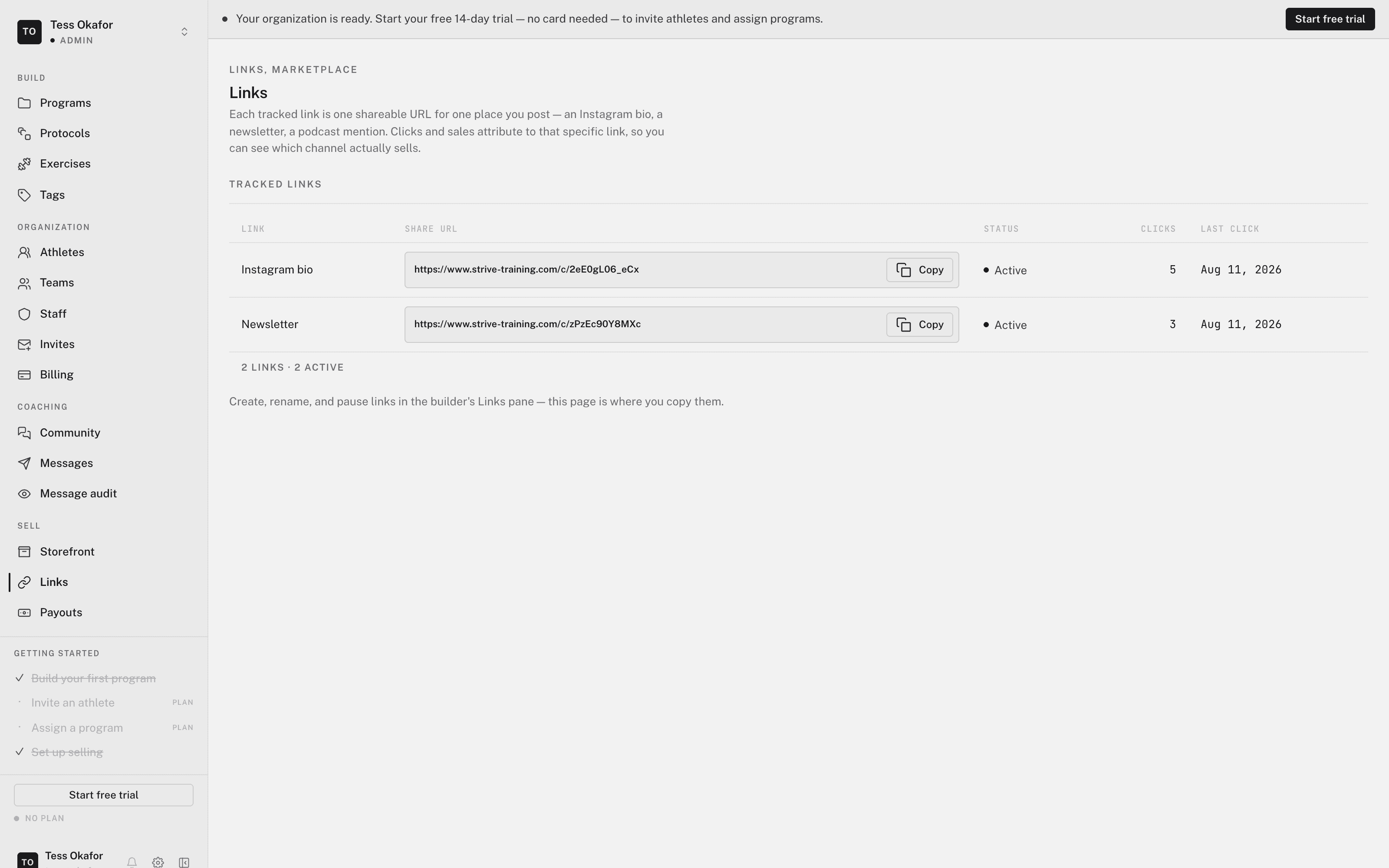
Many clicks and few sales means people reach your page but don't buy. Check the presentation and price in publishing and pricing a program.
A program link sells a program. To put someone on your roster, send an invite instead. See invites vs. program links.