Scheduled tasks
A scheduled task is a prompt the Agent runs for you without a chat open. Run it every morning at 6:00, every Monday, or when an athlete's readiness comes in red. The result arrives by email, and each run is saved as a chat you can open.
A run is unattended, so the Agent can't ask you anything or wait for an approval. It reads by default. It changes programs only if you allow it.
Creating a task
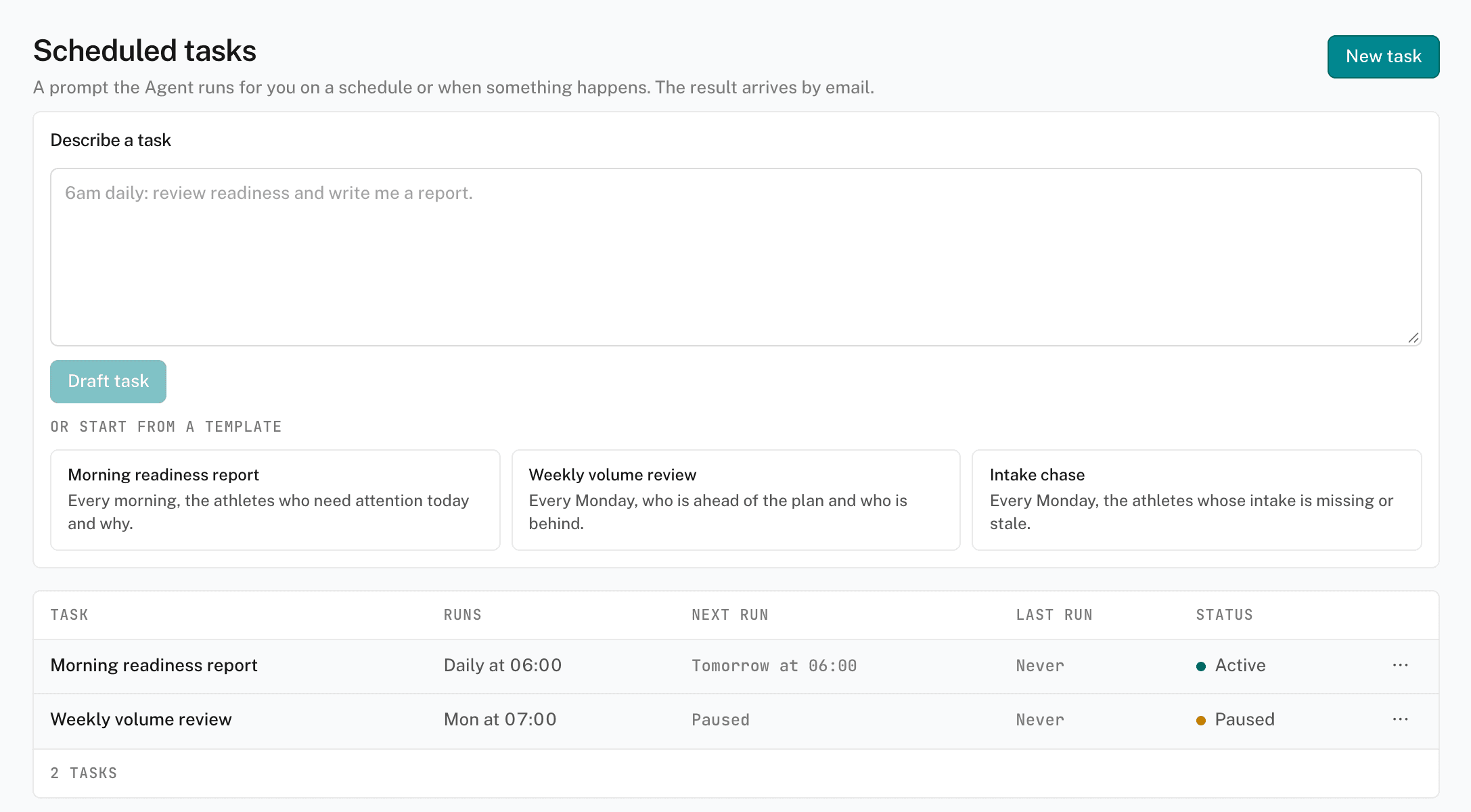
- Open Scheduled
In the sidebar's AGENT group, click Scheduled.
- Describe the task, or start from a template
In Describe a task, write what you want in one sentence, such as "6am daily: review readiness and write me a report". Click Draft task, and the Agent fills the form for you. Or choose a template: Morning readiness report, Weekly volume review, or Intake chase. To start from a blank form, click New task.
- Check the task
Check the Title. It becomes the subject line of the result email. Check the Instruction: the prompt the Agent runs.
- Choose when it runs
Under Runs, choose On a schedule or When something happens. See when a task runs.
- Choose what it works on
Team narrows the task to one team's roster. Leave it on The whole organization to cover everyone. Turn on Allow this task to change programs only if the task needs to write.
- Create it
Click Create task. The task appears in the list.
When a task runs
On a schedule — choose Every day, Weekdays, or Chosen days, and a Time. The task keeps the time zone it was saved with.
When something happens — choose an Event:
- Readiness comes in red — an athlete's readiness score is under the Score under value. It runs at most once per athlete per day.
- Intake form completed — an athlete submits an intake form.
- Session logged — an athlete logs a session.
- Sessions missed — an athlete misses the In a row number of planned sessions. The check runs once a day at Check at.
An event task can watch every athlete, or one athlete.
What a task can change
With Allow this task to change programs off, the task reads programs, athletes, and readiness, and changes nothing. With it on, the task can edit program lenses, apply readiness proposals, add athlete notes, and change calendar events. A task never deletes anything.
Managing a task
Click a task in the list to open its page:
- Active — the switch pauses or resumes the task.
- Run now — queues a run of a scheduled task straight away.
- Runs — the last 30 days of runs. Click a run to open its chat. Mark a run Good run or Bad run.
- Edit and Delete — in the ⋯ menu.
The list shows each task's Next run, Last run, and Status. A task that stopped on its own shows why at the top of the list.
Result emails and push
Open the account menu, choose Preferences, and find Scheduled tasks:
- Scheduled task emails — the result of each run, as an email.
- Scheduled task push — the same result as a push notification on your phone.