The Check-in tab
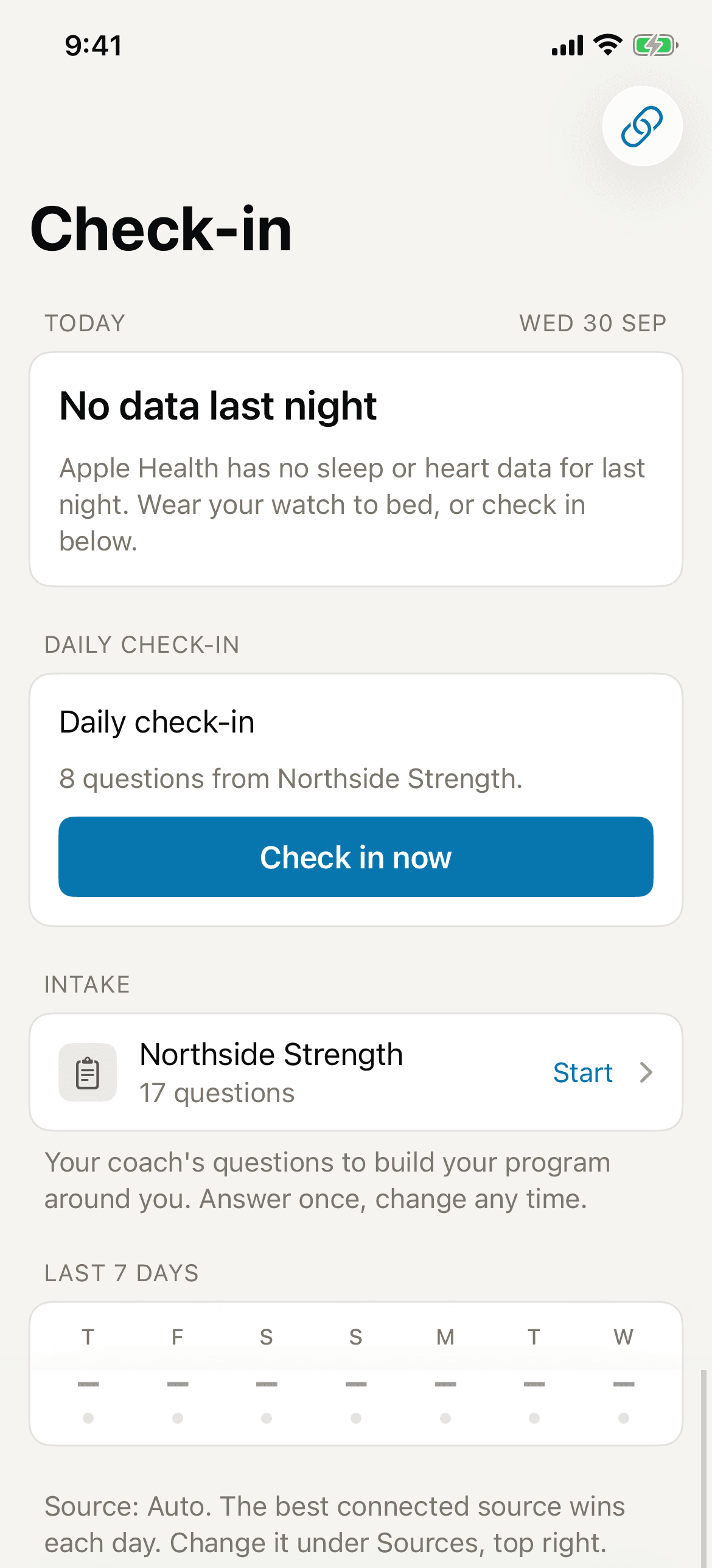
The Check-in tab in the mobile app tells your coach how ready you are to train today. It holds three things: your readiness score, the daily check-in, and any intake form your coach wrote. Coaches see your score and use it to adjust your training.
What's on the tab
From top to bottom:
- Today — your readiness score for the day, its band, and the source that scored it. The bands are Ready, Moderate, and Low.
- The breakdown — when Apple Health scored the day, each input with your own baseline beside it.
- Daily check-in — your coach's questions for today, or your answers once you are done.
- Intake — one row for each organization that sent you an intake form.
- Last 7 days — your score for each of the past seven days.
Sources, at the top right, opens the list of connected sources and your readiness source. See Wearables and Apple Health.
Where the score comes from
Your score comes from one source each day. The Readiness source setting chooses it:
- Auto — the best connected source that has a score for the day. This is the default.
- Apple Health — scored on your phone from overnight sleep and heart data. It needs a week of nights before it can score, so the tab shows Building a baseline until then.
- Self-report — scored from your daily check-in answers.
If no source has a score yet, the tab shows No score yet and a hint for the next step.
Checking in
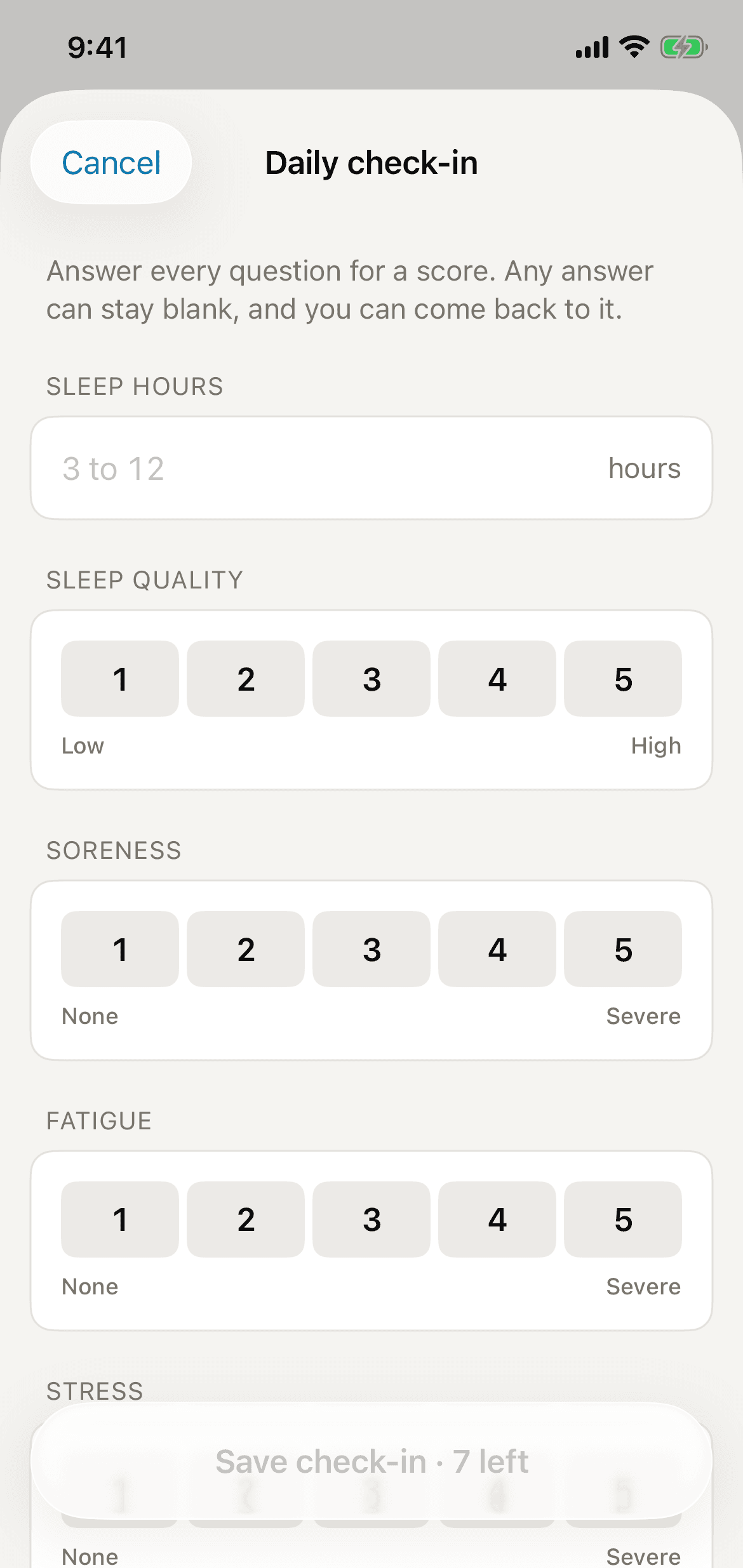
The Daily check-in section appears when your coach uses one. Your coach chooses the questions.
- Open the check-in
On the Check-in tab, tap Check in now. If you train with more than one organization, choose the organization first.
- Answer the questions
Answer every question to get a score. You can leave an answer blank and come back to it later.
- Save
Tap Save check-in. The section then reads Checked in, with your score. Tap Edit answers to change them the same day.
Some coaches ask for a check-in before each session. The section says so under the form's name.
Answering an intake form
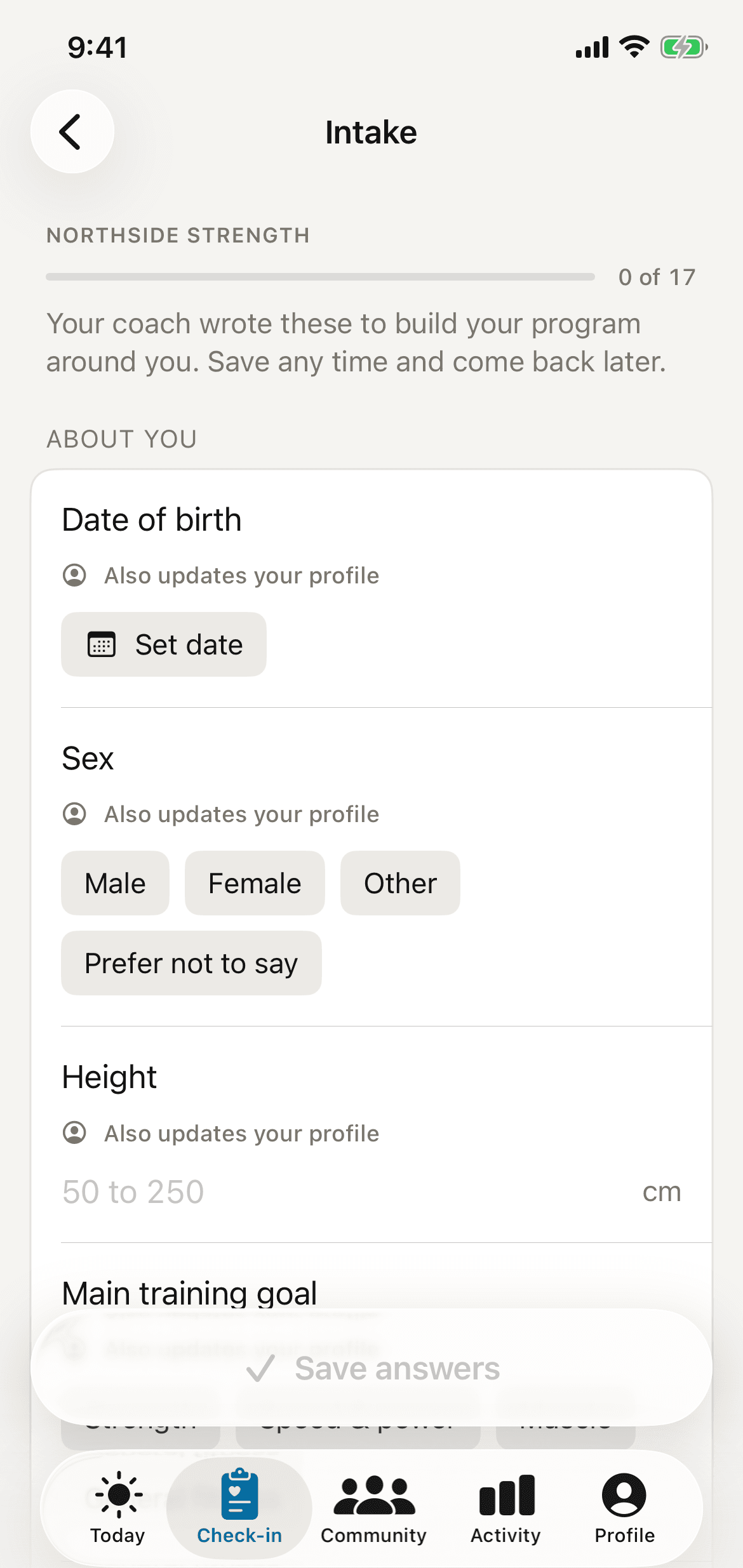
An intake form is a one-time set of questions your coach wrote to build your program around you. It waits in the Intake section until you finish it.
- Open the form
In Intake, tap your organization's row. The row shows how many questions are left, and how many of them are required.
- Answer and save
Answer the questions. Tap Save answers at any time, and come back later to finish.
- Sign, if the form asks
Some forms end with a signature. Type your full name and tap Sign. The app records the date and time.
Answers marked Profile also update your profile, so the app does not ask for them twice. Medical answers go to that organization only. You can change a saved answer, but you cannot remove it.
When your coach asks you to confirm old answers, the row reads Re-check. Open it, then tap Still true or change the answer.