Adding or joining a workspace
One account can hold several workspaces. Each workspace is a membership in one organization. You add a workspace by creating an organization, or by accepting an invite to someone else's. Both start from the workspace switcher at the left of the web dashboard's topbar.
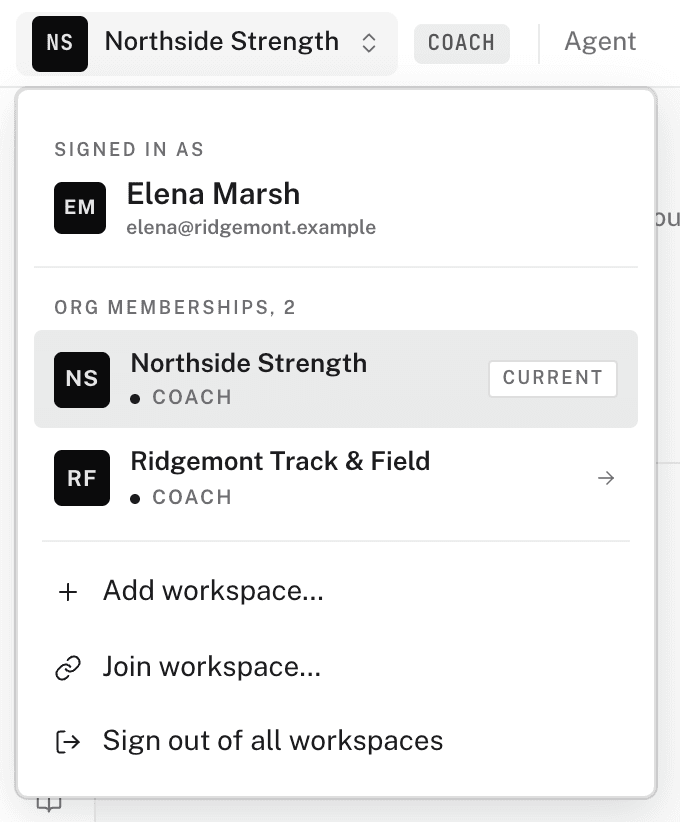
Creating another organization
- Open Add workspace
Open the workspace switcher. Click Add workspace….
- Name the organization
Enter the Organization name. Click Create organization.
You are the new organization's admin, and it starts on the Free plan with no card. The dashboard switches you into it.
Joining with an invite
An invite link from an email opens the invite page directly. If you have only a code, or the link from another device, use Join workspace…:
- Open Join workspace
Open the workspace switcher. Click Join workspace….
- Paste the invite
Paste the invite link or the code into Invite link or code. Team, coach, and organization invites all work. Click Join.
- Accept the invite
The invite page opens. Click Accept invitation.
An invite works only for the email it was sent to. If you are signed in with a different email, sign out and sign in with that address. The new membership joins your existing account. It never creates a second one.
In the mobile app, Profile > Redeem invite accepts an organization invite code.
Switching workspaces
Pick any workspace in the switcher to move into it. The sidebar changes to match your role there. Sign out of all workspaces, at the bottom of the switcher, ends your session on this browser.