The program editor
This is the reference for the editor's structure tools. If this is your first program, start with Building your first program. That guide covers the shape of a program. This page covers everything you can do to that shape.
The hierarchy
A program is a strict hierarchy: Program → Week → Day → Session → Exercise. An optional Group layer sits between session and exercise for supersets and circuits. Each exercise carries its volume rows: the sets, reps, load, and the other grid columns. See Writing schemes to fill those in.
Weeks and blocks
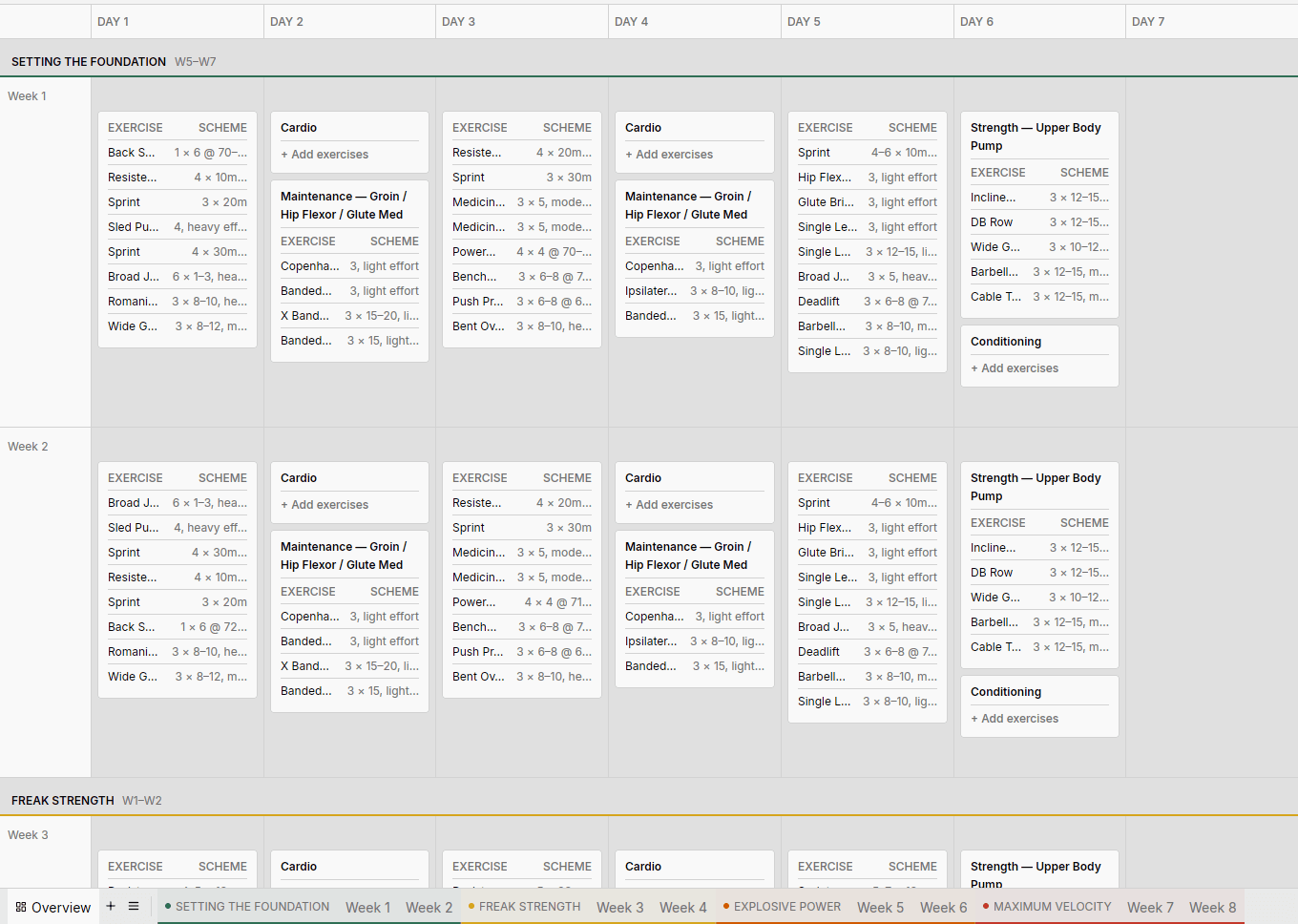
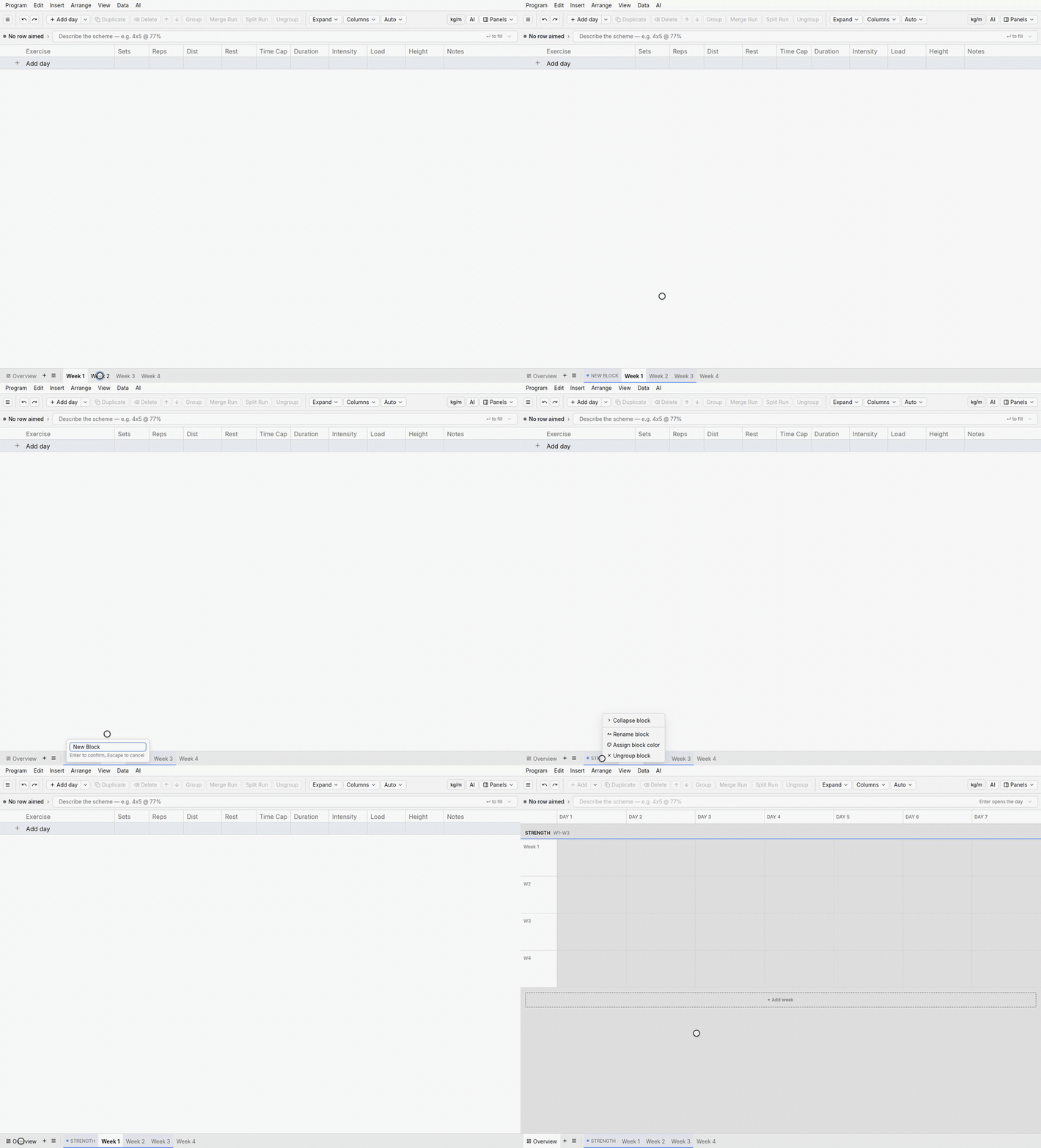
Weeks live in the tab strip along the bottom of the editor, next to Overview. The [+] at the end of the strip adds a week, up to 52. Each week tab offers Duplicate, Delete, Rename, and reordering.
A block is a named, colored span of adjacent weeks, such as an accumulation phase or a taper. To mark out a phase:
- Cmd+Click each week tab you want.
- Right-click the selection.
- Choose Create block from N weeks.
The block appears at once, with no dialog. Type its name inline. Then choose a color from the swatch picker. You can rename, recolor, and collapse a block later. Blocks can't overlap. The weeks in a block must be adjacent.

Days, sessions, and exercises
Inside a week, build the structure in order:
- Add day adds a day to the week.
- Add Session adds a session inside a day.
- Add Exercise adds an exercise row — above or below an existing row, or straight into a group.
To turn exercises into a superset or circuit, select the rows. Press Cmd+G. Then choose the group type: Superset, Circuit, Complex, or Giant Set. The group wraps the rows. Athletes see the group as one unit in the app.
To rename a day or a session, double-click its name on the Overview. A calendar day keeps its date as its label, and the name shows beside the date. See the Overview.
Duplicating and rearranging
Most programming is repetition with variation, so every level of the hierarchy supports the same moves:
- Duplicate (Cmd+D) — weeks, days, sessions, groups, exercises.
- Delete — at every level, with a confirmation before anything meaningful disappears.
- Move selected row up / down (Alt+↑ / Alt+↓) — or drag to reorder. On the Overview, drag an exercise row into another session, between any two of its rows.
- Copy and paste — individual rows, or whole days. Days paste across weeks. For example, copy three days from week 1 into week 4 ("Copied 3 days"). On the Overview, Cmd+Click selects several single days. Copy, Paste, and Delete / Clear then act on all of them. Cmd+Click on a session card picks single sessions, and their copy keeps each session on its program day.
Undo is app-wide (Cmd+Z), so a bad restructure is one keystroke from undone.
Controlling the view
Long programs get dense. The view controls keep them readable:
- Expand / Collapse all, and per-level collapse — fold weeks or days you're not working in.
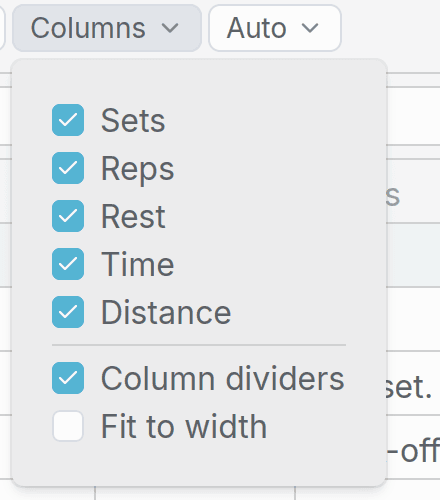
- Columns menu — toggle the Sets, Reps, Rest, Time, and Distance columns. It also holds Column dividers and Fit to width.
- Discipline filter — Auto, Lift, Sprint, Jump, or Throw. The filter decides which prescription columns show, such as Intensity, Load, Height, and Target. Auto shows the columns the program's exercises use.
The program's units (metric or imperial) are set in Program info & settings > Details > Units, not in the editor.
Calendars: the dated rail
A calendar adds a dated rail (see Templates and calendars). The rail has a Today button. Click or shift-click a date to anchor it. The templates and calendars page covers the rest of the calendar surface.