Getting set up
The first run in the mobile app takes a few minutes. You sign in, set how you like to train, and land on Today. Every answer is optional, and you can change all of them later in Profile.
- Sign in with your account
Use the email you signed up with, or the email your invite went to. Your programs, purchases, and history belong to your account, not your device. On a new phone, sign in again.
- Set your training preferences
The app asks How do you like to train? and offers four settings:
- Weight and distance — metric or imperial units.
- Training days — the days you can train.
- Week starts on — the first day of your week on Today.
- Rest timer — whether a rest timer starts after each logged set.
- Enter your body details, or skip them
The next screen asks for sex, date of birth, height, and bodyweight. These details are private to you and set your starting loads.
If a coach invited you
An invite or a coach's program link changes the first run. The app asks for a short profile instead of the training preferences:
- Set up your profile — your name and body details. Your coach uses them to scale your training.
- Your current lifts — an estimated one-rep max for your main lifts. Leave any lift blank. Your coach can test maxes in week one.
- Your days — if the link carried a program, the app asks when it starts. See Managing your programs.
Your coach may also send an intake form. It waits on the Check-in tab until you finish it. See The Check-in tab.
Finding your way around
The app has five tabs: Today, Check-in, Community, Activity, and Profile.
- Today — the day's training across everything on your calendar, with a week strip to look around. The message bubble in the header opens Messages.
- Check-in — your daily readiness score, the daily check-in, and any intake form from your coach.
- Community — your coach's community, if you belong to one.
- Activity — every logged session, plus the widgets that chart your progress.
- Profile — your programs, maxes, preferences, connected devices, and account.
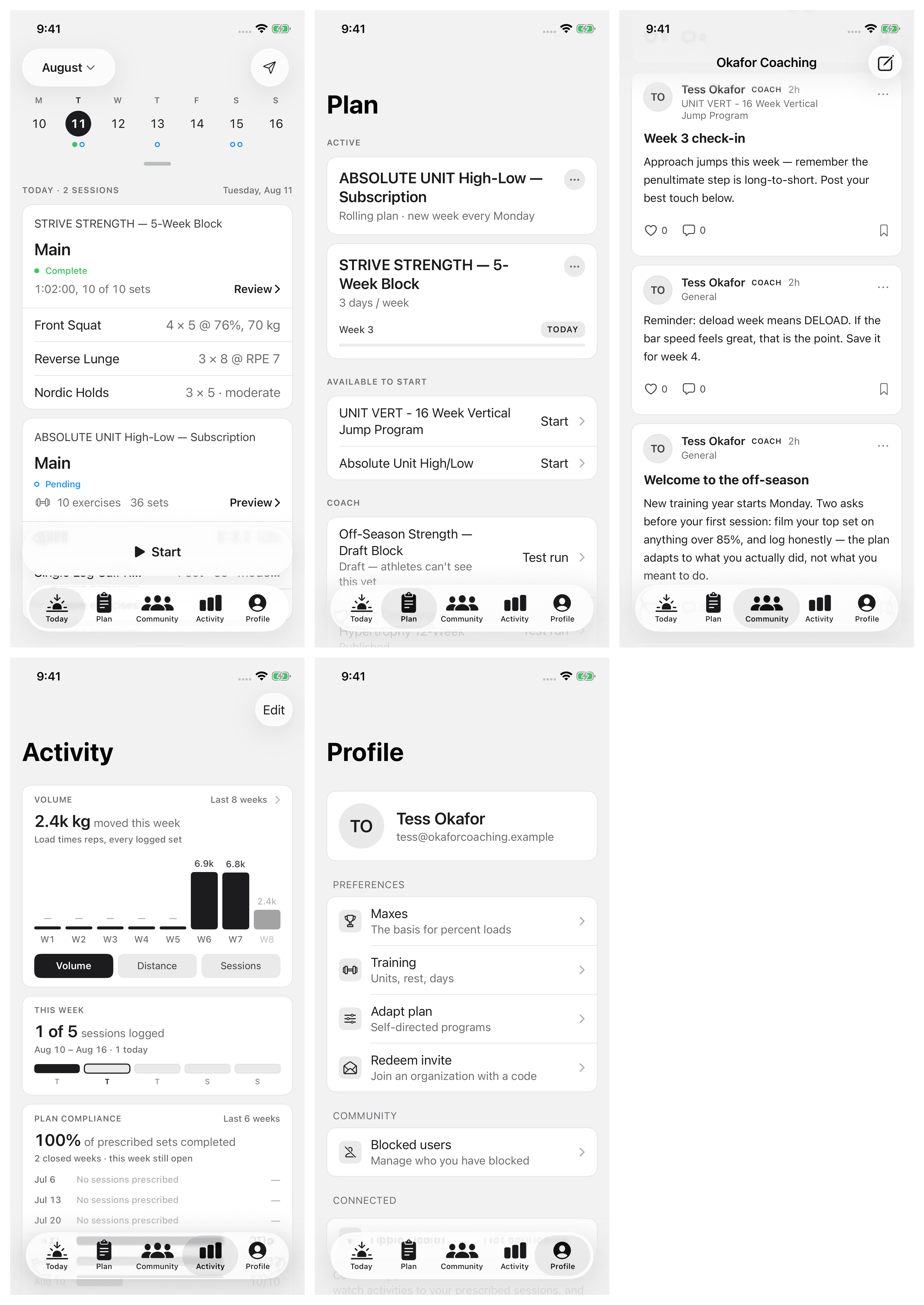
Your programs are in Profile > Programs. See Managing your programs.
Training preferences
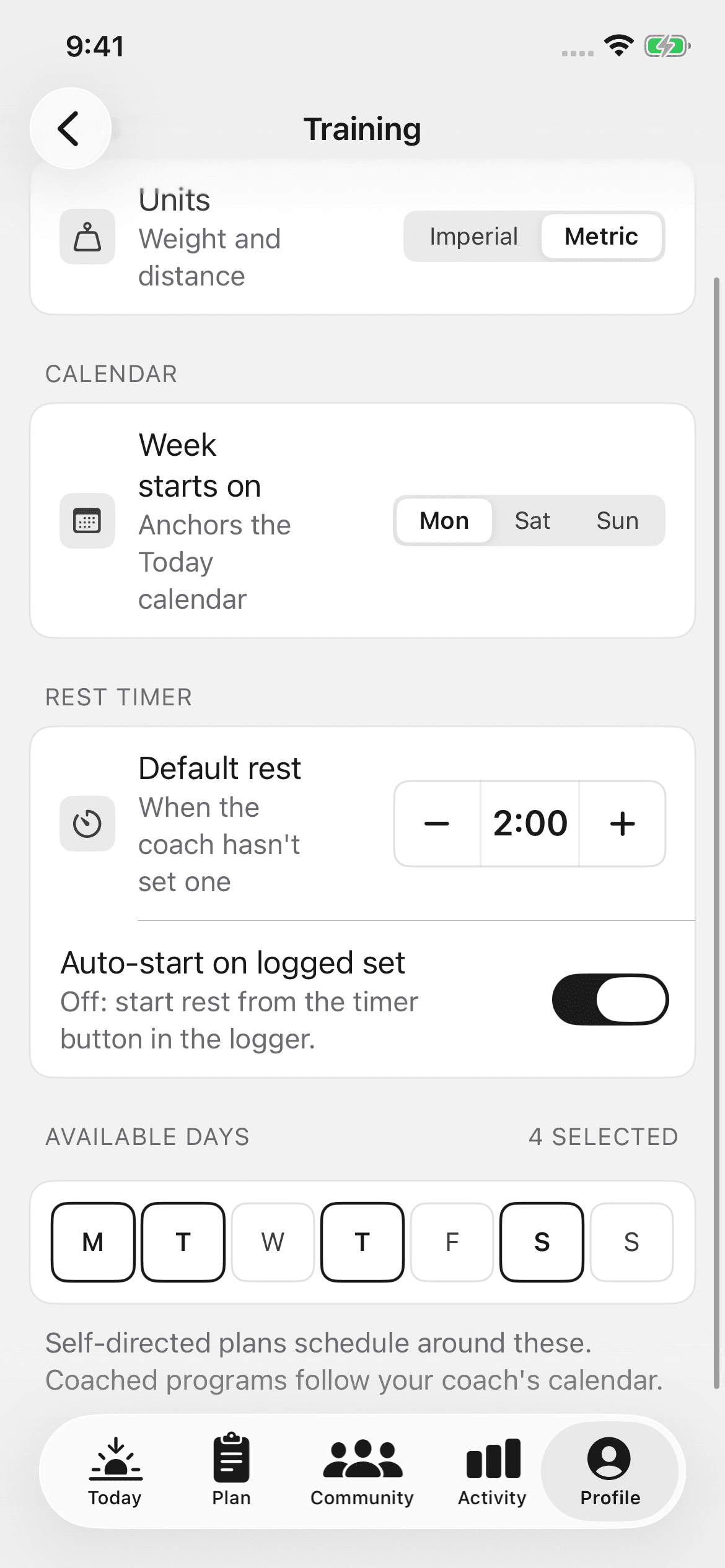
Profile > Training holds the settings the rest of the app uses:
- Units — metric or imperial, for weight and distance.
- Week starts on — the first day of the week on Today.
- Available days — the days you can train. Programs you start yourself schedule around them. Programs from your coach follow your coach's calendar.
- Default rest and Auto-start on logged set — how the rest timer behaves while you log.
- Collapse finished exercises — folds an exercise away in the logger when you complete it.
Where to go next
- Logging a workout — the core loop.
- Maxes and percentages — why a saved max changes the loads you see.
- Wearables and Apple Health — connect your watch data.
- Finding and buying programs — if you have no program yet.