Organization quickstart
By the end of this you have an organization with staff and athletes invited, and one team with a program on its calendar. Budget about fifteen minutes. Athletes accept on their own schedule after that.
You need an account first. Signing up is free and takes a minute. See creating your account.
- Name your organization
Signup ends on one field. The organization holds your programs, your roster, your staff, and anything you sell. You are its admin. Enter the name your athletes would recognize. Click Continue. You can change the name later in Settings, at the end of the ORGANIZATION group.
The organization starts on the Free plan. There is no card, no trial, and nothing to expire.
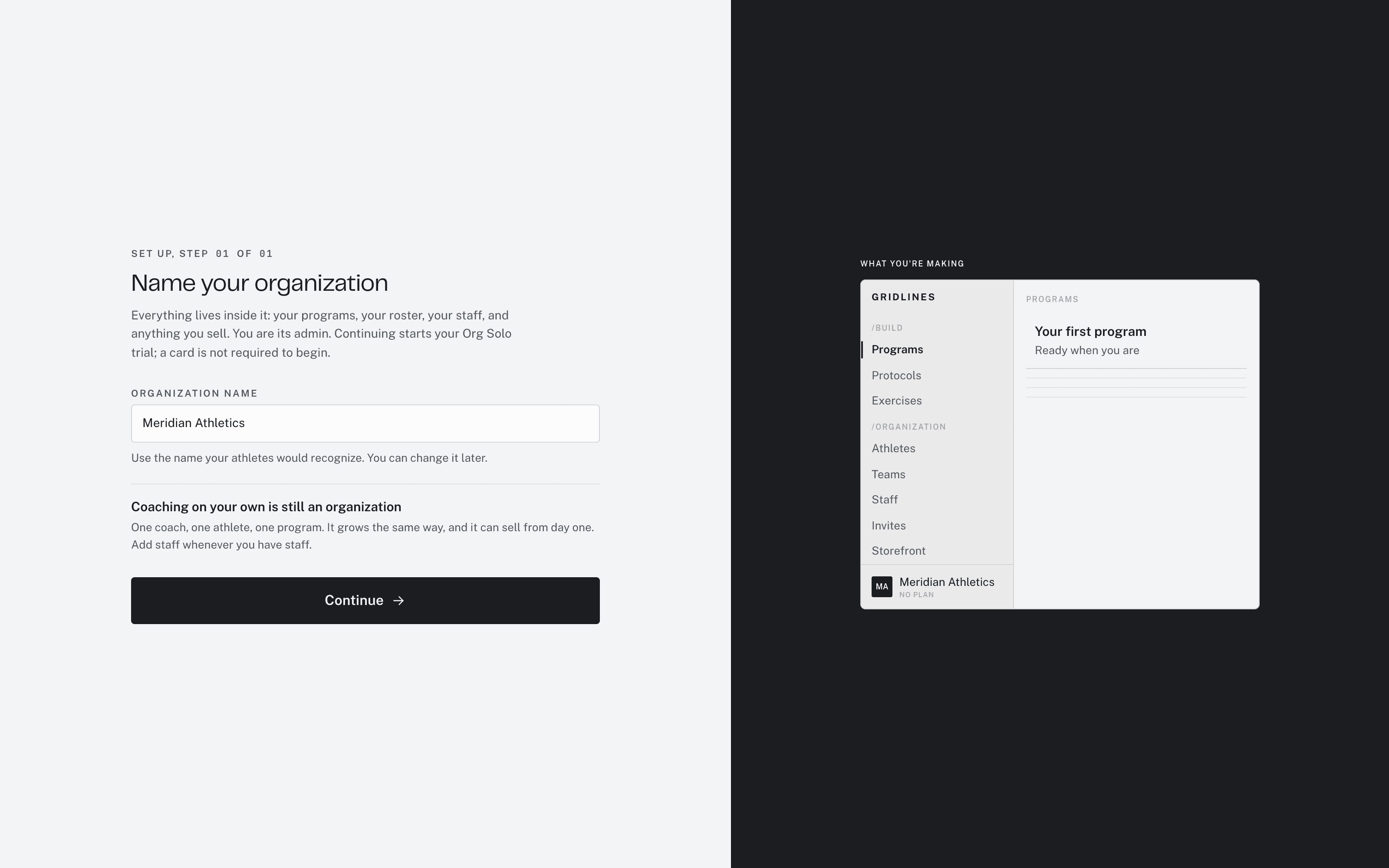
The one field that creates your organization. - Invite your staff
In the sidebar, open ORGANIZATION > Staff. Click Invite staff. Enter the coach's email. Click Send invite. Coaches join the organization, and you place them on teams after they accept.
- Create your teams
Teams group athletes by squad, intake, location, or however you coach. Open Teams. Click New team. Enter a Team name. The Description is optional. Click Create team.
Create the teams before the roster fills up. An athlete invited to a team gets that team's training when they accept.
- Invite your athletes
Open Athletes. Click Invite. Enter the athlete's email. Under Training destination, choose a team, or leave the athlete without one. Click Send invite.
Each invite goes to one address, and only that email can accept it. It works one time, so a forwarded invite does nothing. All invites, on the Athletes and Staff pages, lists every invite and its status.
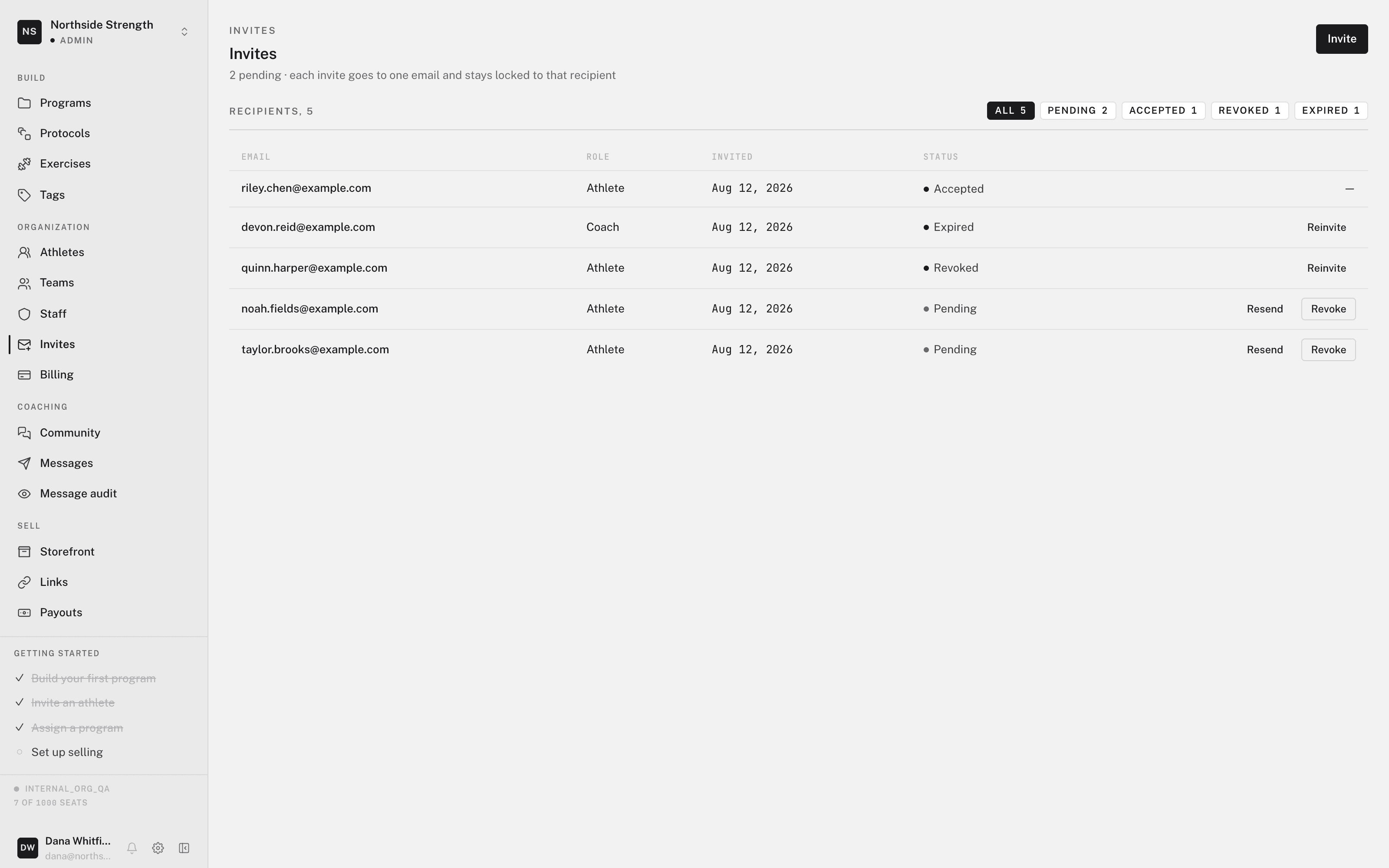
All invites, with their status filters. - Put a program on the team's calendar
Open the team. Its calendar is where you program everyone on it. Click Add a program, then choose one:
- Follow a program — the team follows a calendar from your Programs library. Later edits to that program reach the team.
- Place a template — copies a template's days onto the weekdays you choose. Later edits to the template do not change the copy.
Every athlete on the team trains from that calendar, including athletes who join later. You write programs in the builder. See building your first program.
What it costs
Your organization starts on Free, with no card, no trial, and no expiry. Free can coach: teams, invites, and calendars all work. A seat is a person, so staff and athletes both count. Billing shows how many seats your plan includes.
A pending invite holds a seat until it is accepted or revoked. When every seat is taken, a new invite is refused, so revoke an old invite or pick a paid plan from Billing. See Managing invites and Organization and billing.
An invite is not the way to sell a program. A program link creates a customer, not a roster member. See invites vs. program links.
Where to go next
Team structure, staff roles, and what each role can do.
Inviting athletesThe full invite flow, including what the athlete sees.
Adding a program to a calendarFollow a program or place a template on a team or athlete.
Organization & billingPlans, seats, invoices, and the Stripe Customer Portal.