Building
Organizing programs in folders
Folders keep a large program library findable. Every coach in the organization sees the same folders. A program sits in one folder, or in none.
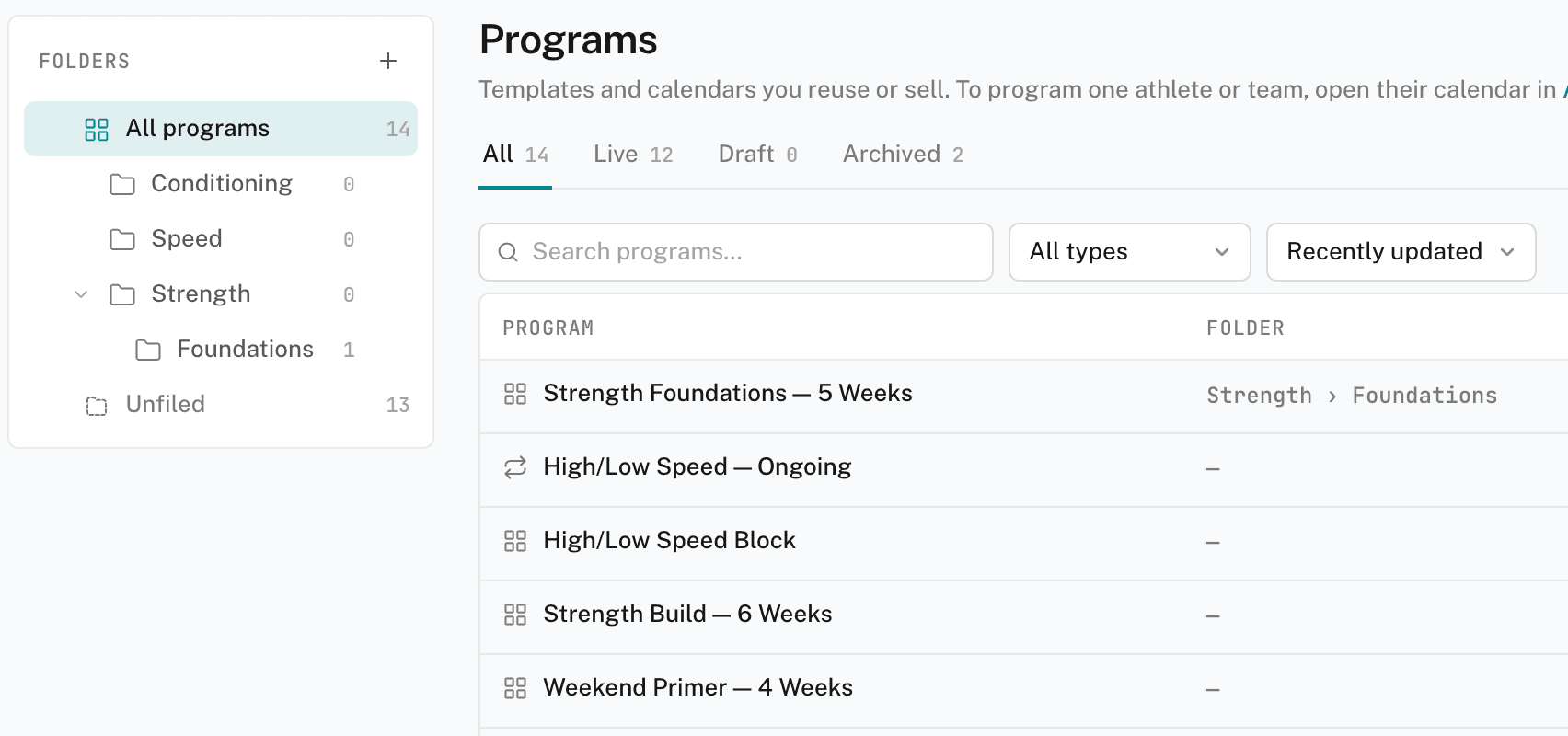
The folder tree
In the sidebar, open Programs. The folder tree sits beside the list. On a narrow window, click Folders above the list to open it.
- All programs — every program, in every folder.
- Unfiled — programs that aren't in a folder.
- Your folders — click one to list its programs and subfolders. Click the chevron to expand or collapse it.
The program list shows the open folder's path at the top. With All programs open, the list adds a Folder column.
Creating a folder
- Start a folder
In the folder tree, click New folder. To nest a folder, open an existing folder's menu and choose New subfolder.
- Name it
Enter the name, then click Create folder.
A new program lands in the folder that is open when you create it.
Moving a program
Use any of these:
- Drag the program's row onto a folder in the tree. Drop it on Unfiled to take it out of every folder.
- At the end of the program's row, click the folder button (Move to folder…) and choose a folder.
- In Program info & settings > Details > Library, click Move….
Renaming, moving, and deleting folders
Open a folder's menu in the tree:
- Rename and Move to… — for the folder's creator and org admins.
- Delete folder — for org admins only. Subfolders are deleted with it. The programs inside stay, and become unfiled.
A folder that someone else created shows why its menu is shorter.