Plan and build
Plan training up to a meet
At the end, the meet is on the athlete's calendar and the weeks before it are marked as blocks, ending on meet week.
Open an athlete's calendar in Gridlines
You'll need
- An athlete or team with a calendar. See the athlete page.
- The meet's dates.
Steps
Put the meet on the calendar
Open the athlete and their Calendar. Right-click the meet's first day and choose Add event… to open the New event sheet. Set Kind to Competition, enter the dates in From and Until, and choose Add event. Leave Until the same as From for a one-day meet.
Athletes › the athlete › Calendar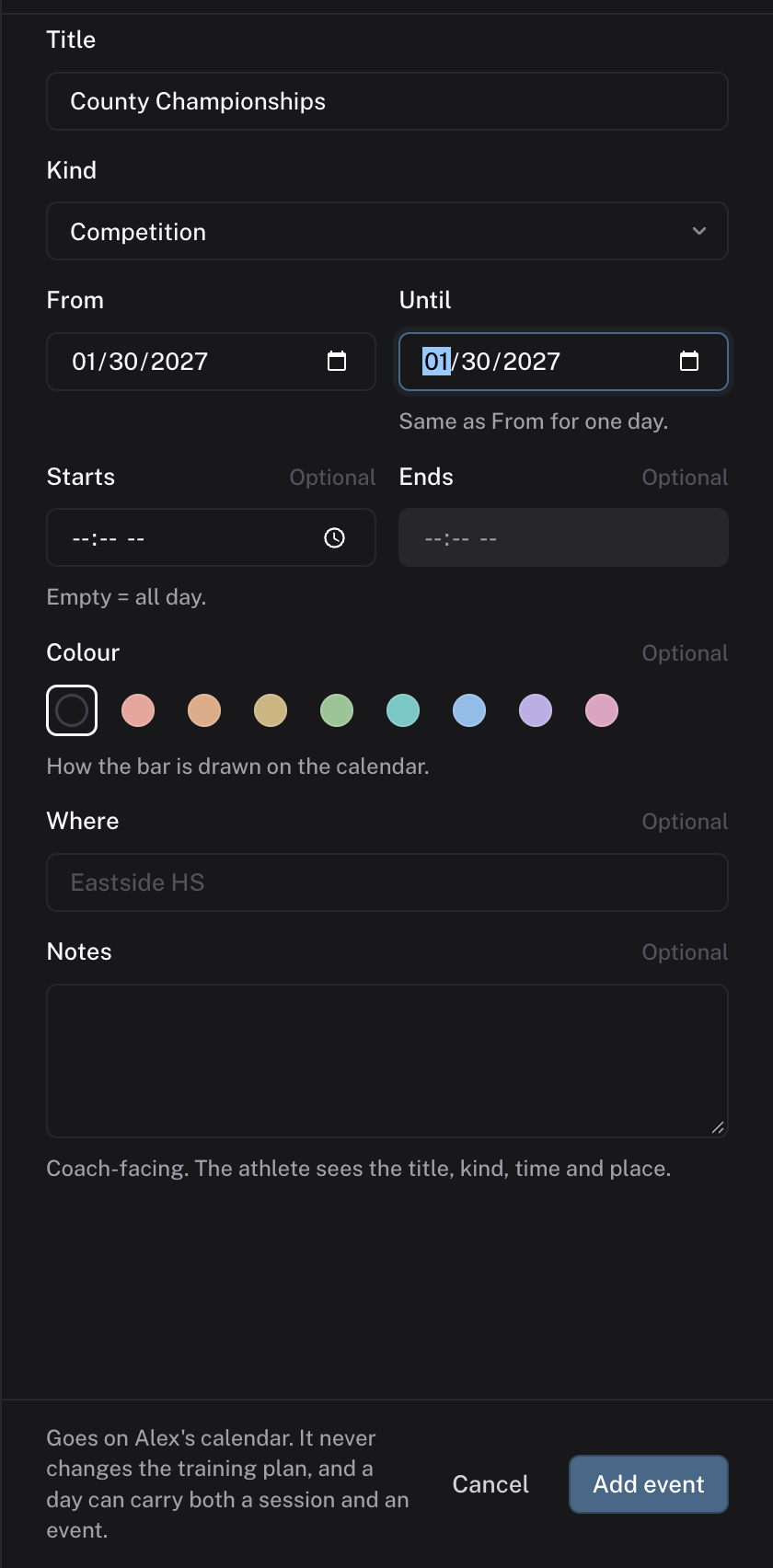
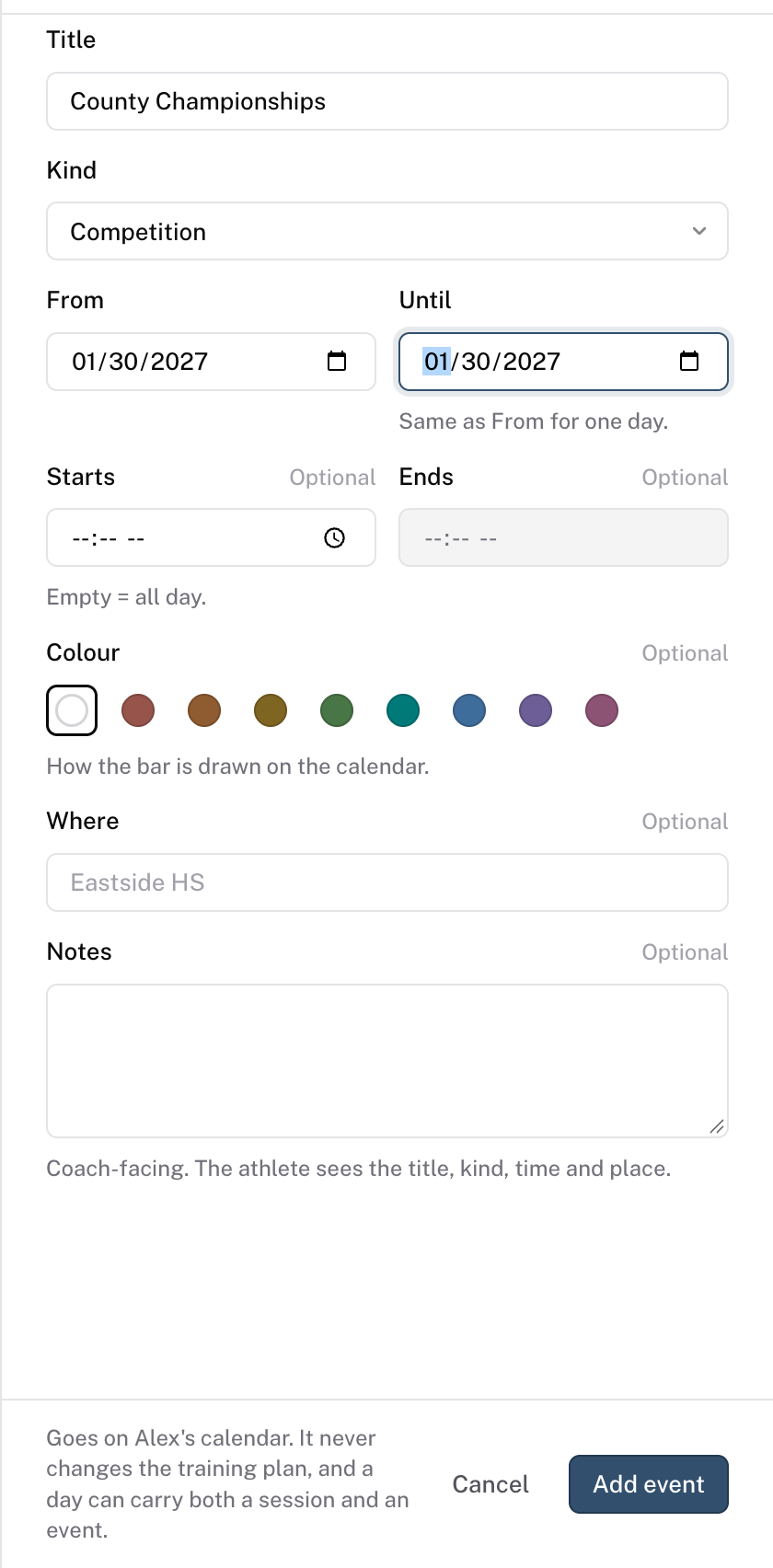
Find meet week
The calendar's weeks run on real dates. Open the season ribbon above them (the Year row) to see its Phases, Blocks and Markers lanes. The meet shows as a marker on its week in the Markers lane. That week is your last week of work.


Mark the last block first
On the season ribbon, right-click meet week in the Blocks lane and choose New block here, or double-click that week. Type a name, such as Taper. Drag the block's left edge back over the weeks before the meet, or set its first day in the block's Starts field. Use Colour… on its menu to pick a colour.


Work back to today
Repeat for each earlier phase, such as peak, then strength, then accumulation, until the blocks reach this week. Dragging a shared edge moves the boundary between two blocks, so one grows as the other shrinks.


Fill the first block
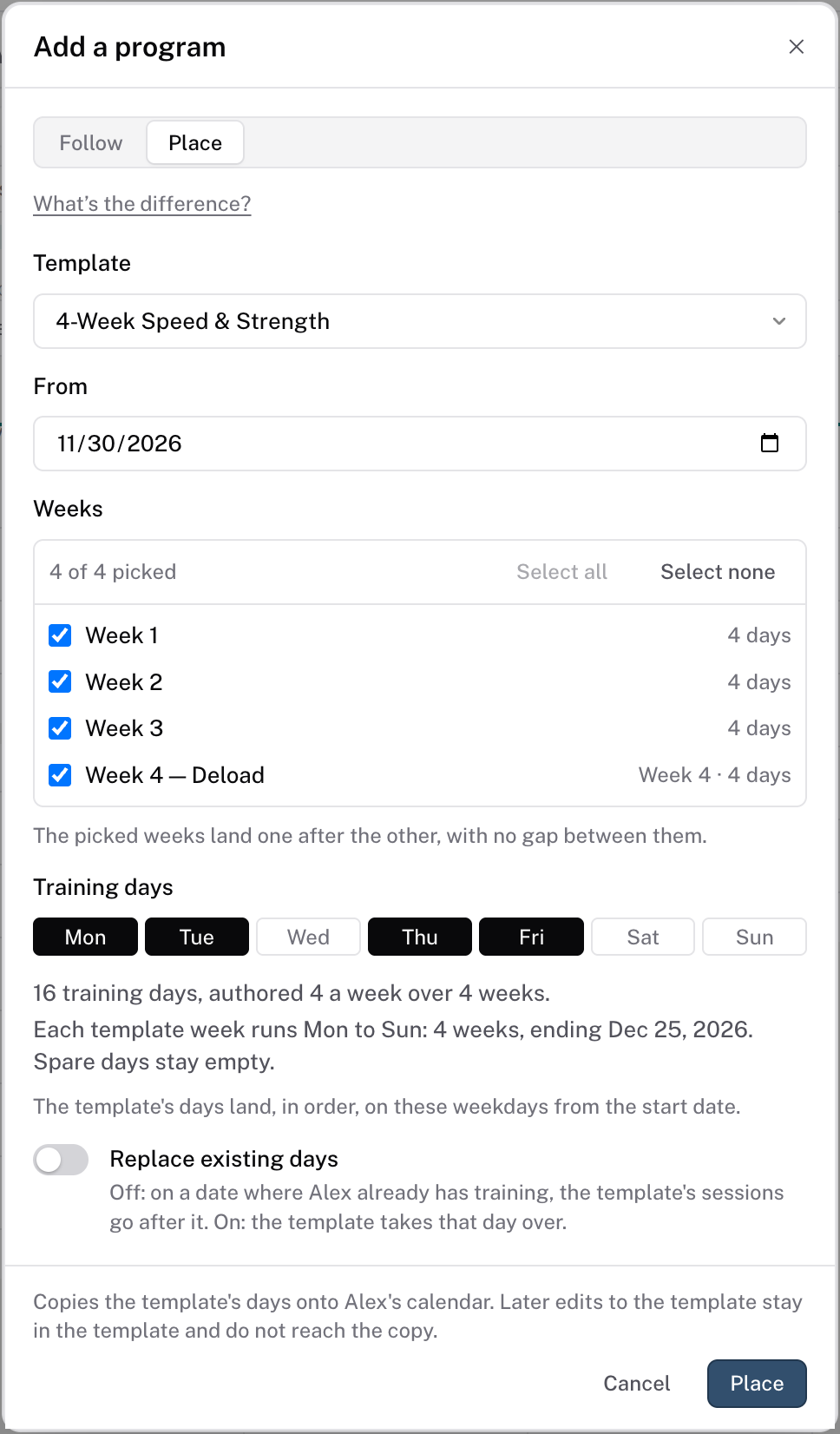
Write this block's sessions, or place a template on its first week. To place one, click Add a program, choose Place, and set From to the block's first day. Each template week lands on one calendar week. See add a program to a calendar.
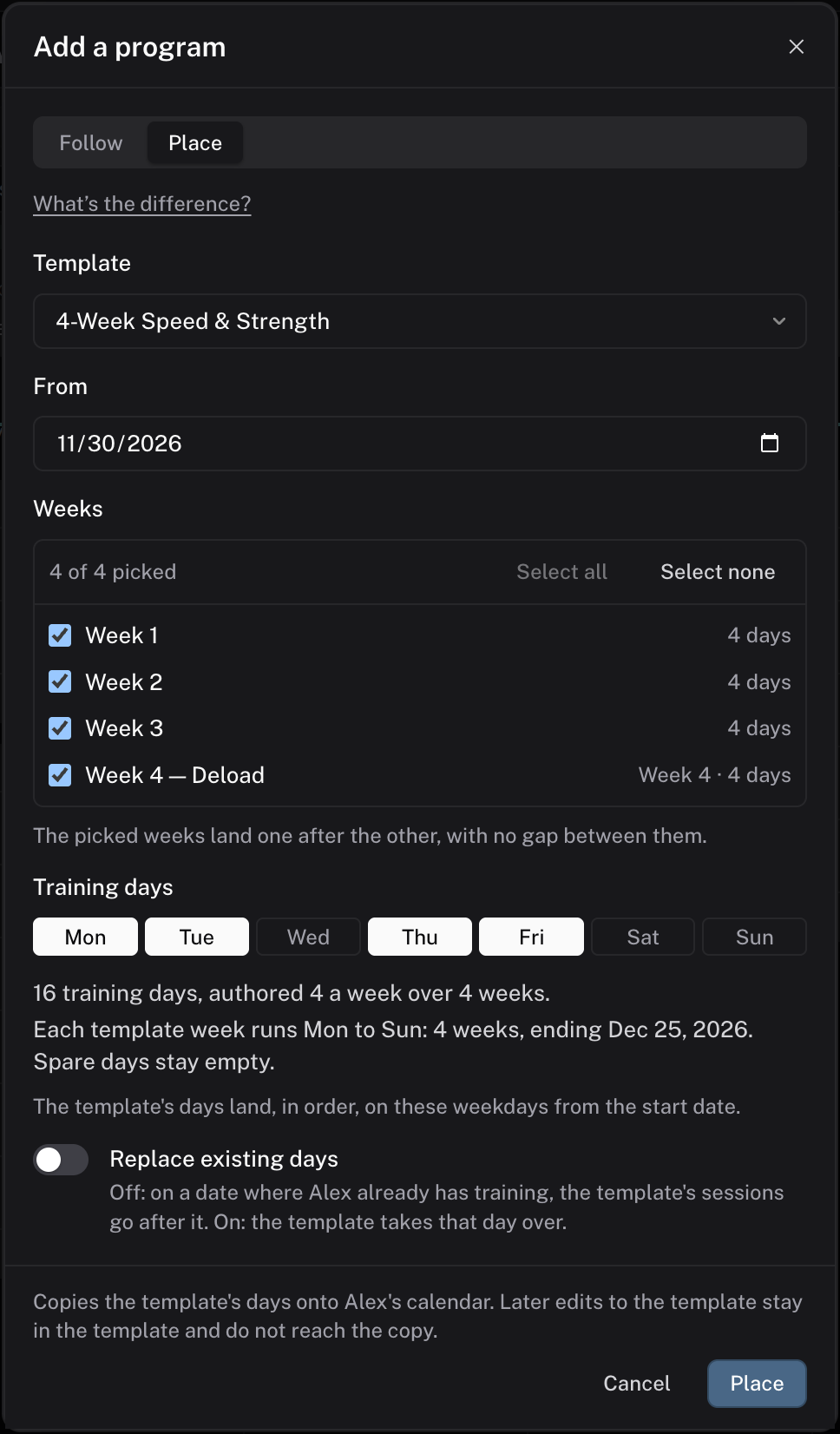
Check it worked
The meet shows on the calendar, the last block ends on meet week, and the athlete sees this week's sessions in the app.
Common questions
The meet moves. What do I change?
Open the event on the calendar and change From and Until. Then move the blocks on the season ribbon so the last one still ends on meet week.
Can two blocks share a week?
No. Blocks in the same lane don't overlap. When you drag an edge into a neighbour, the boundary between them moves instead. For a longer phase that spans several blocks, use the phases lane above the blocks.
Can I plan a whole team this way?
Yes. A team has its own calendar. Open the team, choose Add event…, and follow the same steps on the team's calendar. See the team page.
Related
Stuck? Message us directly.