Plan and build
Two athletes side by side, with the athlete panel open
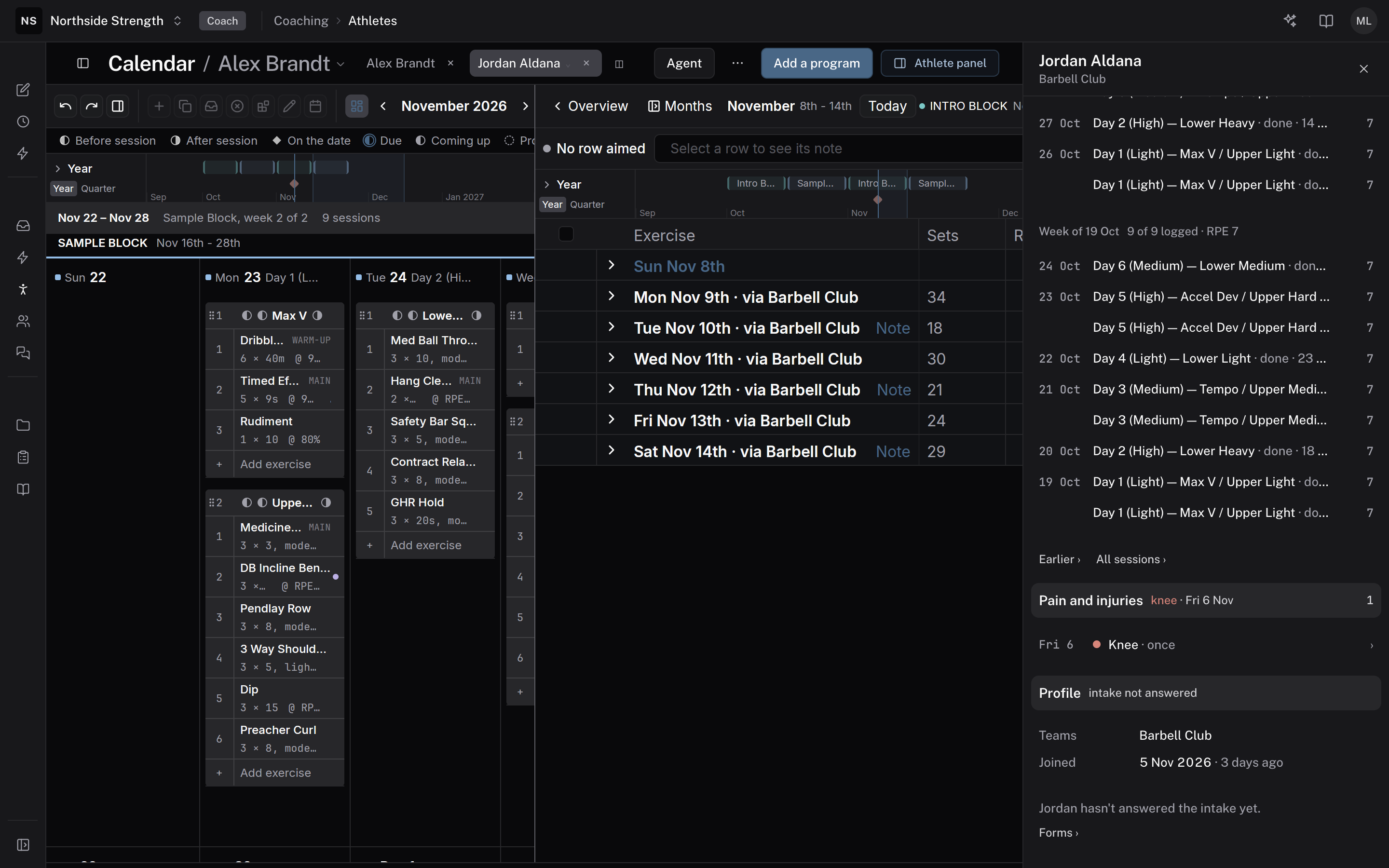
At the end, two athletes' calendars sit next to each other on one screen, with an athlete's panel open beside them. You can copy a day from one athlete to the other and change what's different for the second one, while you read their injuries, notes, and recent sessions.
You'll need
- Two athletes in your organization.
- Training on the calendar you copy from.
Steps
Open the first athlete's calendar
Open Athletes and click the athlete's name. Their page opens on their Calendar, on the week or the Overview.
COACHING › AthletesSplit the calendar
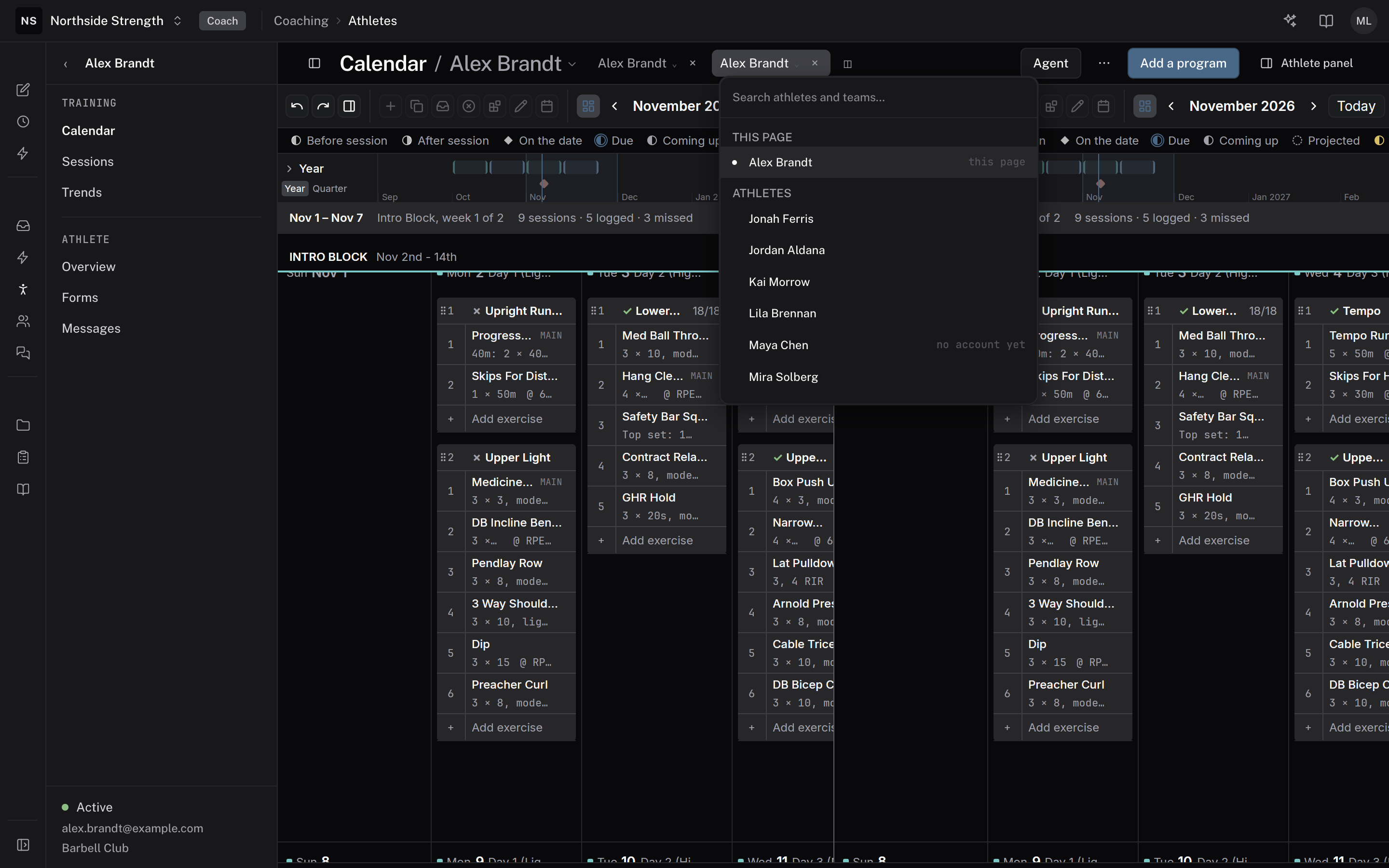
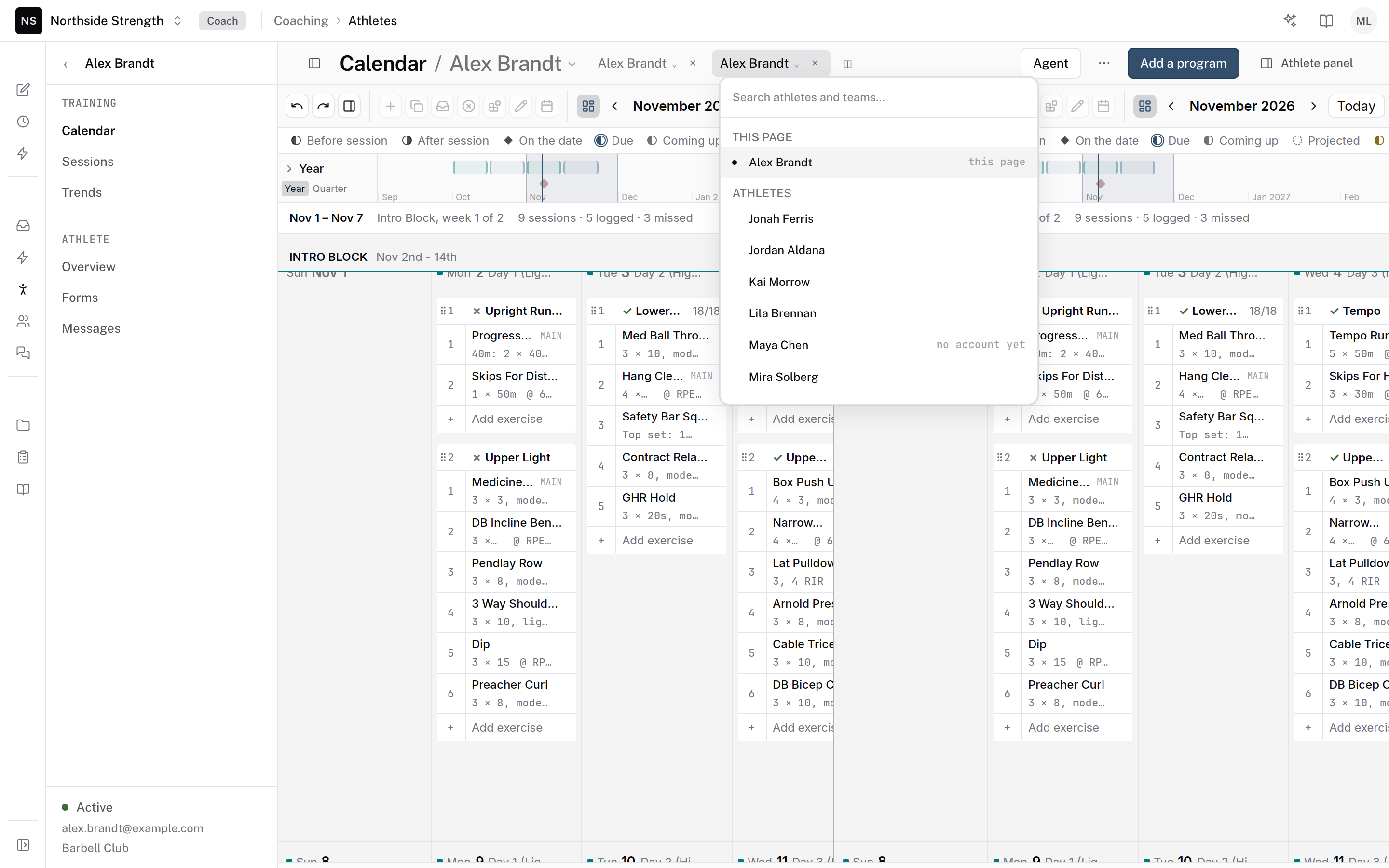
Click ◫ in the page head. Its tooltip reads Split, the calendar side by side. A second pane opens beside the first, and a picker opens on it.
Split from the week or the Overview. With a single day open, the split stops and a toast asks you to go back to the week or the Overview.
Pick the second athlete
In the picker, search for the athlete by name. The list has three groups: This page, Athletes, and Teams. Click the athlete. Their calendar opens in the new pane, on the week with each day as a row. Click ‹ Overview in that pane to see the map.
Each pane has a chip in the page head with the athlete's name. Click the second pane's chip to show someone else in it.
Open the athlete panel
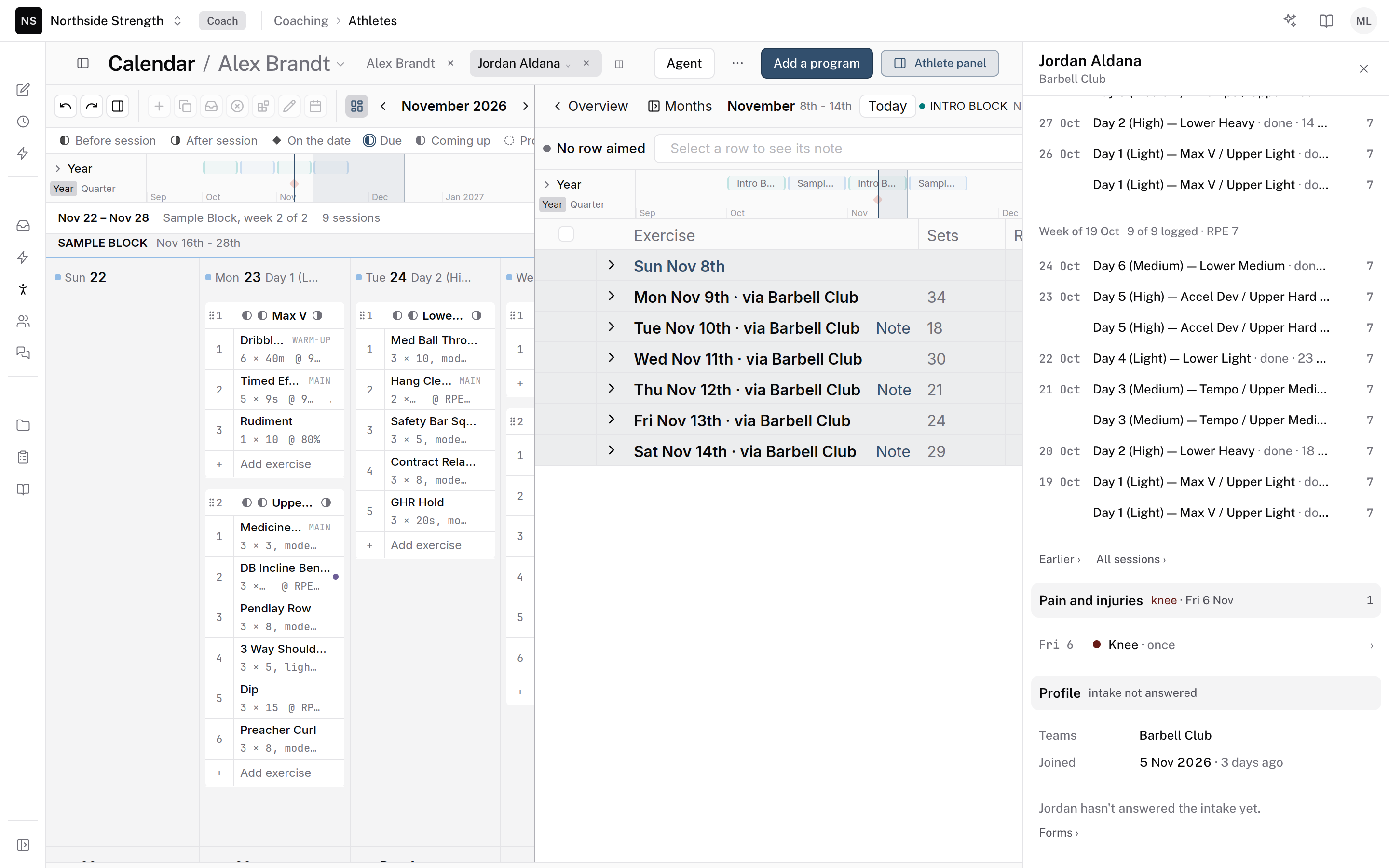
Click Athlete panel in the pane head, or click the athlete's name at the top of the side rail. The panel opens at the right, on Calendar. It shows how many sessions the athlete logged in the last two weeks, a month grid, and when their plan runs out. Under the grid is the selected day's session, with last time's numbers. Scroll down for notes, feedback items, recent sessions, pain and injuries, and profile.
The panel follows the pane you work in. Click in the other athlete's pane, and the panel shows that athlete. The day under the panel's month grid follows the day you click.
 Athlete panel
Copy a day across
In the first pane, click the day you want. Press Cmd+C. Click the date in the second athlete's pane. Press Cmd+V. The day's sessions land on that date.
Then change what's different for the second athlete, such as one load or a swapped exercise. Read their panel first.
CmdC
Close a pane
Click × on a pane's chip to close it. The other pane keeps the page.
Check it worked
The second athlete's calendar shows the copied day on the date you chose, with your change. Their athlete page shows it too, because the pane edits their real calendar.
Keys on this screen
| ← → ↑ ↓ | Move from day to day on the Overview |
| Cmd+C | Copy the selected day |
| Cmd+V | Paste on the day you clicked |
| Cmd+Z | Undo |
Common questions
Can a pane show a team?
Yes. Pick the team under Teams in the picker. The athlete panel names one athlete, so with a team pane in focus it keeps showing the athlete it showed last.
Can I put two programs side by side?
Yes. In the program editor, click ◫ in the band above the program. Its tooltip reads Split, same document side by side. Then pick the second program.
What happens to an edit I haven't finished?
A pane with unsaved cell edits asks before it switches. Click Keep editing to stay, or Discard and switch.
Related
Stuck? Message us directly.