Athlete app
Auto-adjust from the daily check-in
A training rule changes an athlete's session from their check-in answers, the way you would if you read them first. A short night can ease today's loads, and a sick day can skip the session. You choose whether each change waits for you in Review or applies on its own, and you can take back any change before the athlete starts.
 A rule
What it is
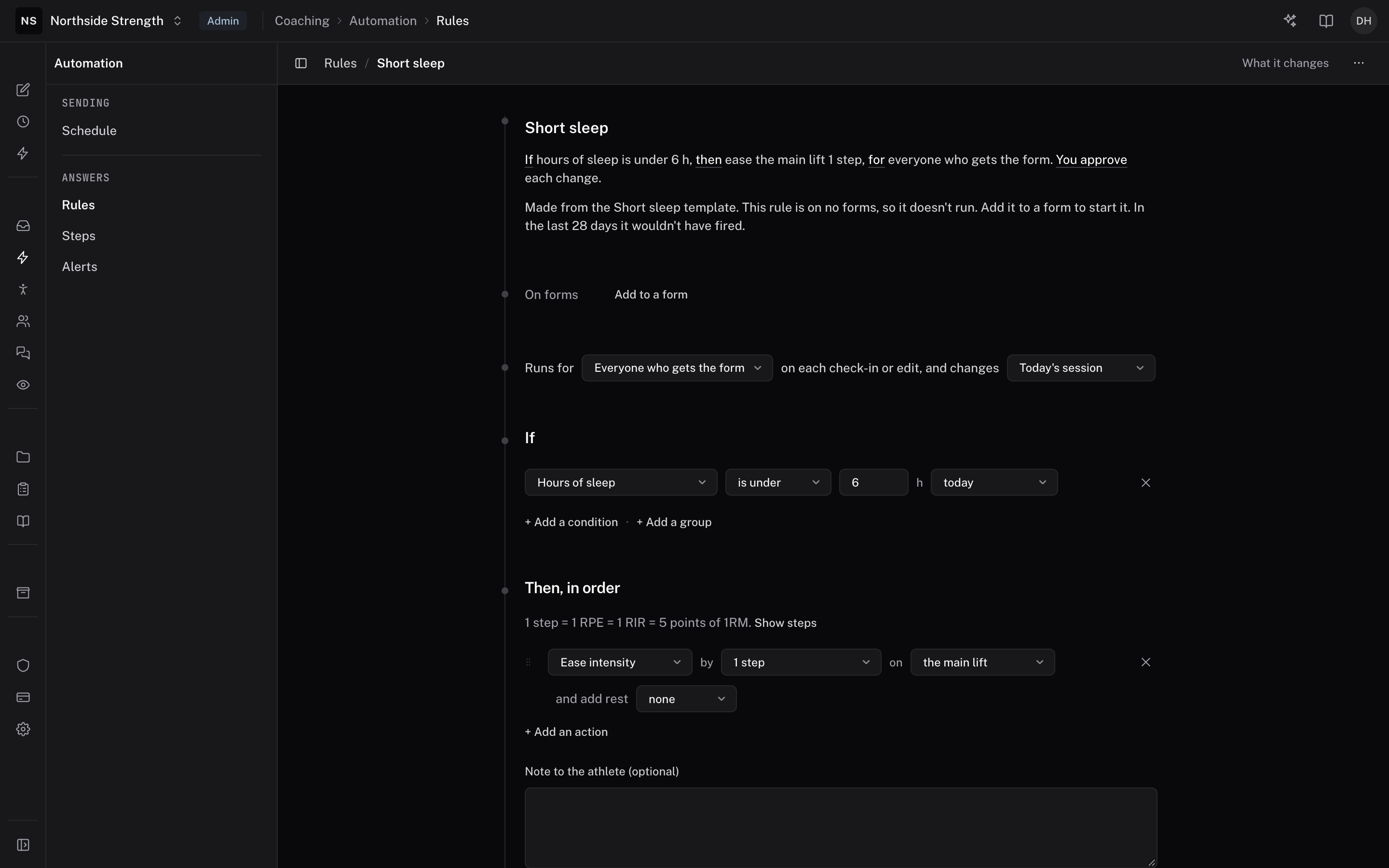
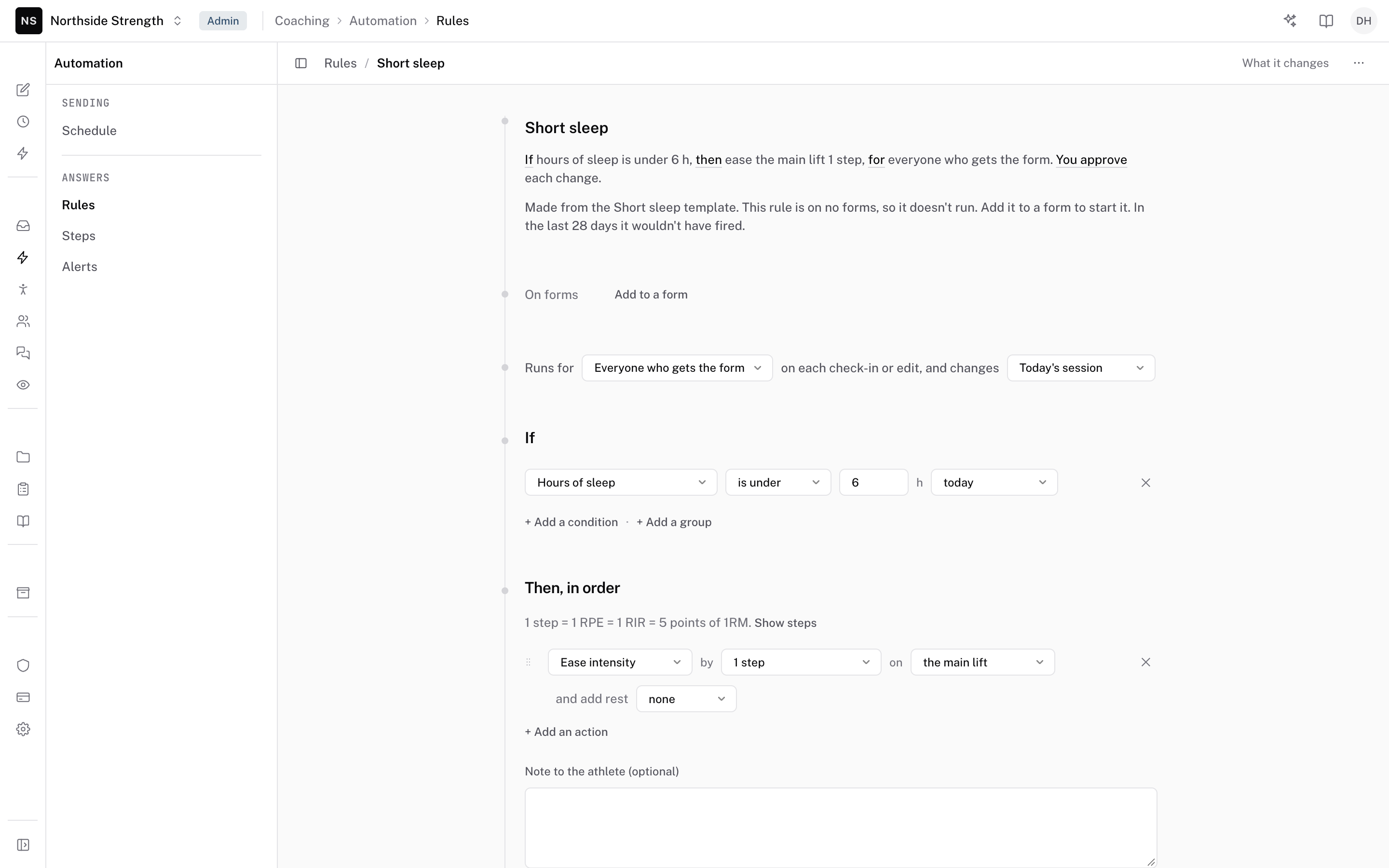
A rule reads one or more answers and changes a session. Each rule has these parts:
- On forms — the forms it runs on. A rule on no form doesn't run.
- Runs for — everyone who gets the form, or one team.
- Which session — Today's session, Tomorrow's session, or the rest of the week.
- If — the answers it reads. It can compare an answer with a number, with the athlete's usual, or check whether it's flagged.
- Then, in order — the changes it makes.
- Note to the athlete — optional.
- Apply automatically — whether the change waits for you.
Set up a check-in rule walks through writing one.
Where to find it
Open COACHING > Automation > Rules in your web dashboard, and click New rule.
The parts
What a rule can change
- Fewer sets — drops sets from the end. Groups lose rounds.
- Shorter sets — fewer reps, or less time or distance in each set.
- Ease intensity — lowers %1RM, RPE, RIR, load, or effort by steps.
- Cap intensity — no set above an RPE or a %1RM. It runs last.
- Swap — swaps an exercise for its listed alternative.
- Add work — adds a session's exercises at the end.
- Drop — takes the exercise out of the session.
- Replace session — puts another program's session in its place.
- Skip — no session that day. Nothing else in the rule runs.
- Move — moves the session to another day that week.
- Note only — sends your note and changes nothing.
A change can act on the whole session or on chosen exercises. Warm-ups are left out unless you turn off Warm-ups left out.
How far a change goes
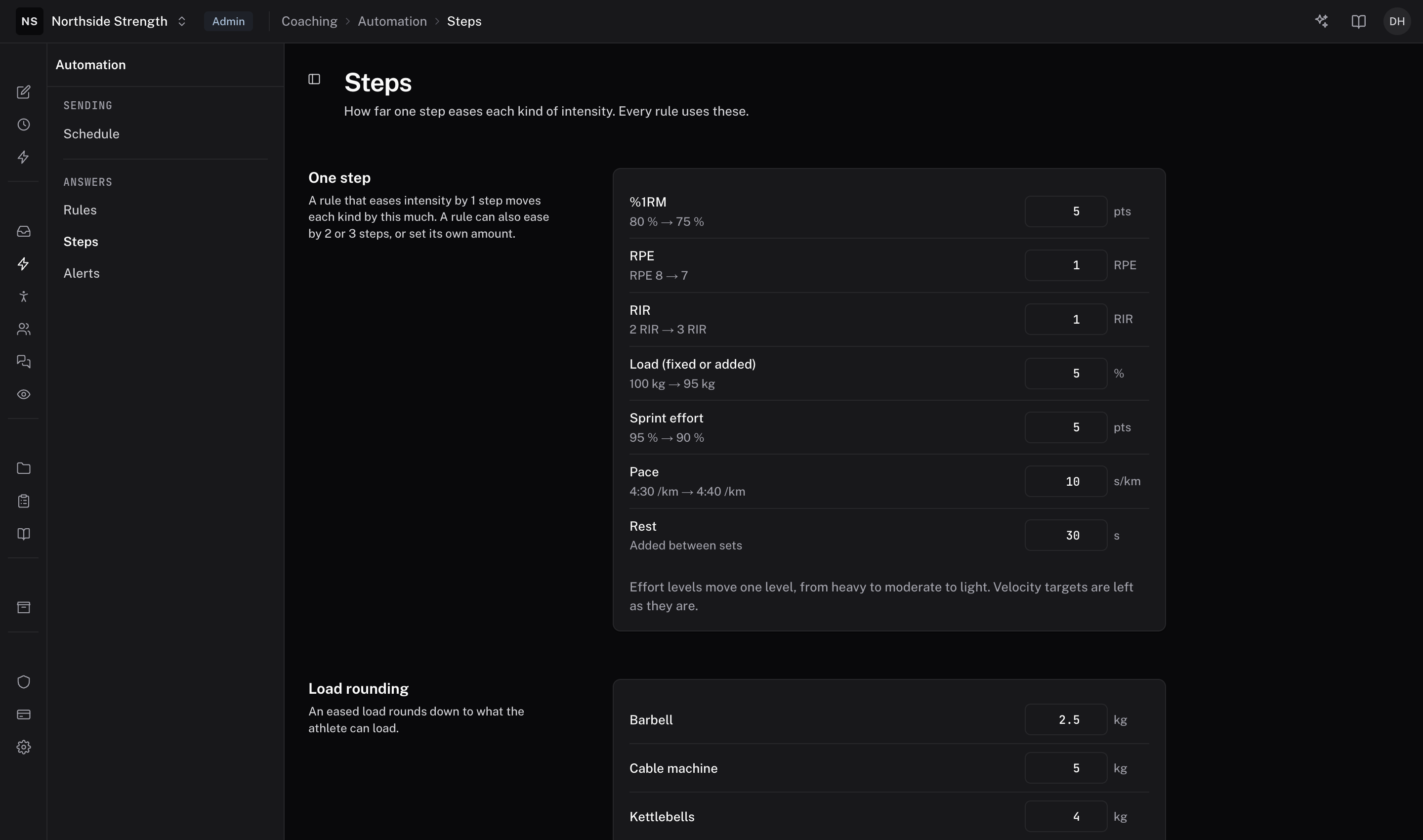
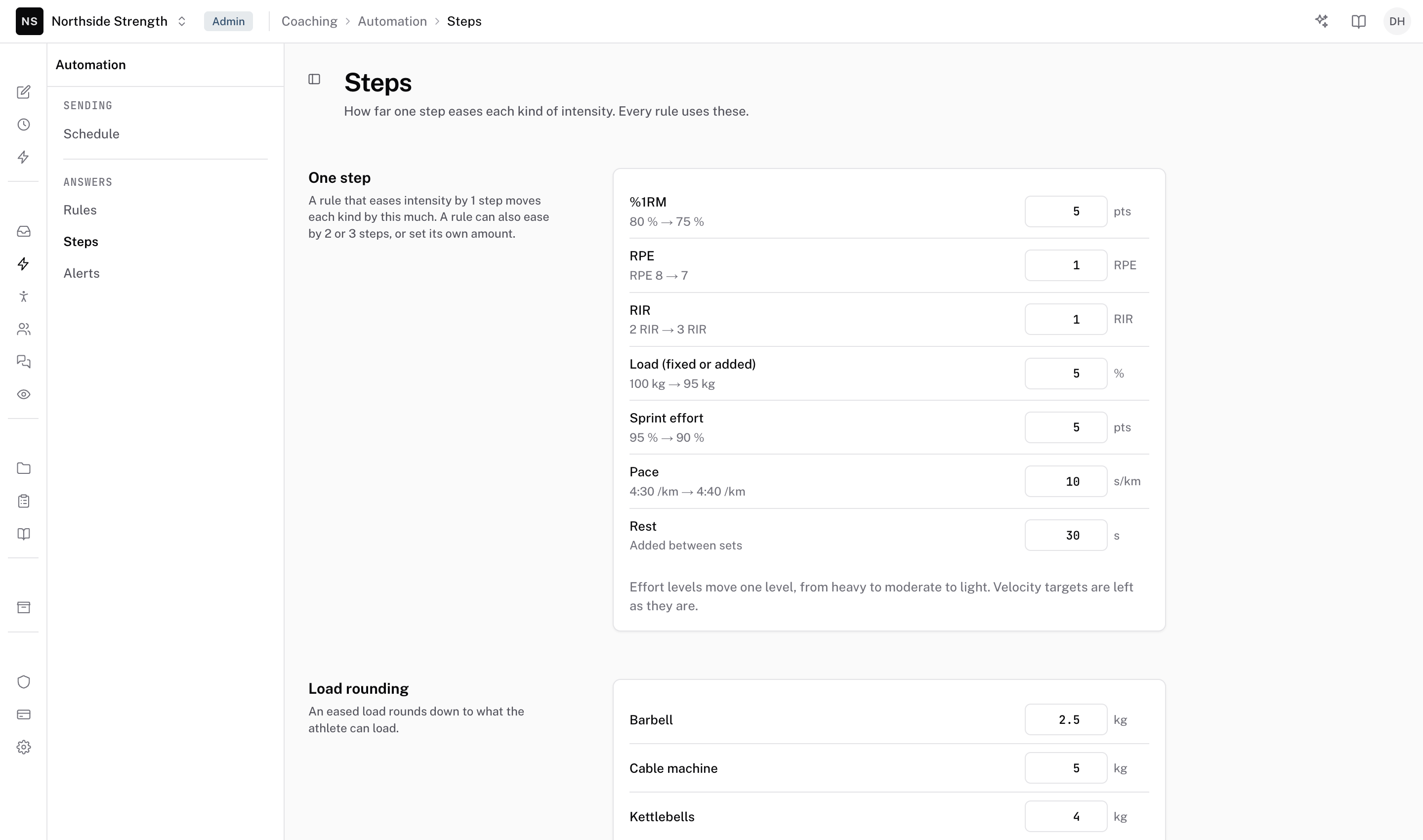
COACHING > Automation > Steps sets what one step means for your whole organization. A rule eases by 1, 2, or 3 steps, by a percent, or by its own amount. A new organization starts with these steps:
| Measure | One step |
|---|---|
| %1RM | 5 points |
| RPE | 1 |
| RIR | 1 |
| Load | 5 percent |
| Sprint effort | 5 points |
| Pace | 10 s/km |
| Rest | 30 s added between sets |
An eased load rounds down to a load the athlete can set up. A new organization rounds a barbell in steps of 2.5 kg, a cable machine in 5 kg, and kettlebells in 4 kg. Dumbbells round to the ones your organization lists. Floors stop a rule from cutting below 2 sets, 1 rep, 5 seconds, or 10 metres. Velocity targets stay as you wrote them. Only an org admin can change the steps.
 Automation › Steps
Accept it, or let it apply
With Apply automatically off, the change waits for you in Review, on the athlete's thread for that day. Each change shows what it does, line by line:
- Accept — applies the change.
- Edit — opens the day so you can change it by hand.
- Decline — leaves the session as written. You can't undo a decline.
With several changes waiting on one thread, Accept shows the count and accepts them all. A change for a day that has passed reads Day passed and can only be declined.
With Apply automatically on, the change applies as soon as the athlete sends the form. Review shows it as "Applied automatically" with the rule's name, and Revert takes it back. Most accepted changes show Undo or Revert too. The product page calls this S06 Approve, or flag me.
What the athlete sees
While the app picks up the change, the session reads "Adjusting today's session…". The athlete then sees the new session and one line in your first name, such as "Marcus eased today's Back Squat and RDL." Your Note to the athlete shows on the same line. A skip, a move, or a note shows at the top of the day. The rule's name never reaches the athlete.
A flag for you instead
A rule doesn't have to change anything. Note only sends your note and leaves the session alone. Separately, an answer that matches its question's flag opens a thread in Review, whether or not a rule changes the session. See flags and the athlete's usual.
When two rules meet
A form runs its rules in the order its Rules tab shows. When two rules change the same thing, the stronger change wins. To add one rule's change on top of another's, turn on Add to other rules' changes in the rule's Rule actions menu.
Limits
- A rule changes only today's or tomorrow's session. A rule for the rest of the week changes each later day as that day arrives.
- Start is the cut-off. Once the athlete taps Start, no rule changes that session.
- If the athlete edits their answers before Start and the rule no longer matches, an automatic change is taken back. A change waiting for you stays.
- A percent cut goes up to 50 percent.
- A rule holds one whole-session change at most: Skip, Move, or Replace session.
- Swap, Add work, and Replace session are offered only to a coach who can edit calendars.
- A rule reads up to 20 answers and makes up to 8 changes. Up to 30 rules can be on across your forms.
- The rule's name holds 60 characters, and the note holds 200.
Common questions
Can I see what a rule would do before I turn it on?
Yes. What it changes replays the rule on one athlete's next session, and test a rule replays it over the last 28 days of answers.
Does a new organization start with rules?
Yes. The Daily check-in comes with three rules, turned off. Turn one on from the form's Rules tab.
Related
Stuck? Message us directly.