Plan and build
See the whole program
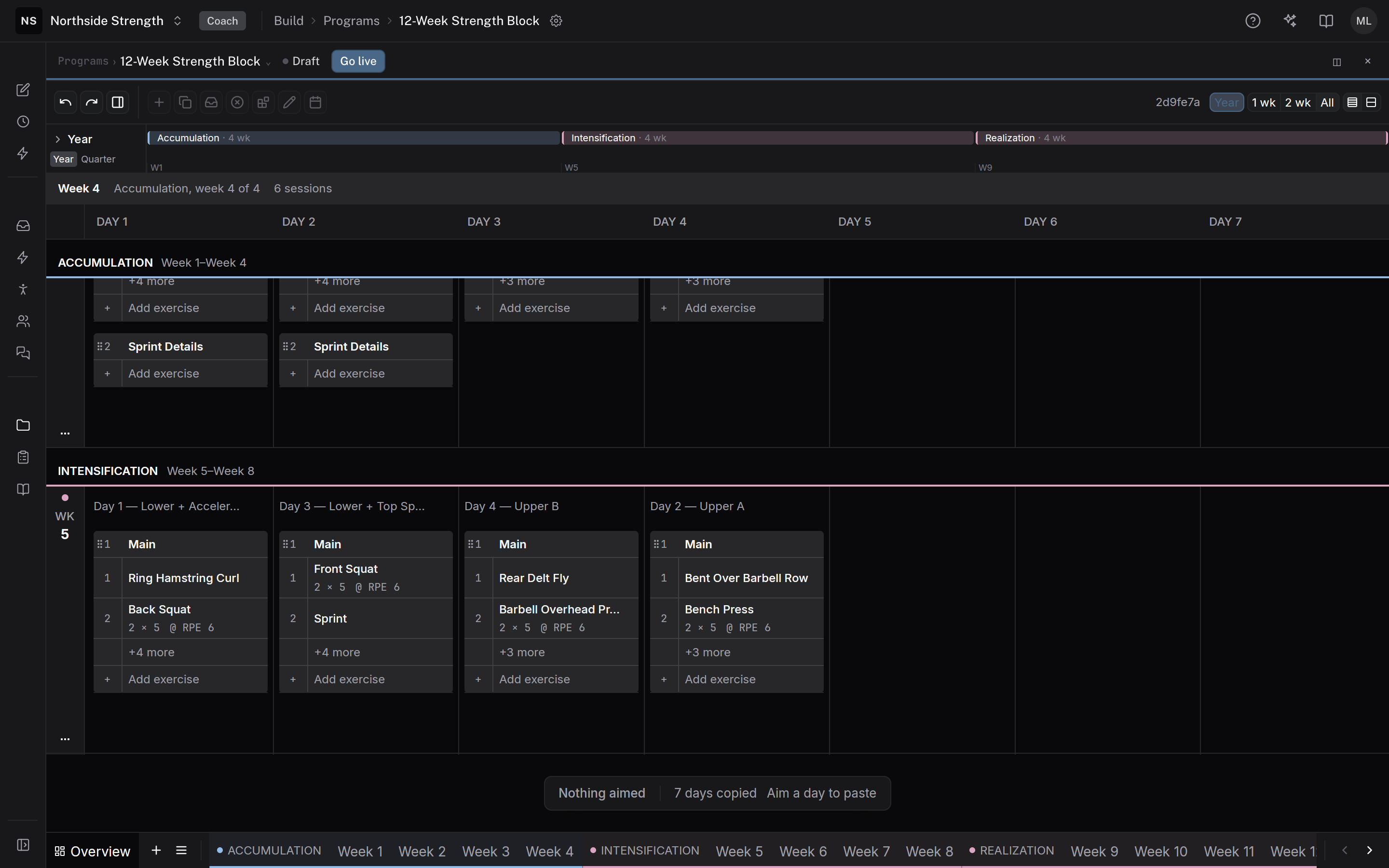
The Overview shows the whole program on one screen, the way a season looks on a wall chart. You see where each block starts and ends, which days train, and what each session holds. You can also copy, paste, and move days without opening them.
 Weeks as rows, days as columns
What it is
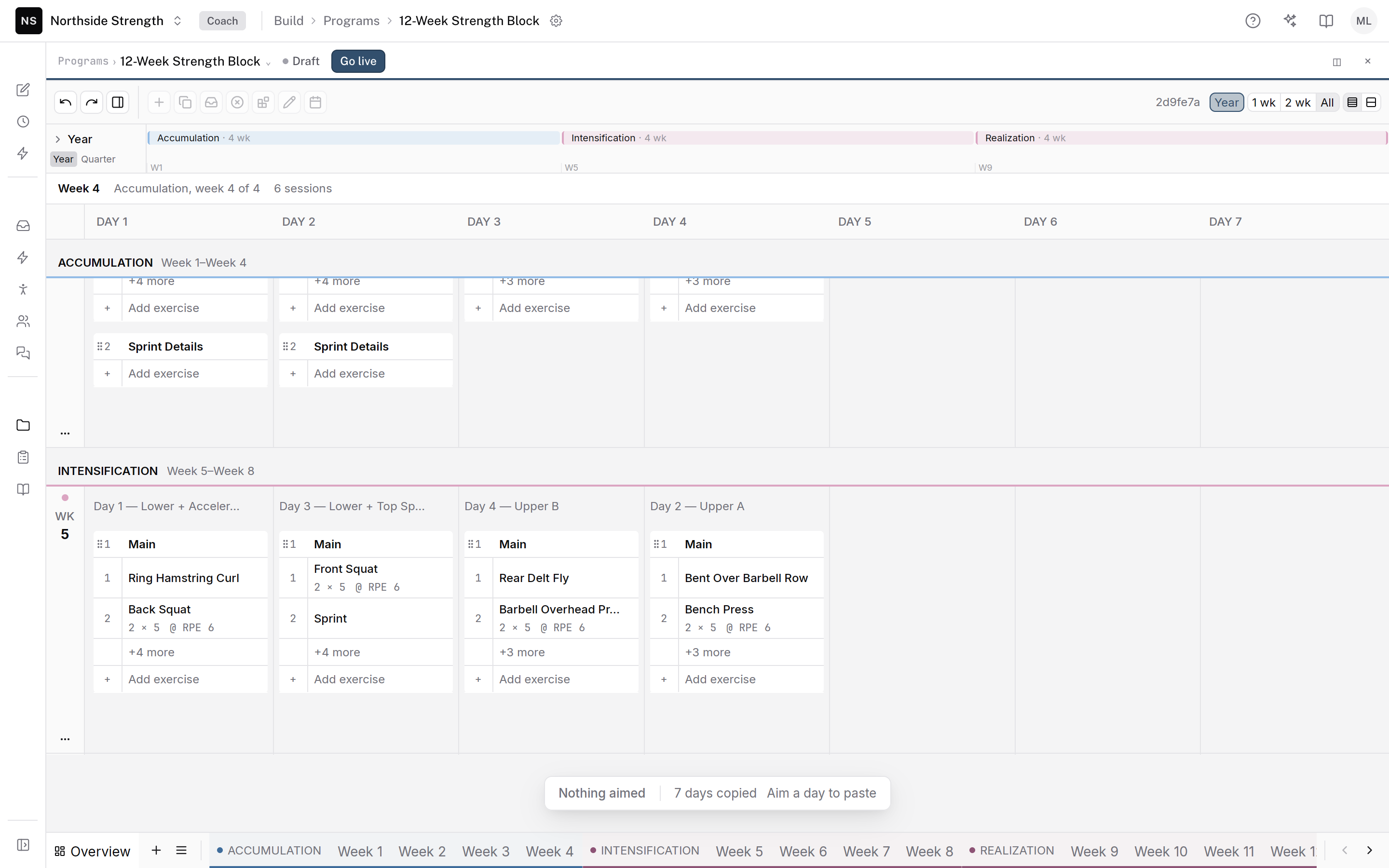
The Overview is the map of a program in the builder. Each week is a row and each day is a column. Each session on a day is a small card listing its exercises. A program opens on its Overview, and you open a day or a week from it when you want to write in detail.
Where to find it
In Programs, click a program. It opens on the Overview. From a single week, click Overview at the left of the toolbar, or choose View > Program Overview.
The parts
Weeks and days
Each row is a week, labelled WK and its number. On a template, the columns read DAY 1 to DAY 7. On a calendar, each day names its own weekday. + Add week at the end of a template adds a week. The ⋯ button beside a week's label opens Move week up, Move week down, Duplicate week, the delete action, and the block actions.
Session cards
Each session is a card with its name and its exercises. The density buttons at the right of the toolbar choose the card size:
- Compact — two exercises per card, then "+n more".
- Full — every exercise on the card.
A group of more than three exercises, such as a long circuit, starts folded to one row.
Blocks
A block is a named, coloured run of weeks, such as an accumulation phase or a taper. Blocks band their weeks across the Overview. Select a run of weeks and click Create block in the selection bar to make one. See four weeks at a time.
How many weeks fill the screen
The 1 wk, 2 wk, and All buttons set how many weeks fill the window. All gives each week the height its sessions need. Year shows the season ribbon above the Overview, the whole season as lanes of blocks and phases. See plan training up to a meet.
Working on a day
Click a day to aim at it, like the selected cell in a spreadsheet. The toolbar's day buttons act on the aimed day: Add session, Copy sessions, Paste, Clear day, Edit day, and Open in week view. On a calendar, Delete day takes the place of Clear day.
Press Enter to open the aimed day under the Overview, with its full rows. The map stays in view while you write the day. See find your way around for the selection keys.
Limits
- The Overview has no day Duplicate. Copy the day and paste it.
- A template has up to 52 weeks. + Add week goes away at 52.
- Blocks can't overlap. A week belongs to one block at most.
Common questions
Is this the same as the Overview tab in Program info & settings?
No. That tab shows the program's status and who it reaches. This Overview is the map of the training in the builder.
Can I edit on the Overview?
Yes. You can add sessions, copy and paste days, drag an exercise row to another session, and rename a day or a session with a double-click. To change sets and reps, open the day.
Related
Stuck? Message us directly.