Plan and build
Four weeks at a time
At the end, you can take a run of weeks, such as a four-week block, and work on it as one piece. You select the weeks on the program's Overview, name them as a block, and copy them onto later weeks. On a template, you paste the copy one week at a time.
You'll need
- A program with the weeks you want to work on already written.
- For a paste onto later weeks, enough weeks to hold the copy.
Steps
Open the Overview
In Programs, click the program. It opens on its Overview: weeks as rows, days as columns, and each session as a small card. From a single week, click Overview at the left of the toolbar to come back.
View › Program OverviewFit the weeks on screen
The buttons at the right of the Overview toolbar set how many weeks fill the window: 1 wk, 2 wk, or All. All gives each week the height its sessions need. On a 1440 × 900 window, about two and a half weeks fit, so scroll through the four weeks you want.
Beside them, the density buttons choose Compact or Full cards. Compact lists two exercises per session and "+n more", so more weeks fit.
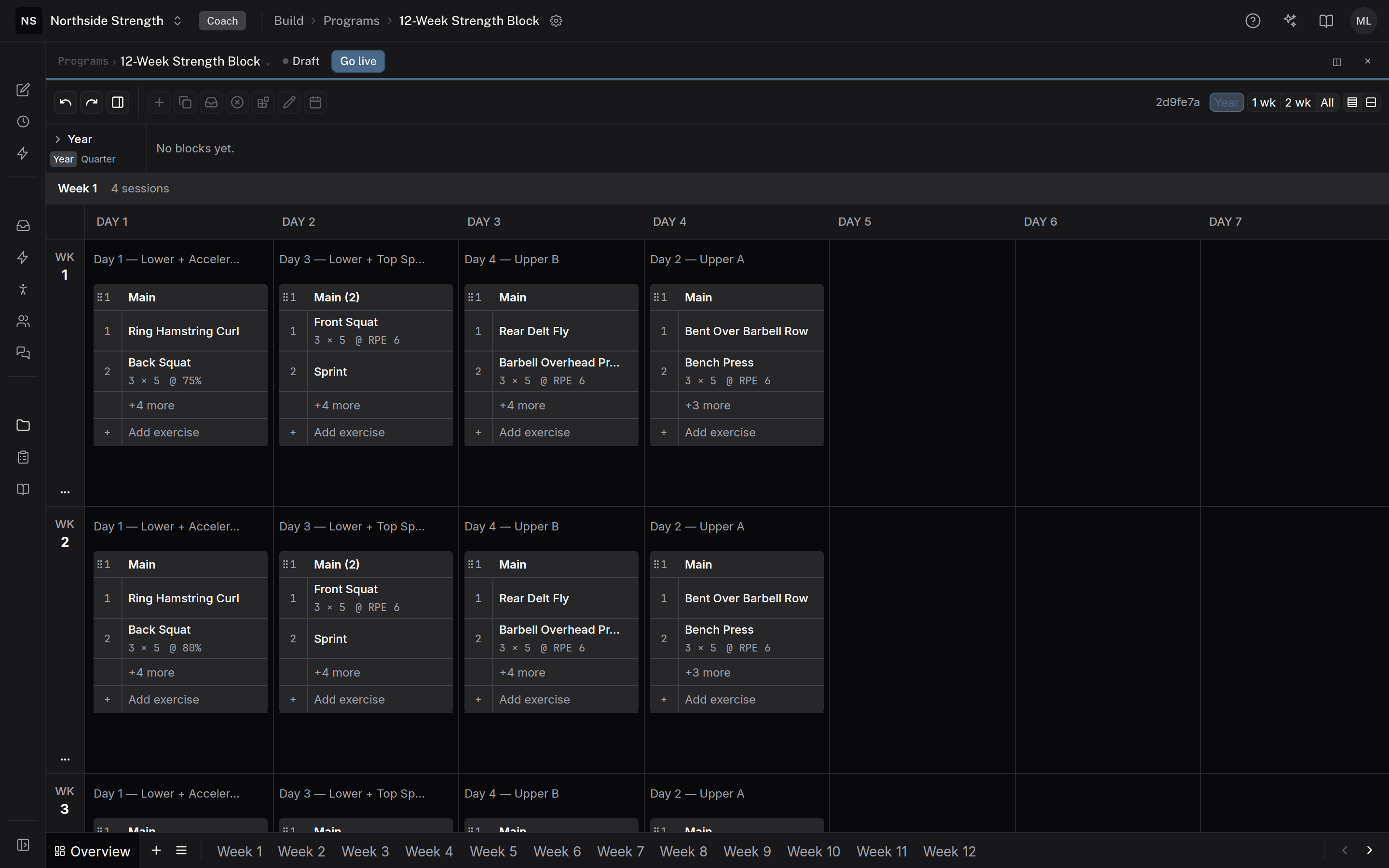
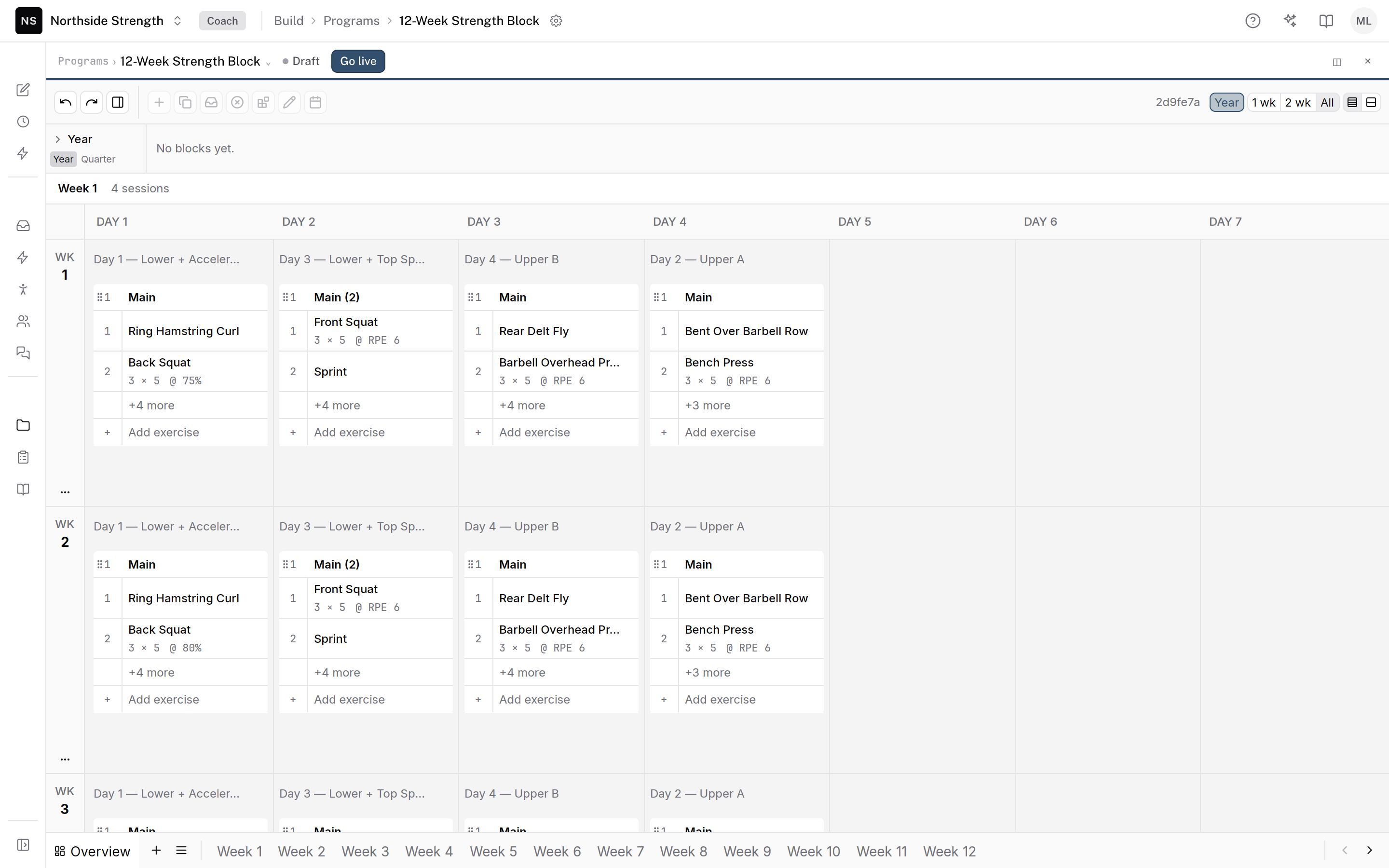 Weeks as rows
Select the weeks
Click a day in the first week. Hold Shift and press the arrow keys to stretch the selection across days and down through the weeks. Shift-click on a day, or a drag across days, selects the same range.
Make them a block
With the weeks selected, click Create block in the selection bar at the bottom. The block button in the toolbar does the same, and its tooltip counts the weeks, such as Create block from 4 weeks. Type the block's name, such as Accumulation. The block bands its weeks on the Overview. Blocks can't overlap, so when a selected week is already in a block, the bar has no Create block and the toolbar button is greyed out.
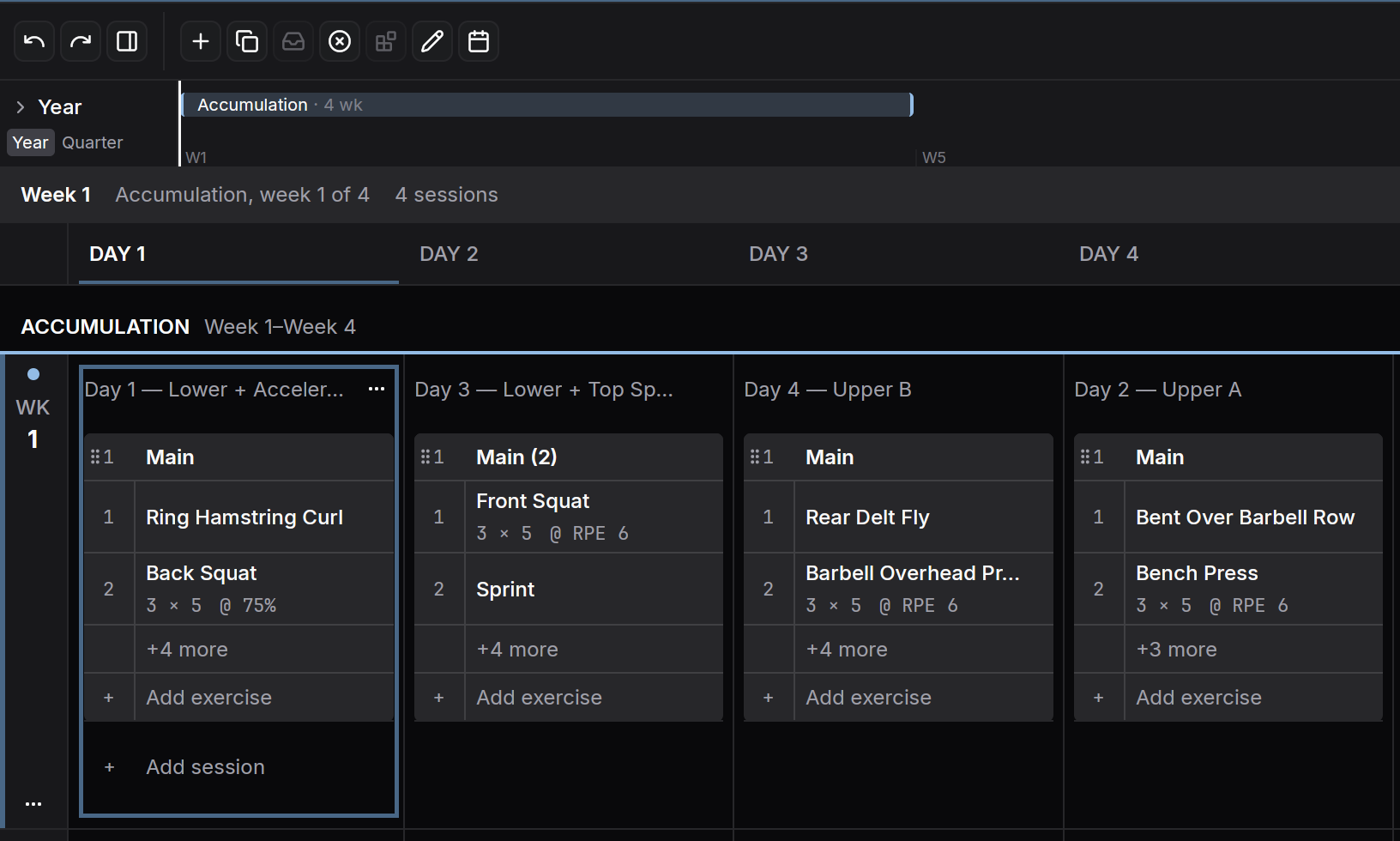
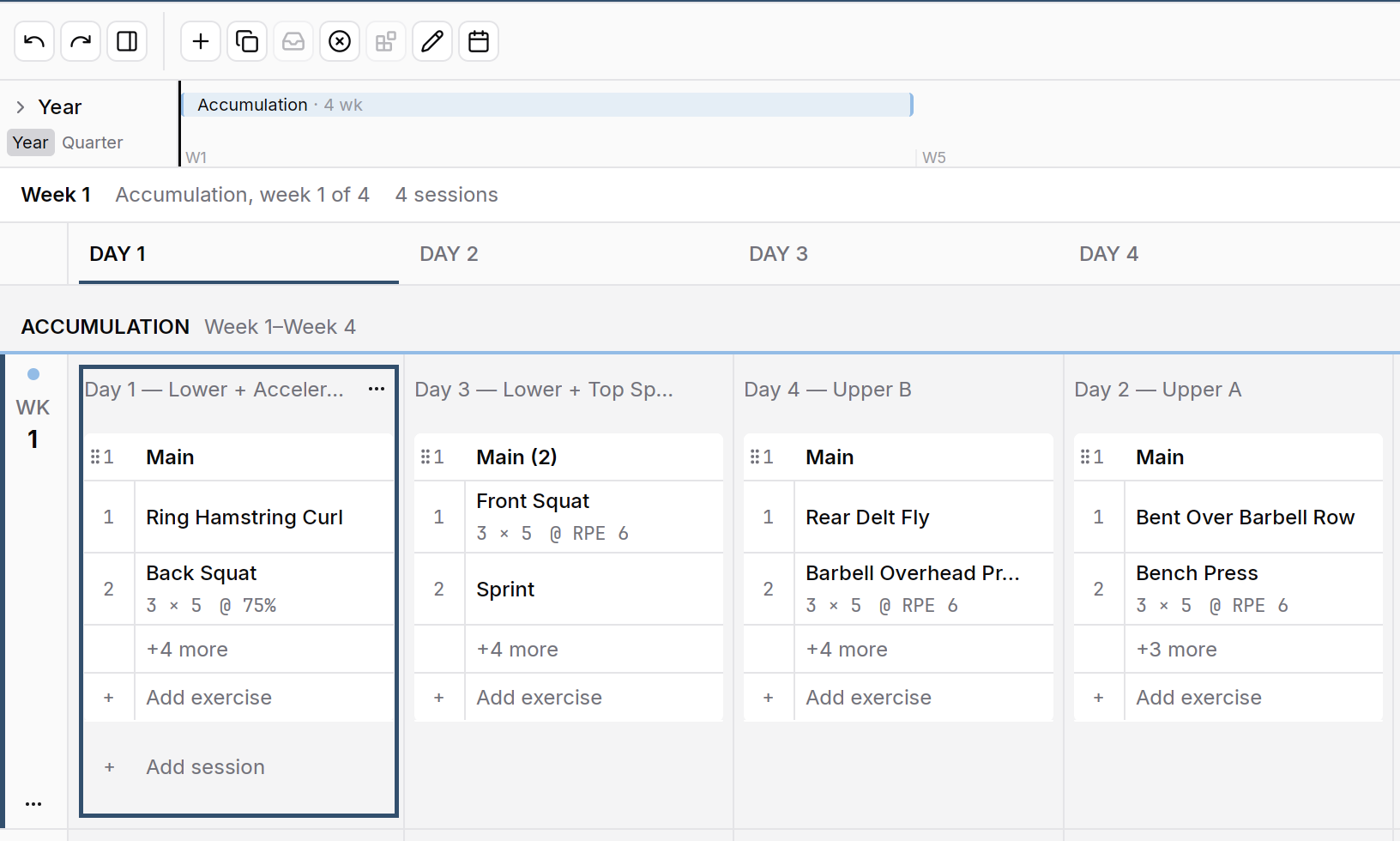
A new block named Accumulation on weeks 1 to 4. Copy the weeks
Press Cmd+C, or click Copy in the selection bar. The bar counts the days you copied. The selection stays, so you can check what you took. On a template, copy one week at a time. Select its days from day 1 to day 7.
CmdC
Paste them onto later weeks
Click the first day where the copy goes, such as day 1 of week 5. Press Cmd+V.
- On a template — paste one week at a time. Copy week 1, click day 1 of week 5, and paste. Then copy week 2, paste it on day 1 of week 6, and so on. If the target week isn't there yet, click + Add week at the end of the Overview first.
- On a calendar — the copied days paste forward from the date you clicked.
Pasting several weeks at once onto a template isn't possible yet. The builder refuses it with "Pasting 28 columns from day 1 runs past day 7."
Then change what progresses, such as the loads in the new weeks.
CmdV
Check it worked
The new weeks show the same sessions as the weeks you copied. The block you made bands its four weeks on the Overview.
Keys on this screen
| ← → ↑ ↓ | Move from day to day |
| Shift+arrow | Stretch the selection |
| Cmd+A | Select every day |
| Cmd+C | Copy the selected days |
| Cmd+V | Paste at the day you clicked |
| Enter | Open the day below the Overview |
| Esc | Clear the selection |
| Cmd+Z | Undo |
Common questions
Is there a zoom that shows exactly four weeks?
No. The zoom shows one week, two weeks, or all of them. Choose All and Compact, and scroll to the four weeks you want.
What happens to the days the paste lands on?
On a template, the pasted days take over the days they land on. The paste is one step, so Cmd+Z takes all of it back.
How do I copy one week to the next?
Use Duplicate week on the week, or Copy to next week for chosen rows. See copy a week forward.
Related
Stuck? Message us directly.