Athlete app
What your athletes see
Your athletes train from Gridlines Training, the mobile app. It shows them the training you put on their calendar, one day at a time. They log each set there, answer your check-ins, and send you clips. Knowing their screens helps you write sessions and forms that read well on a phone.
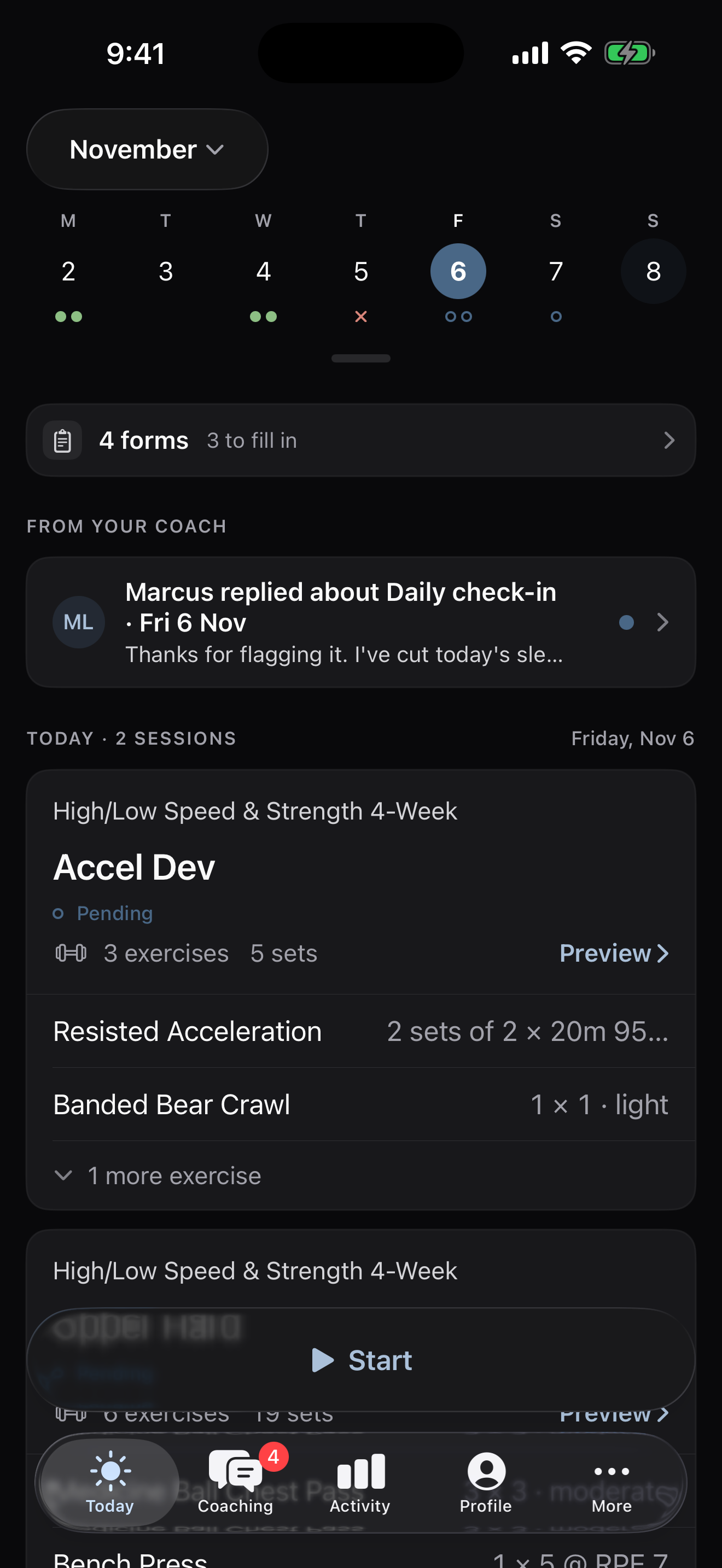 Today
What it is
The app has five tabs: Today, Coaching, Activity, Profile, and More. Today is where training happens. It shows the day's sessions from everything on the athlete's calendar, the forms due that day, and your events.
Where to find it
Your athletes sign in to the app with the email you invited. On the web, an athlete's page shows what they logged and how they answered.
The parts
The calendar
Today opens with the week as a strip across the top. The athlete drags the strip open into a month grid. A dot marks each day with training, from every program they follow. Swiping moves one day at a time.
A day
A day can show three things:
- Forms — one row for each form due, or one row such as "2 forms". Each row has Fill in, or Review once it's answered.
- Events — such as Game, Competition, Travel, or Rest. An event never changes the training.
- Sessions — a card for each session, with Start and Preview. A line from you shows on the card when a rule changed the session.
A day with nothing on it reads "Rest day".
A session and logging
The athlete taps Start and logs each set on a keypad. The fields follow what you prescribed. A percentage shows as a load from the athlete's own max. See inputs that follow the prescription and sprint segments. The logger works with no signal and syncs when the phone is back online. Log a workout walks through the athlete's side, and S20 Logging shows the logger on the site.
The check-in
A form due before a session opens when the athlete taps Start. They tap Fill in now, or Skip and start to go straight to the session. If they skip, you see the form as skipped. See answer your coach's forms for their side, and build a check-in for yours.
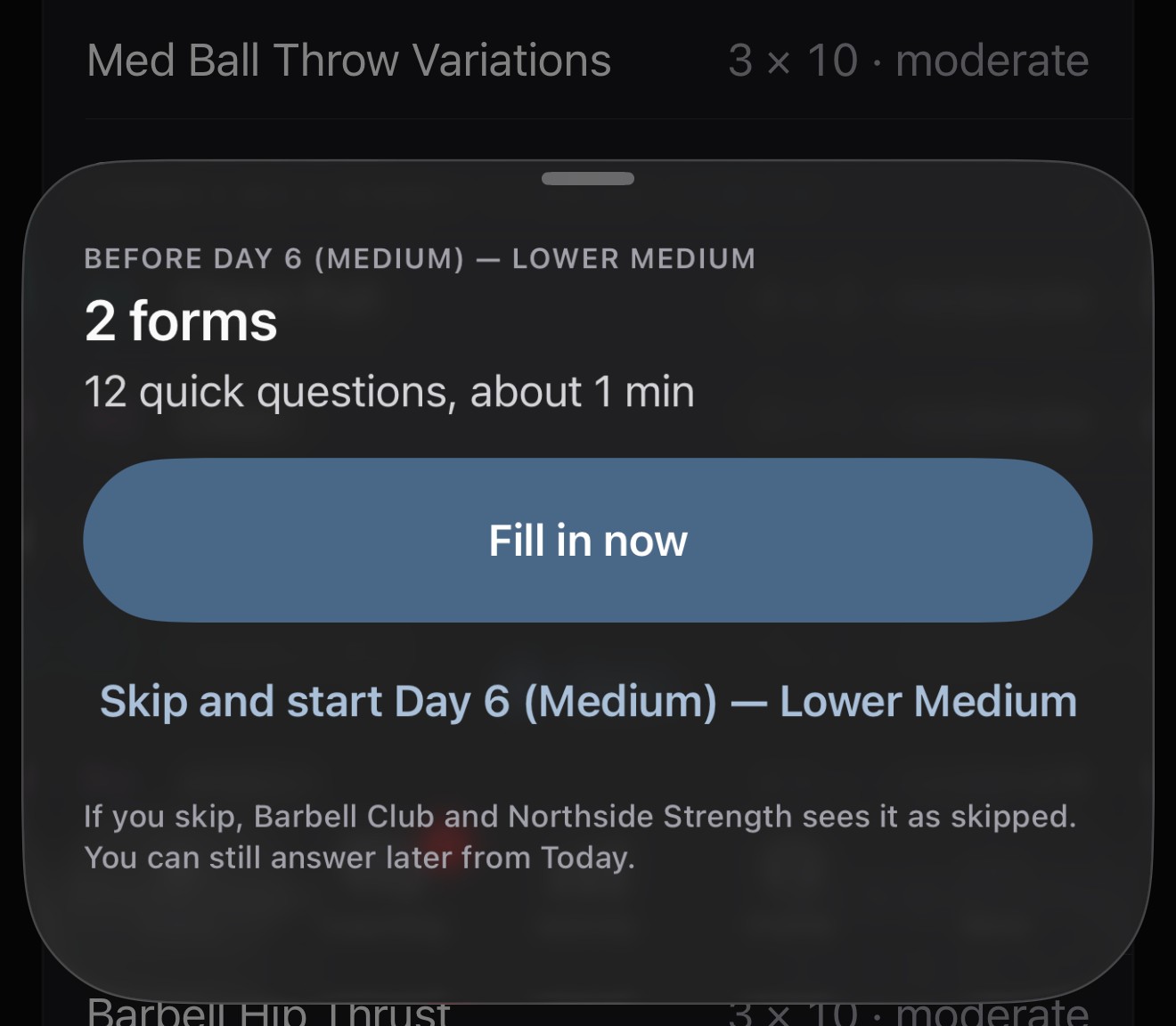
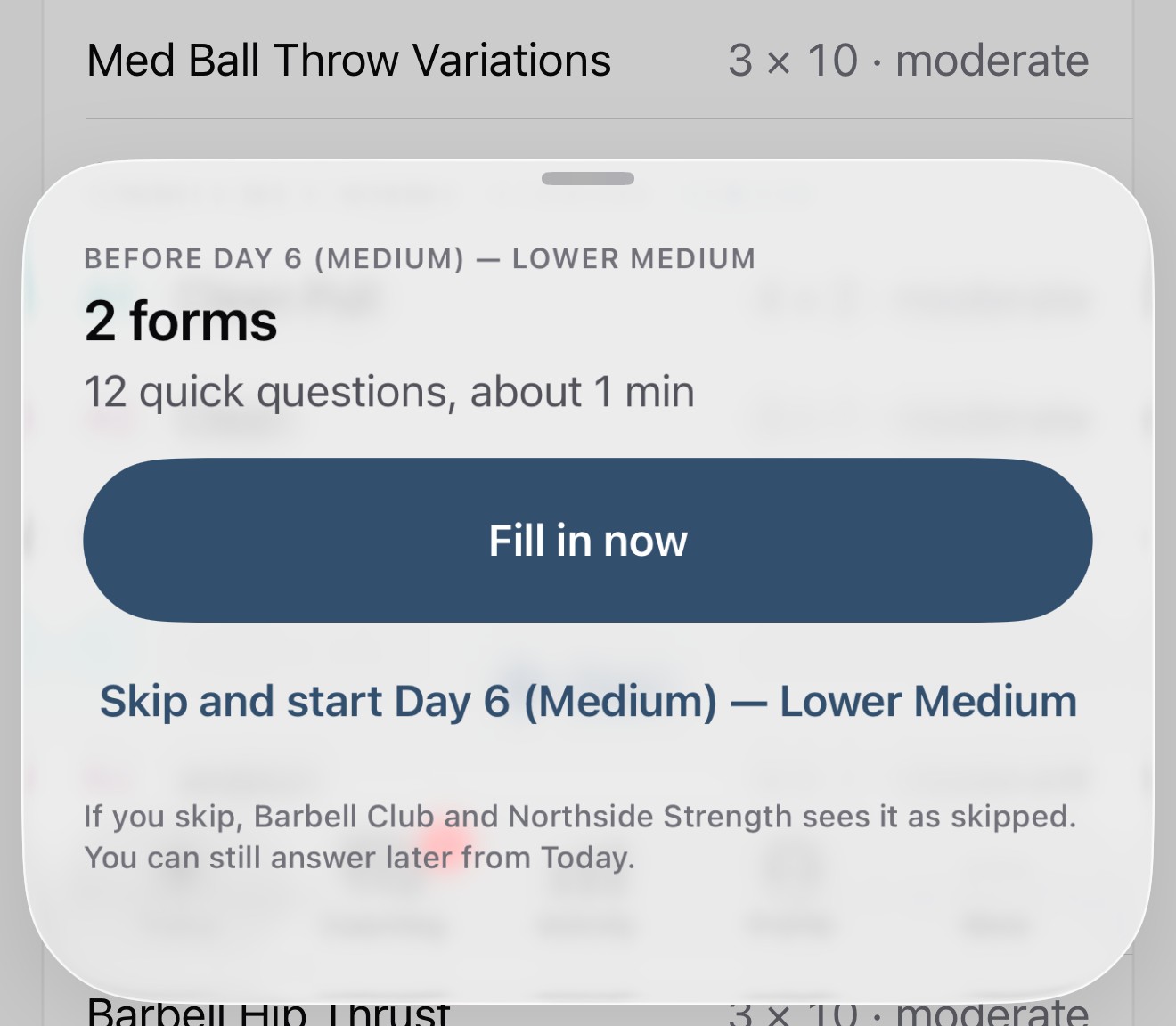 Before the session
Clips
Each exercise card has a camera icon, Add video. The athlete chooses Record video or Choose from library, trims the clip, and taps Use. The clip belongs to the exercise in that session, and it reaches you in Review on that session. Your replies show in the athlete's coaching thread, under the clip.
After the session
When the athlete taps Finish, the app saves the session and asks how it went. See after every session.
Limits
- A clip can be up to 10 minutes long.
- An athlete can pick up to 10 videos from their library at once.
- A clip belongs to an exercise in a session. It can't be attached to one set.
Common questions
Does my athlete see the name of the rule that changed their session?
No. They see the new session and one line from you, such as "Marcus eased today's Back Squat and RDL." The rule's name stays with you. See auto-adjust from the daily check-in.
Related
Stuck? Message us directly.