Getting started
Your first week
At the end of this page, your organization is set up, one program is in Gridlines, and your first athlete has training on their calendar. When they train, what they log and send comes back to you in Review. Each step links to the page that covers it in full.
You'll need
- A Gridlines account. See create your account.
- One program you already coach from, in a spreadsheet or on paper.
- The email address of one athlete.
Apply to joinBook your setup call
Steps
Set up your organization
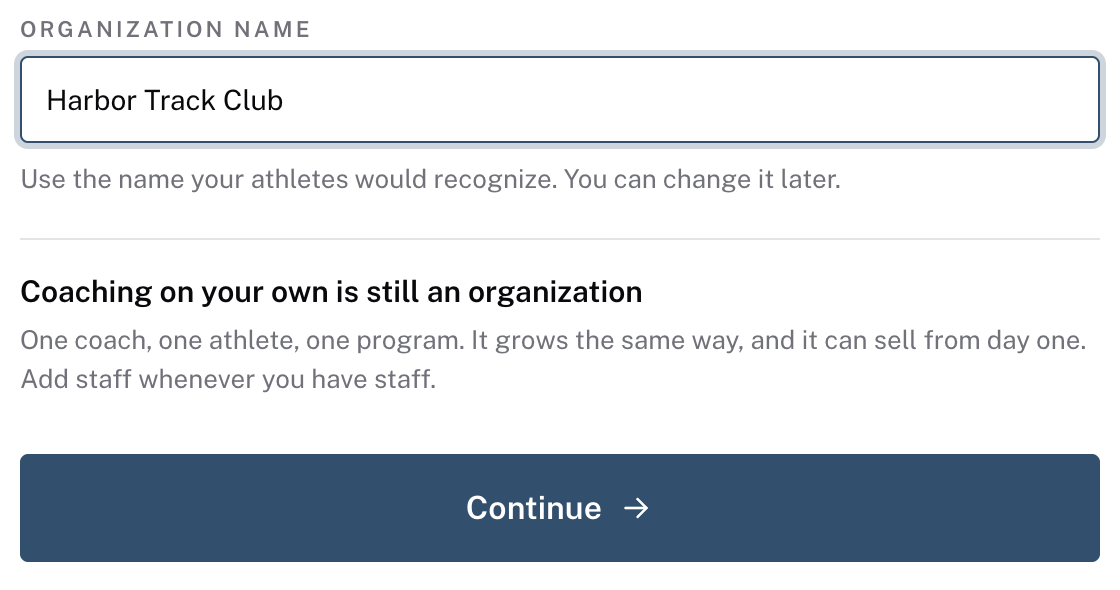
Signup ends with two short steps. On Name your organization, enter the name your athletes would recognize in Organization name. Click Continue.
On Choose your units, pick Weight, Distance, Sprints, and Lengths. Every coach in the organization sees training in these units. Click Continue.
A new organization starts on the Free plan. See set up your organization.
Bring a program in
In the sidebar, open Programs. Click New program. Enter a Name and choose a Type. A Template is a fixed block with no dates, such as a 12-week off-season. If you're not sure, pick Template. Click Create program.
Write the first week, then copy it forward. Bring your program in covers the exercise import and the helper bar, the line where you type sets and reps.
BUILD › Programs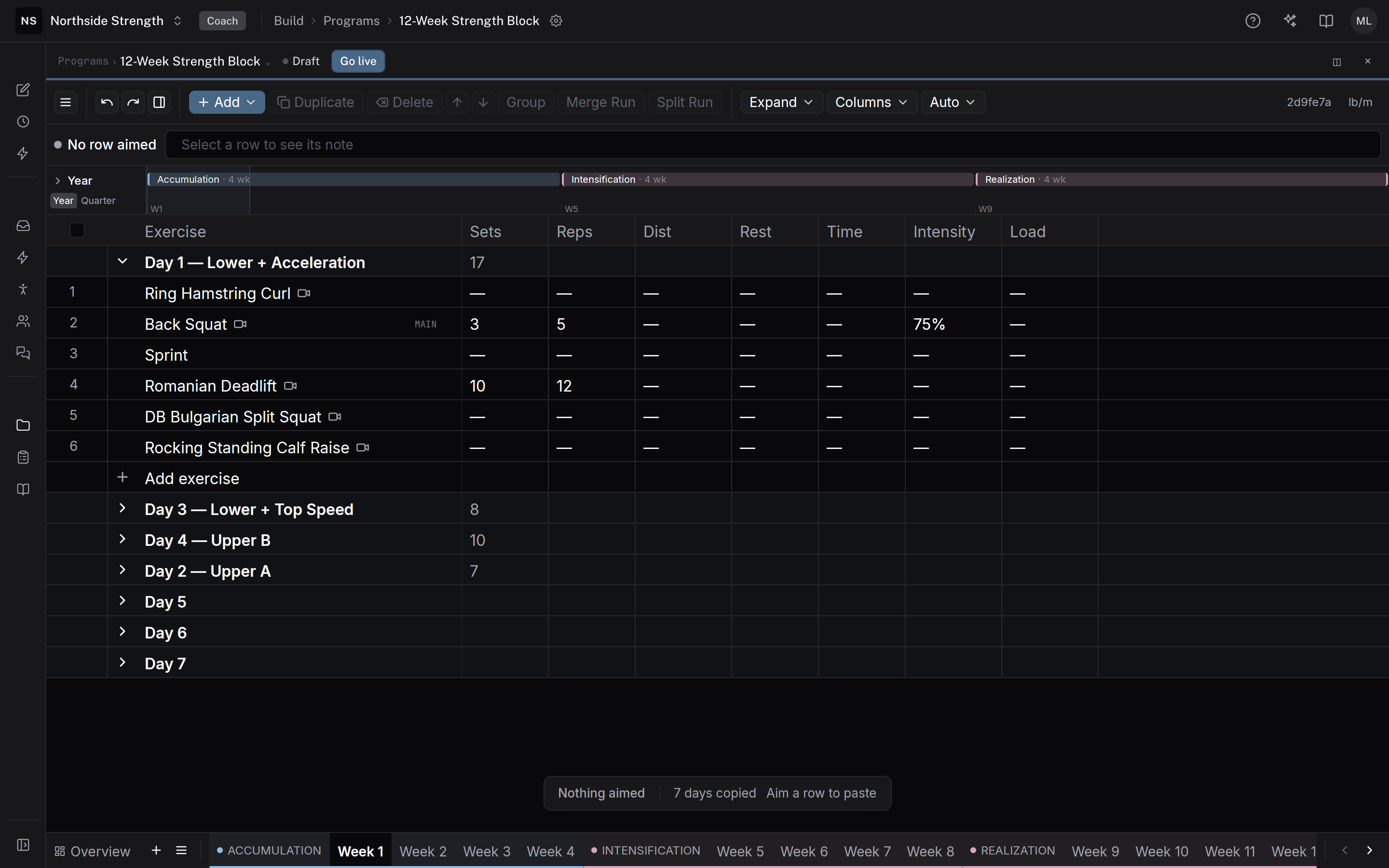
Invite your first athlete
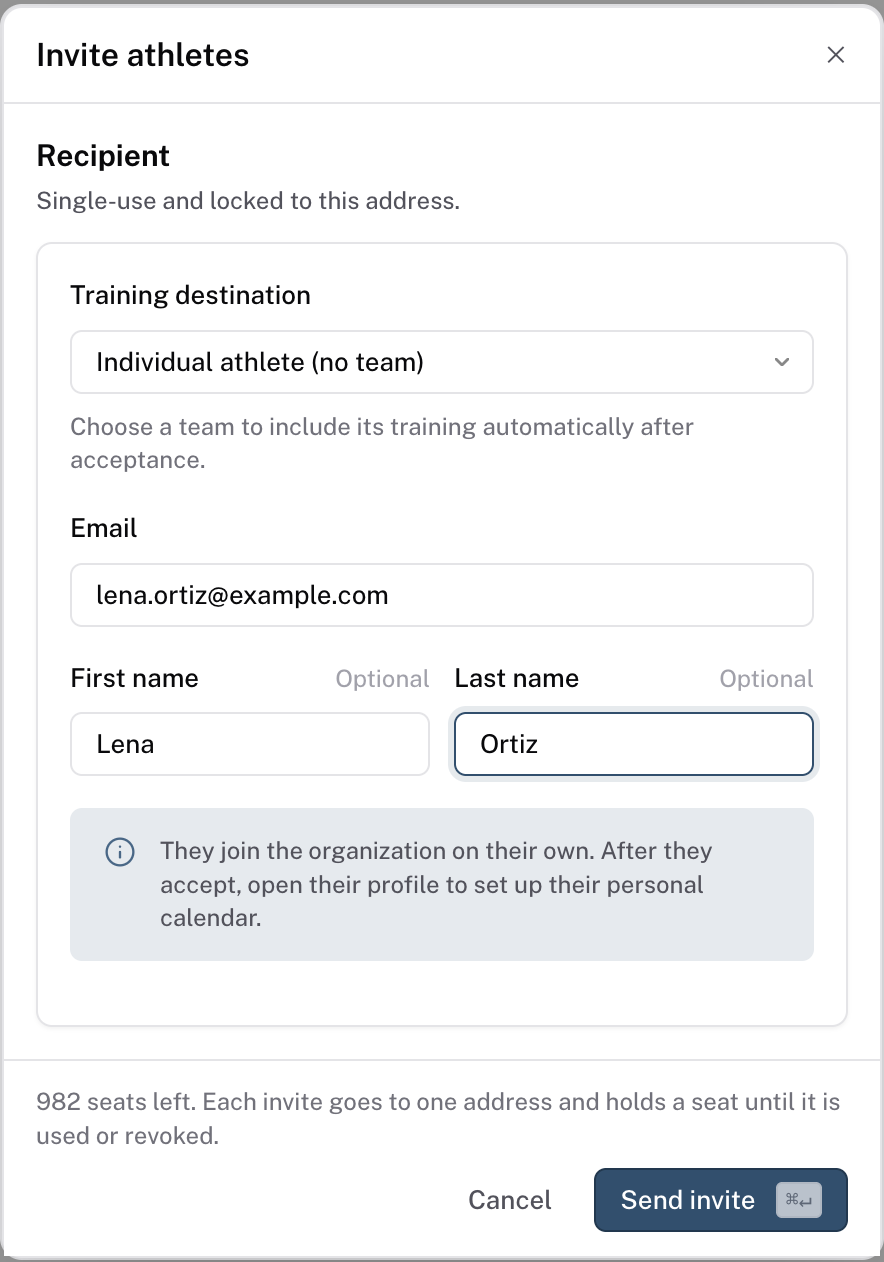
Open Athletes and click Invite. Enter the athlete's email. Under Training destination, choose Individual athlete (no team). Click Send invite.
The invite works once, and only for that email address. See invite your athletes.
COACHING › Athletes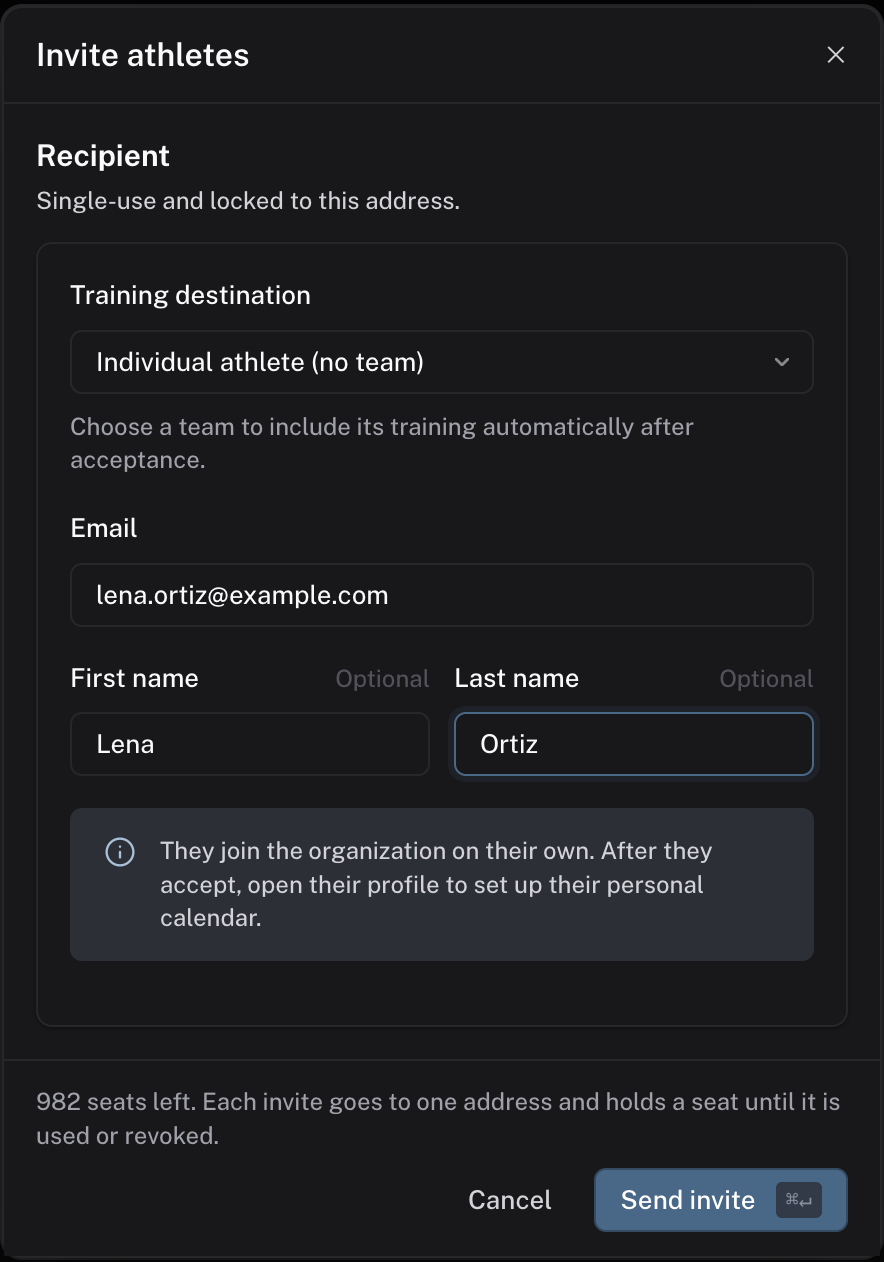
Put training on their calendar
In Athletes, click the athlete's name. Their page opens on their Calendar. Click Add a program, then choose Place. Pick your template, the From date, the Weeks, and the Training days. The template's weeks land on those weekdays, one week at a time.
A program you keep writing forward is a Calendar program. Athletes Follow it instead. See put a program on a calendar.
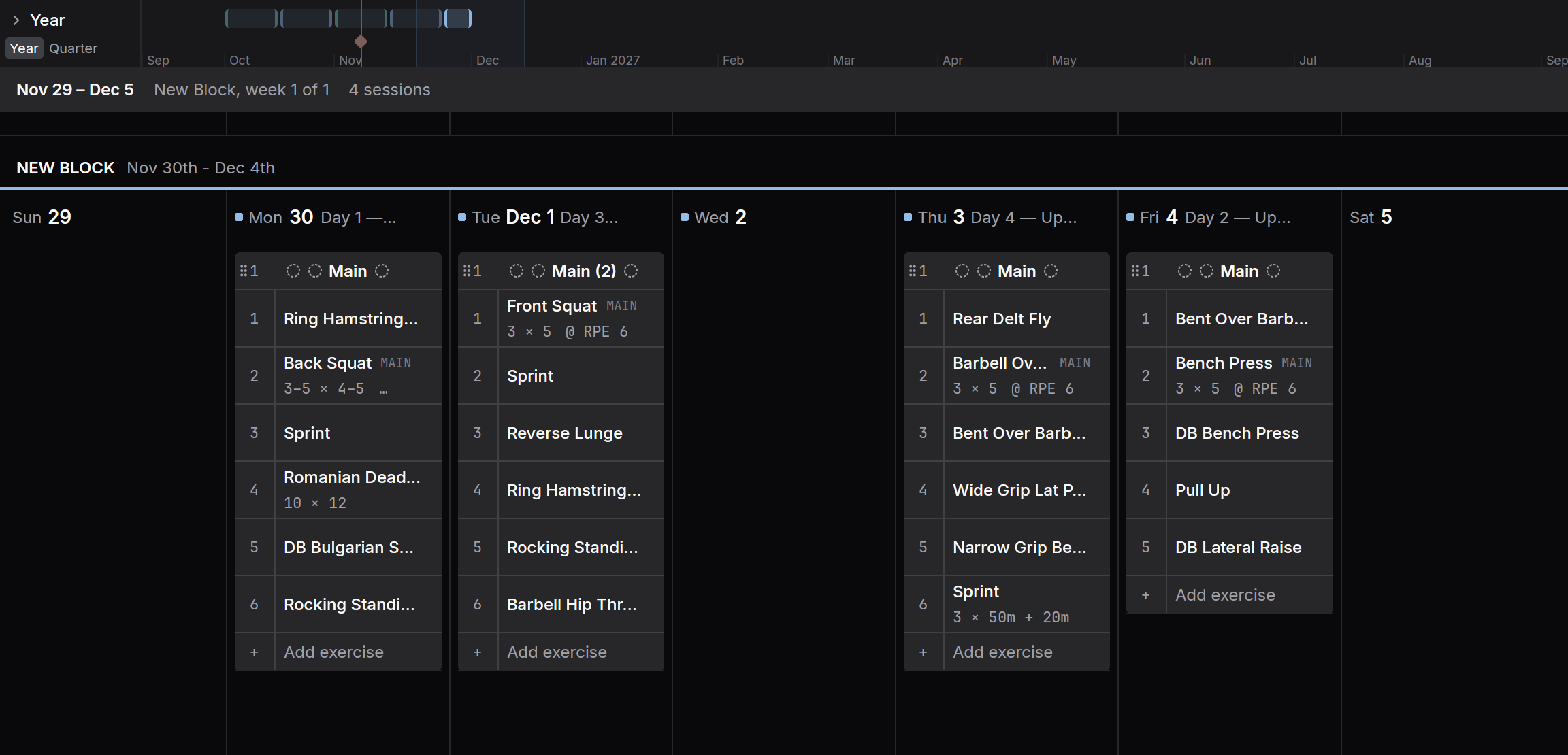
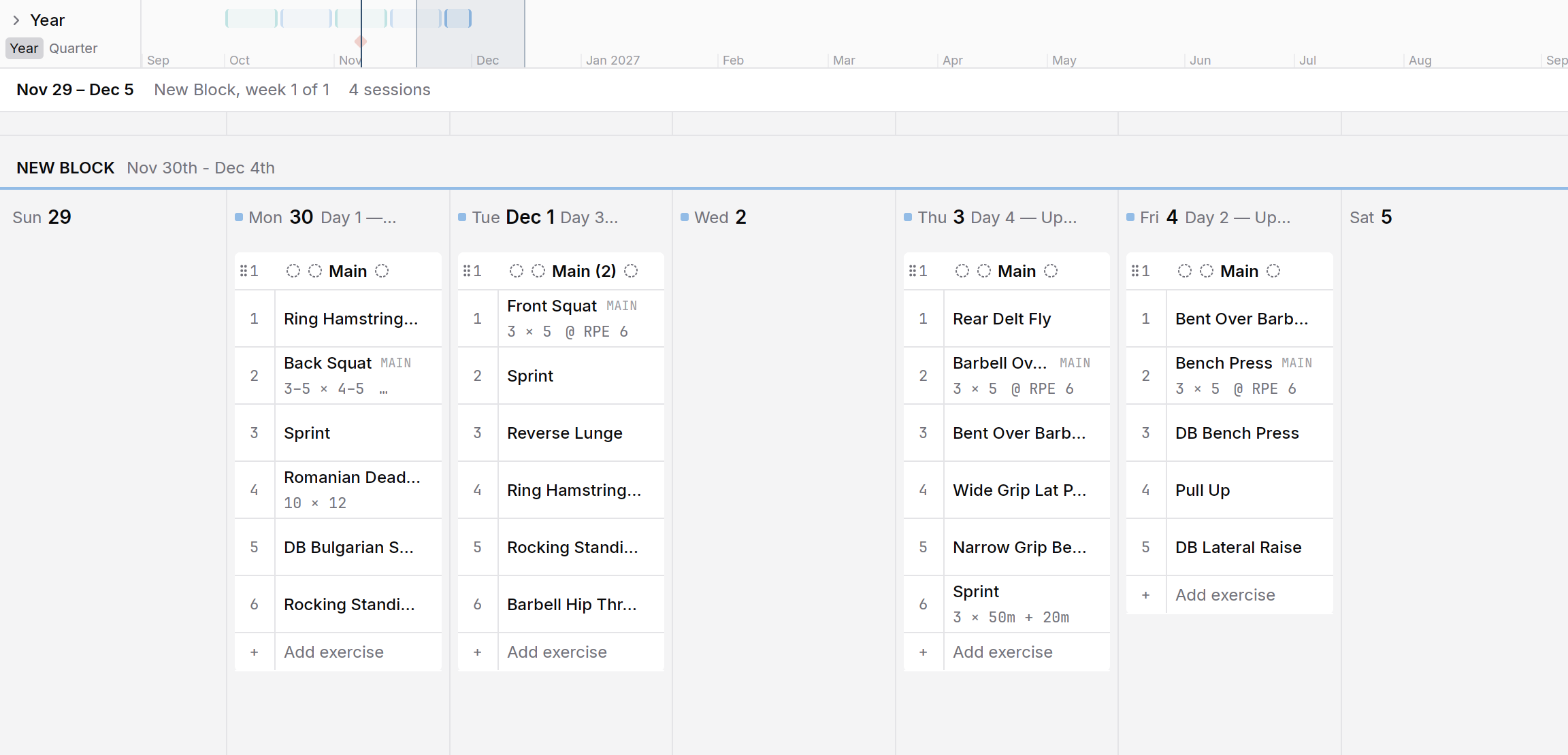
The template's first week on Mon, Tue, Thu and Fri. Look at Review
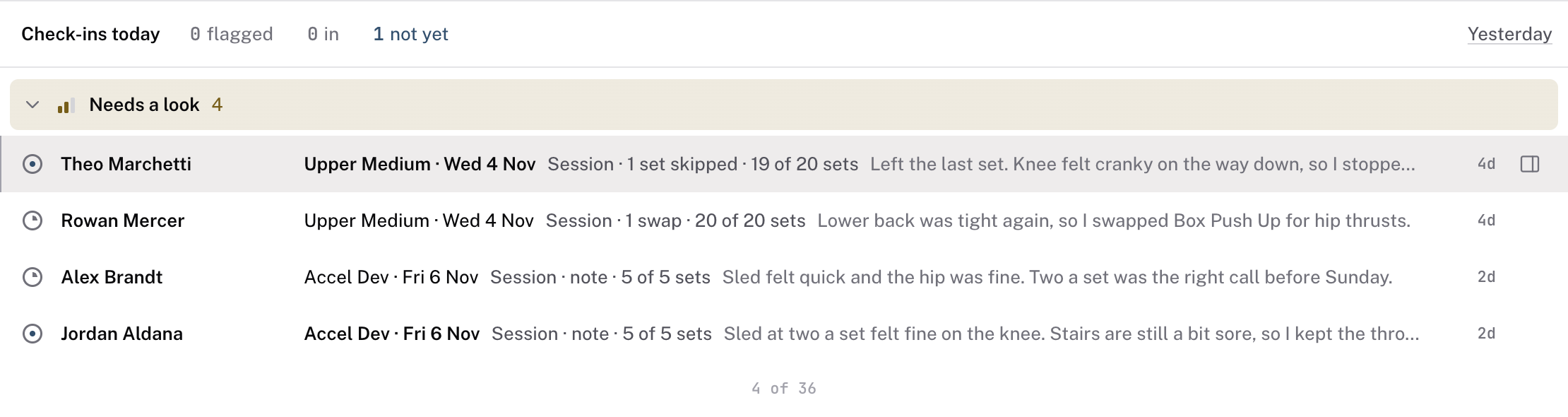
Open Review. It lists what your athletes send and what needs you: logged sessions with clips or pain marks, flagged check-ins, missed sessions, messages, and athletes whose calendar is running out.
Work the Review tab first. When you ask an athlete something, the row waits under Waiting for reply. It comes back after two days with no answer. Rows you set aside go to Later. See Review, start here.
COACHING › Review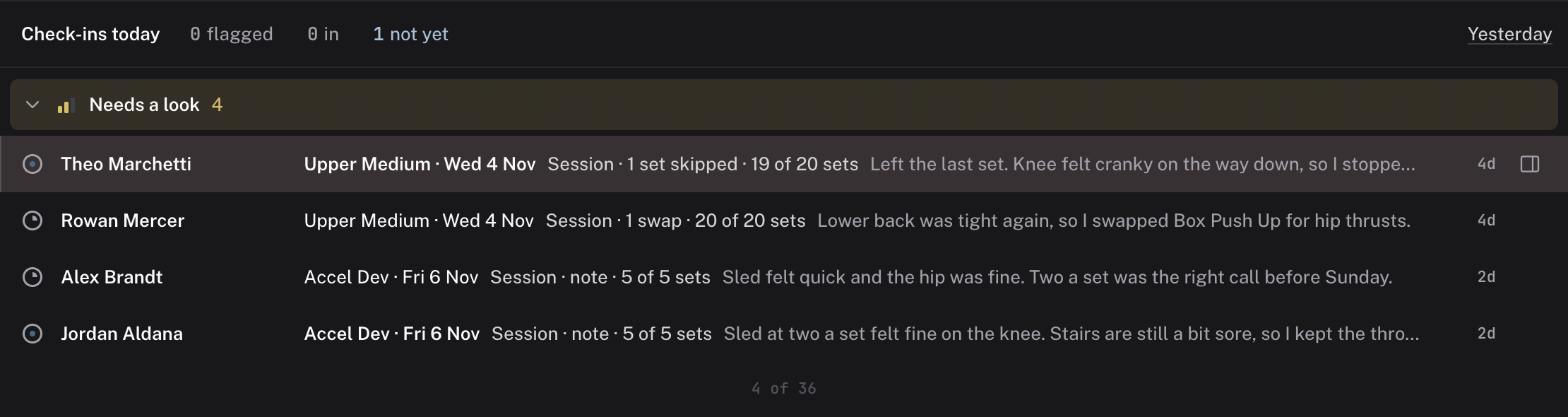
Check it worked
The athlete's Calendar shows the sessions on the dates you placed them. After they log their first session, it shows on their Sessions tab and as a row in Review.
Common questions
Do I need a team for one athlete?
No. Every athlete has a calendar of their own. Choose Individual athlete (no team) when you invite them. Create a team when several athletes train from the same calendar.
Can I write their calendar before they accept?
Yes, if you add them with Add athlete on the Athletes page. They are on the roster as soon as you add them. With an email, the invite goes at once. Until they accept, you can plan, log, and take notes for them.
What does the athlete do?
They open the invite email and accept it with the address it went to. Then they see their sessions in the Gridlines Training app. See what your athletes see.
Related
If you sell programs to people outside your roster, start with sell your programs.
Stuck? Message us directly.