For athletes
Start and manage your programs
Start a program you own, pick the days it lands on, and keep your calendar the way you want it. In the mobile app, More > Programs lists every program on your calendar and every program you can start. Today runs the current day, and Programs decides what's on your calendar.
Your coach manages programs they put on a team or organization calendar. Those programs don't appear here. Their days show up on Today by themselves.
What's on the Programs screen
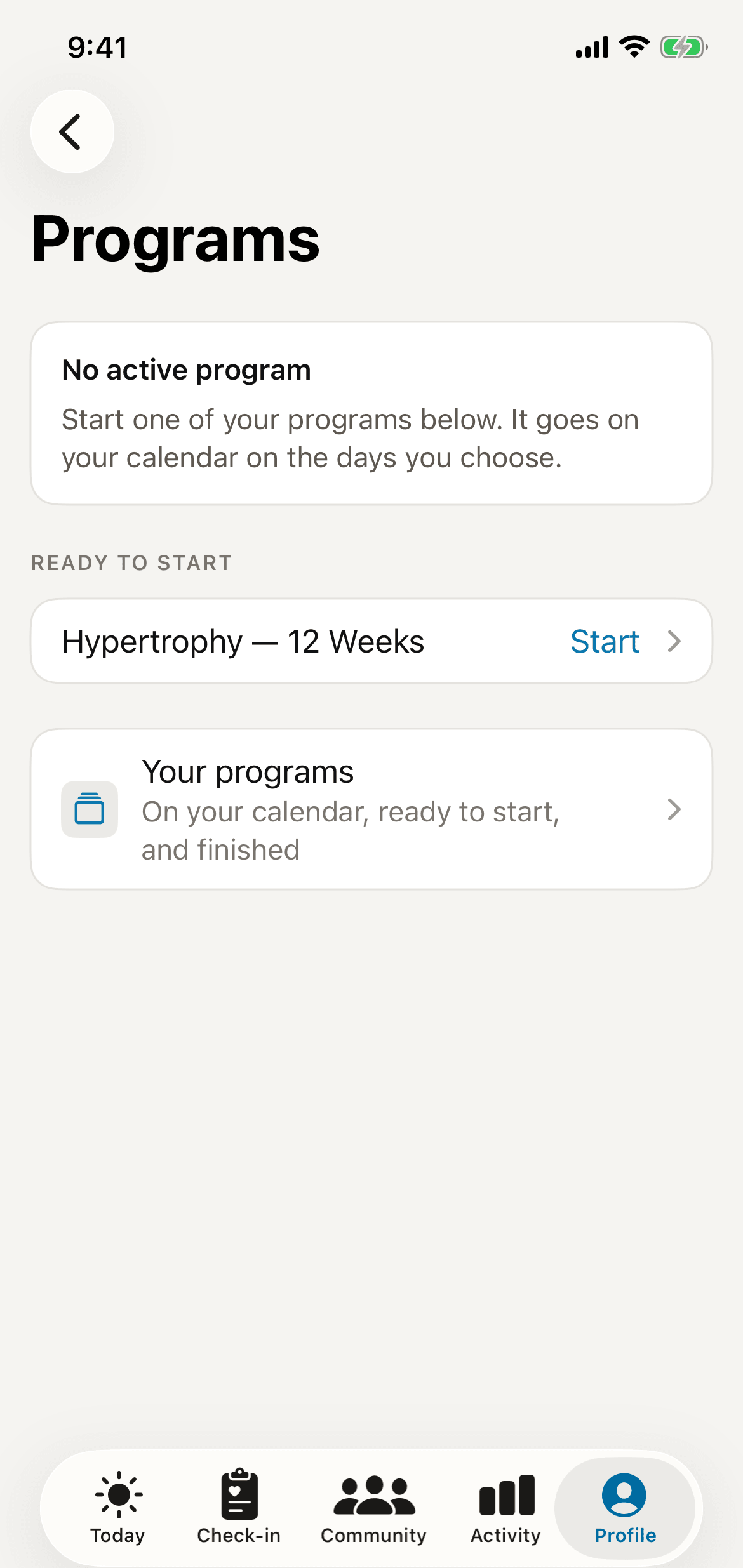
- ON YOUR CALENDAR — one card for each program you started, with its week and its dates. When nothing is on your calendar, a No active program card takes its place.
- AVAILABLE TO START — programs you own but haven't started, each with a Start row. The heading reads READY TO START when nothing is on your calendar.
- Your programs — your whole library: ON YOUR CALENDAR, AVAILABLE TO START, LAPSED, and FINISHED.
Starting a program
Tap Start on a program. The app asks one question before it adds the program to your calendar:
- A template, a fixed block of weeks, asks for your training days. Pick the days of the week your sessions land on.
- An ongoing program asks which week to start from. New weeks arrive on your coach's schedule.
Tap Start program. The program's days then appear on Today.
Managing a program on your calendar
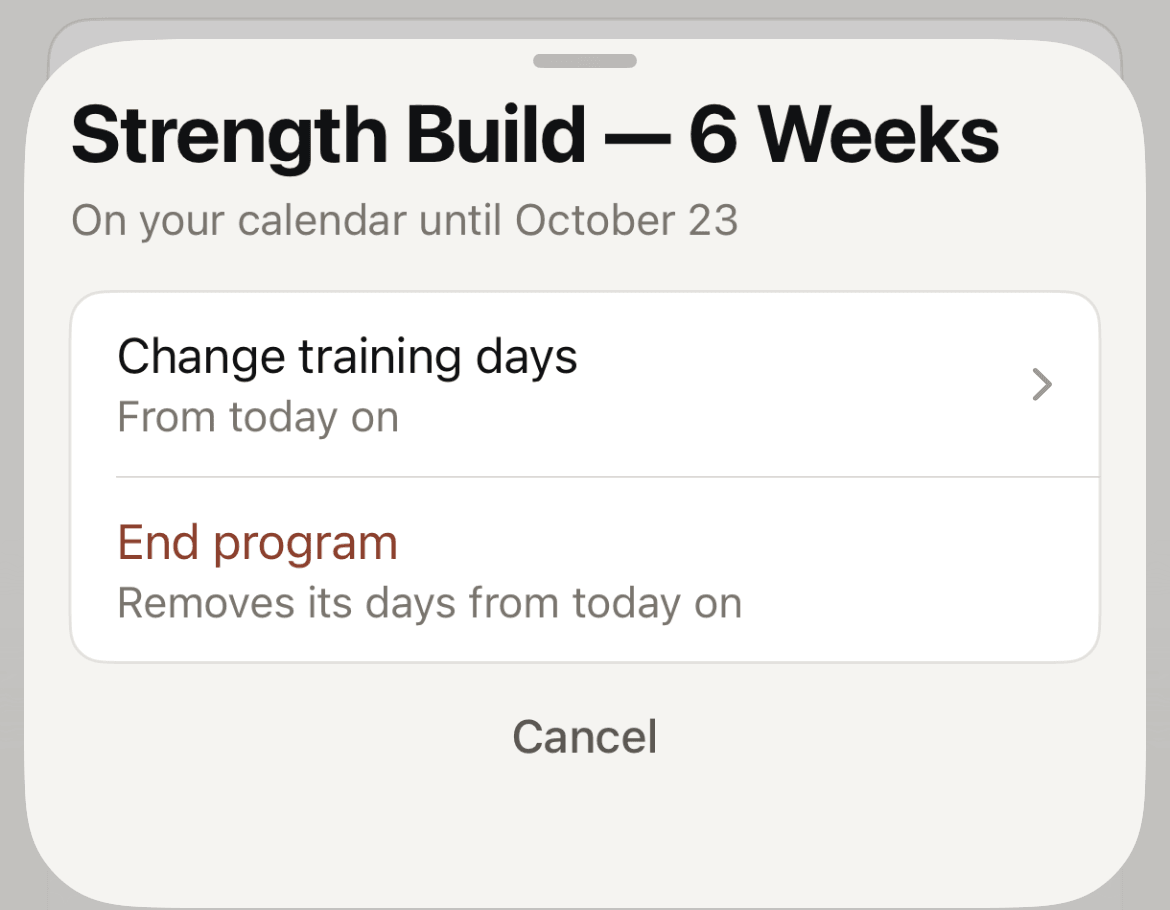
Tap ··· on a program's card. The sheet shows only the actions that apply to that program:
- Change training days — for a template. It moves your sessions to other days from today on.
- End program — removes the program's days from today on. For an ongoing program, the plan stops today. Days before today and your logged sessions stay. Ending a program doesn't cancel a subscription.
- Manage subscription — for a program you pay for monthly. It opens your account on the web.
- Restore — for a lapsed program. It opens the program's page on the web, where you renew it.
The app shows Manage subscription and Restore only when your App Store account is in the United States.
A program lapses when the subscription that pays for it ends. Its days stay in your history, and new days stop until you renew.
Missed sessions
Tap Mark as missed on a session you didn't do. Tap Unmark missed if you change your mind. When you miss several sessions, a tray appears on Today with two choices:
- Move into this week — the app moves the missed sessions forward, and you continue where you stopped.
- Skip them — the plan stays where it is, and you continue from today.
Reading the programming ahead
Tap a program's card to read it without starting a session. A lapsed program doesn't open. The overview shows WHAT THIS BUILDS, TRAINING BLOCKS, and WEEK STRUCTURE. Open a week for its days, then open a day for its session.
Related
Stuck? Message us directly.