Agent and connector
Hand work to the Agent
The Agent is the AI in your dashboard. You can hand it routine work, like checking who trained this week or adding a deload week to a program. It reads and edits the same programs, calendars, and library you work in by hand, and it can only make changes you could make yourself.
Review what the Agent says and writes before it reaches an athlete.
Where to find it
- The Agent page — in the sidebar's AGENT group, click New chat. Coaches land here when they sign in.
- The Agent panel — click the sparkles button in the topbar. The panel opens as a column on the right of any page. It carries the same conversation as the Agent page, so you can move between pages mid-chat.
- Ask Agent — a button on athlete, team, and program pages, and on Today. It opens the panel with a message started about that page.
Chats waiting for your answer list under Waiting for you in the AGENT group. The sparkles button shows a dot when a chat is waiting.
Writing a message
You type to the Agent in the message box at the bottom of the chat.
- @ mentions — type
@to reference an athlete or a program by name. - Attachments — attach images, PDFs, or spreadsheets. Attach an old program spreadsheet and ask the Agent to turn it into a program.
- Dictation — click the microphone to speak a message.
- Skills — the Skills menu runs a saved procedure. See save requests you make often.
Ask and Agent modes
The mode menu on the message box picks the job:
- Ask — looks things up and answers. It changes nothing, so it never asks you to confirm, and it uses fewer credits.
- Agent — looks things up and makes changes. It asks before a change.
Approving changes
In Agent mode, the approval control on the message box reads Ask first or Auto-apply:
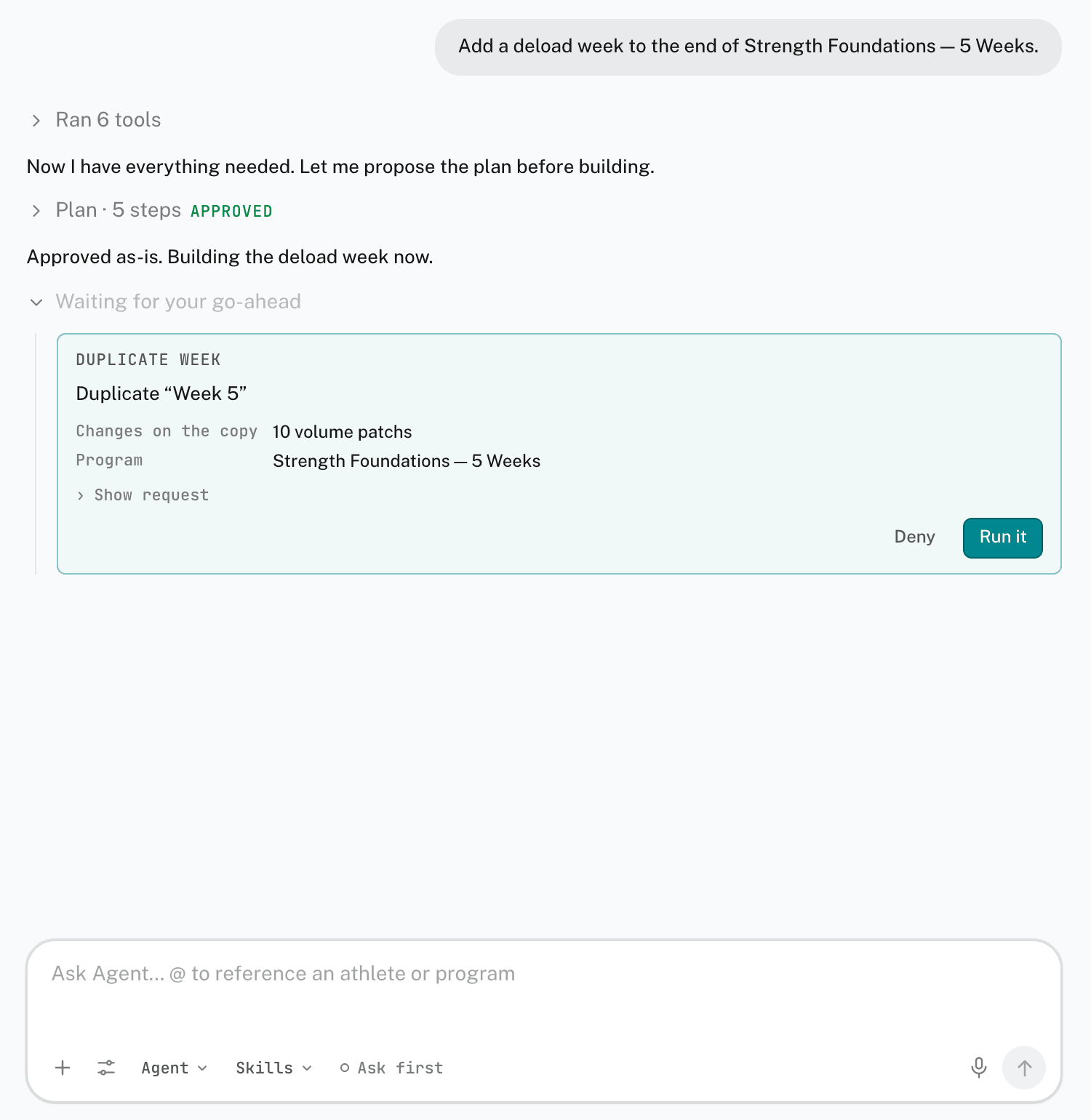
- Ask first — changes appear as a card for you to approve. The card names the change and lists its details. Click Run it to apply it, or Deny. Show request shows the raw request.
- Auto-apply — most changes run without a card. Removing data, sending a message to an athlete, and shifting or progressing a range of calendar days still ask.
A card that deletes data is marked Deletes data, and its button reads Remove it.
For a larger job, the Agent proposes a plan first. Click Approve plan, Edit the steps, Skip planning, or Decline with a note. Once you approve a plan, its steps run without a card each. While the plan runs, Up next shows the remaining steps.
When the Agent needs a detail from you, it shows an Agent asks card. Choose an answer, or type your own.
In the message box's settings, Create exercises without asking lets new library exercises skip the card while Ask first is on.
Chats and history
- History — lists past chats. Click the search icon, or press Cmd+K, to search them.
- Pin as panel — on the Agent page, opens the conversation in the panel and returns you to the page you came from.
- Remember — on a reply, saves a rule from it to your coaching eye, the standing notes the Agent reads at the start of every chat.
- Copy reply — copies a reply's text.
Every chat has a limit to how much the Agent can keep in mind at once. From 75% full, a Chat N% full pill appears, and the message box offers Summarize for a new chat. A full chat replaces the message box with New chat. The transcript stays readable.
Credits and plans
The message box shows the credits left in your organization's monthly pool. AI is included on every paid organization plan. Free has no AI. On Free, a note stands where the message box was, and an admin can choose a plan from it.
In the desktop app
The desktop app has its own AI panel in the right dock. Press Cmd+? to open it. It works on the program open in the editor.
Related
Stuck? Message us directly.