Workflows
Set up a check-in rule
At the end, a sore athlete's session loses a set and caps at RPE 7 before they start, with your note, or the change waits in Review for you.
Changed 24 Oct · see the update
You'll need
- A check-in that asks about soreness. See build a check-in.
Steps
Start a rule
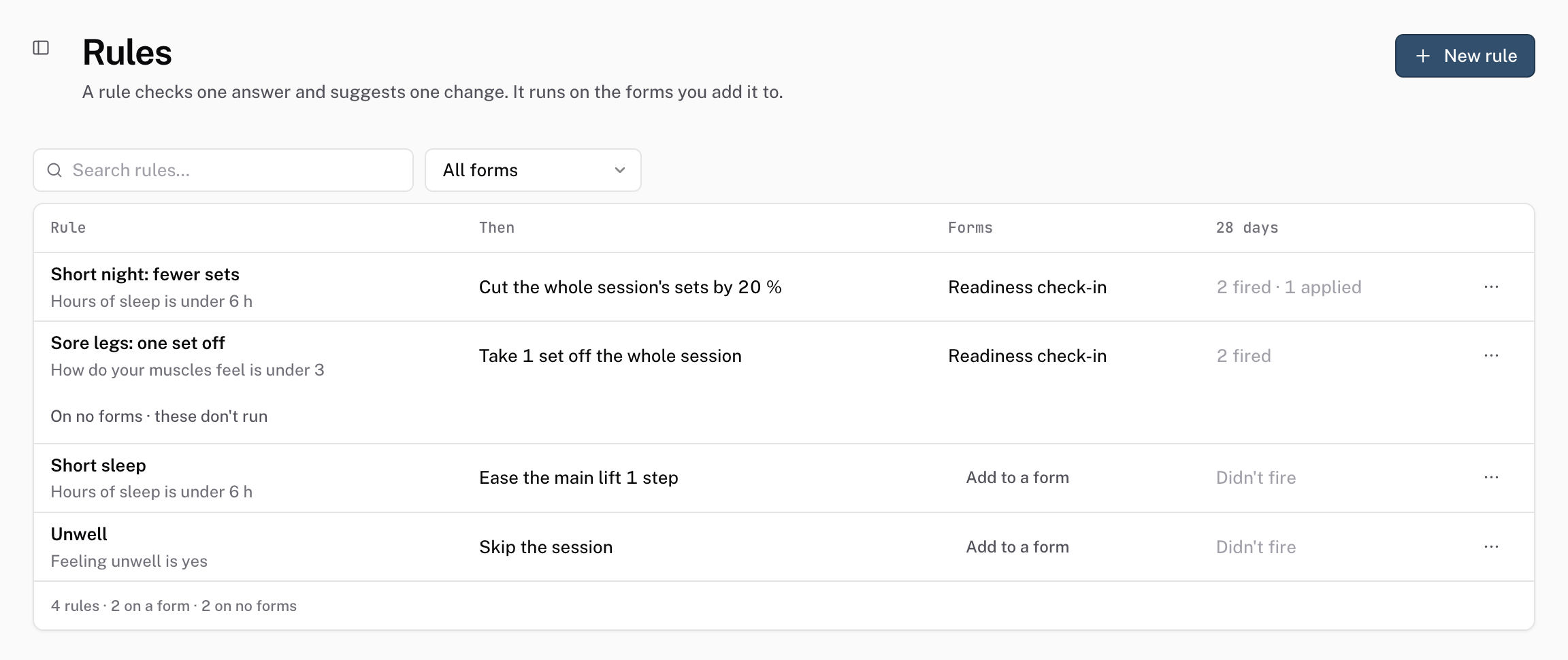
Go to Automation, then Rules, and choose New rule.
Automation › Rules › New rule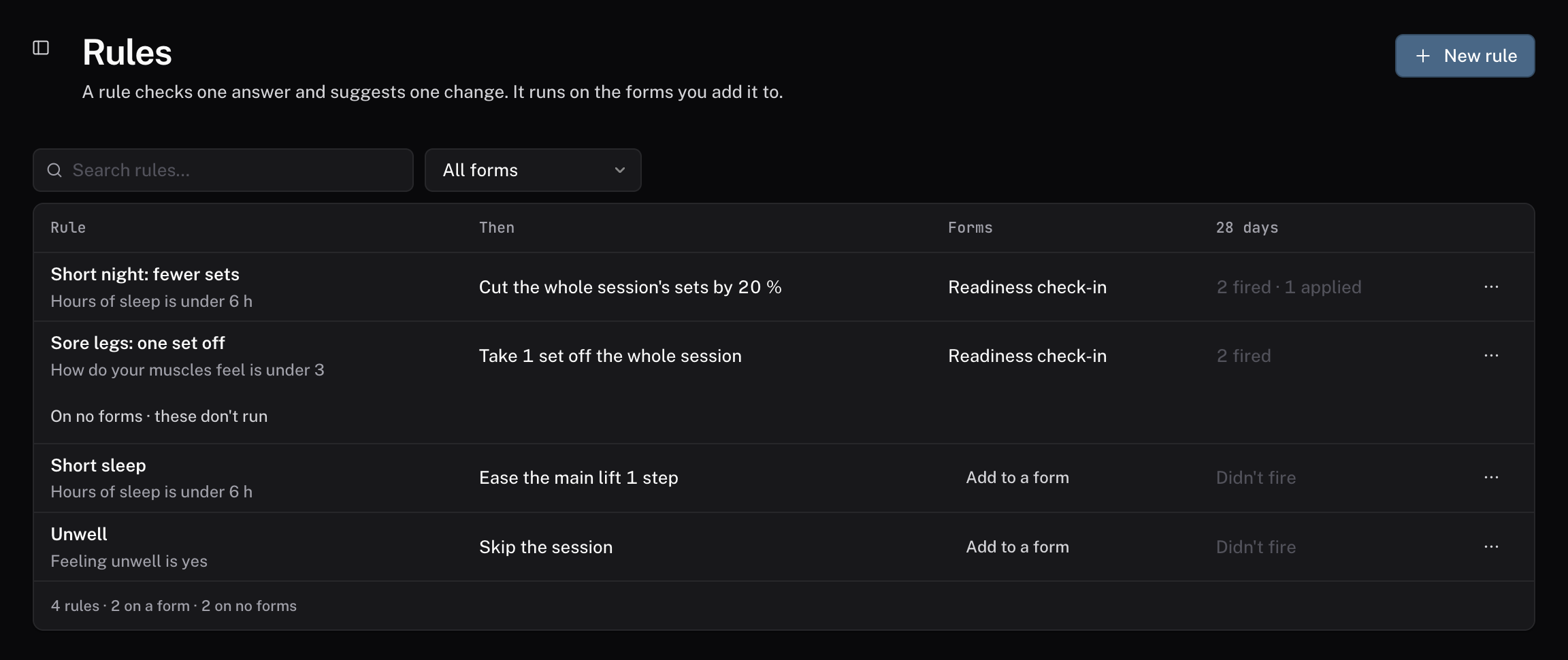
Pick the forms it reads
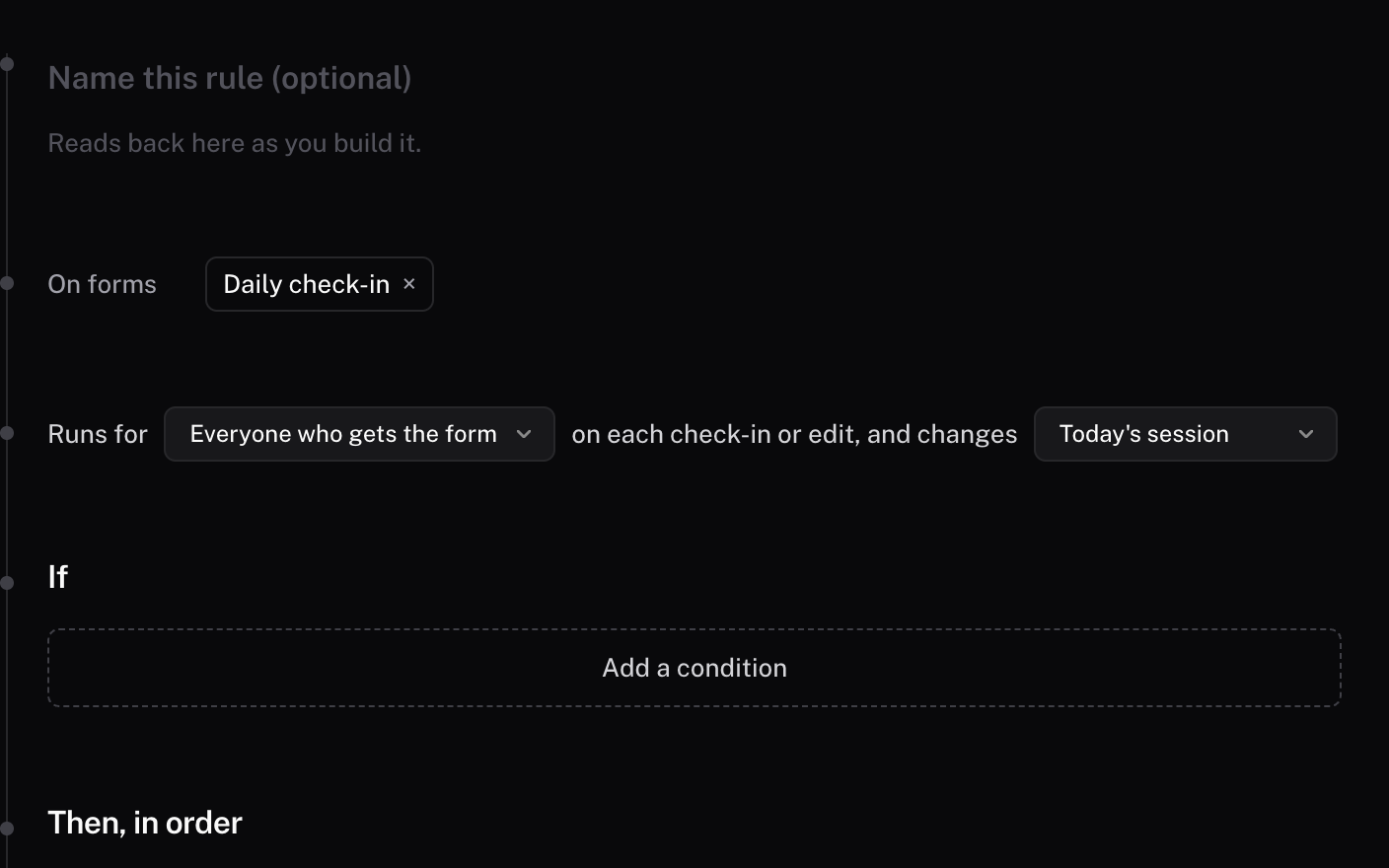
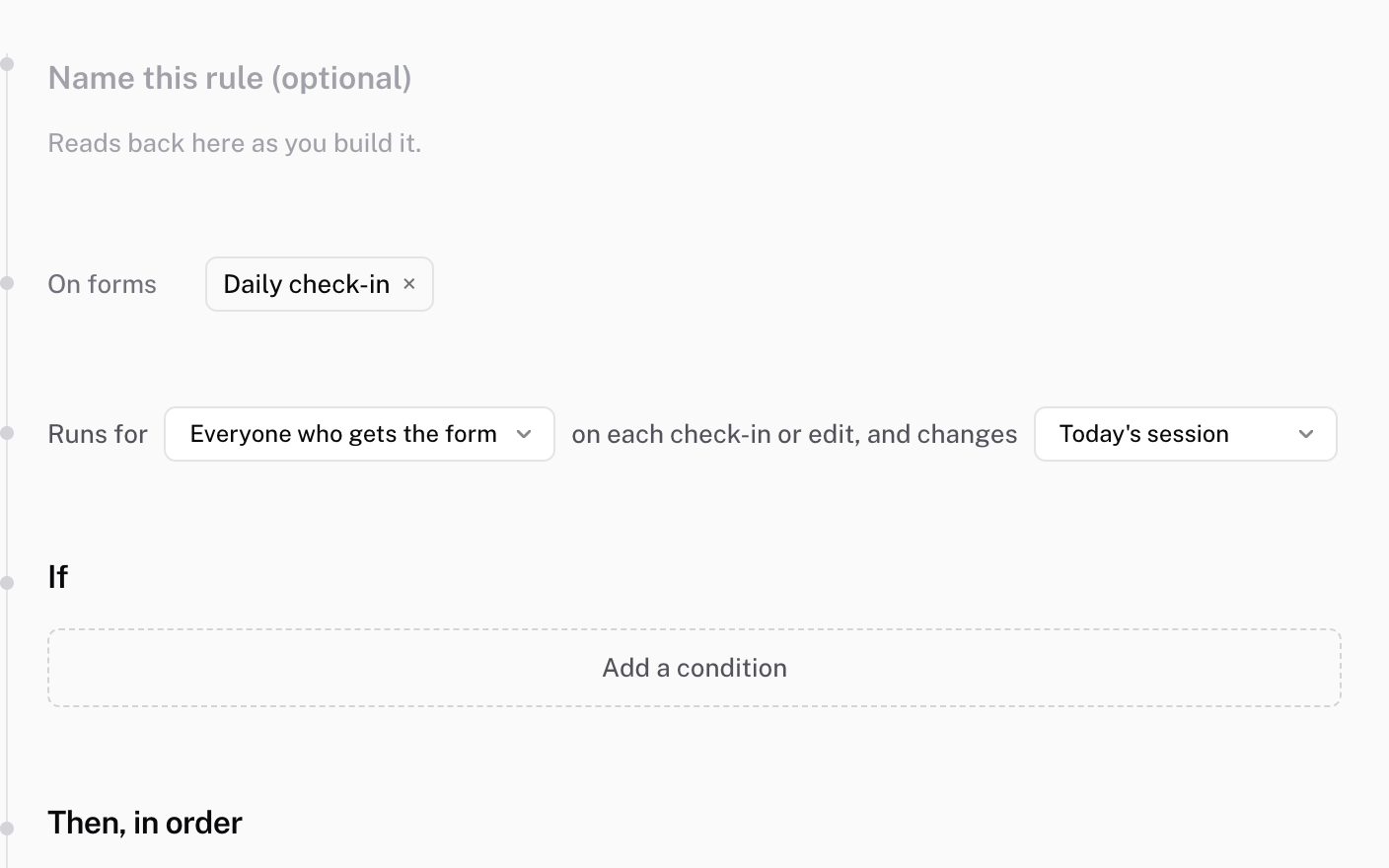
Under On forms, click Add to a form and choose your check-in. A rule reads only the forms you pick, and a rule on no forms doesn't run.
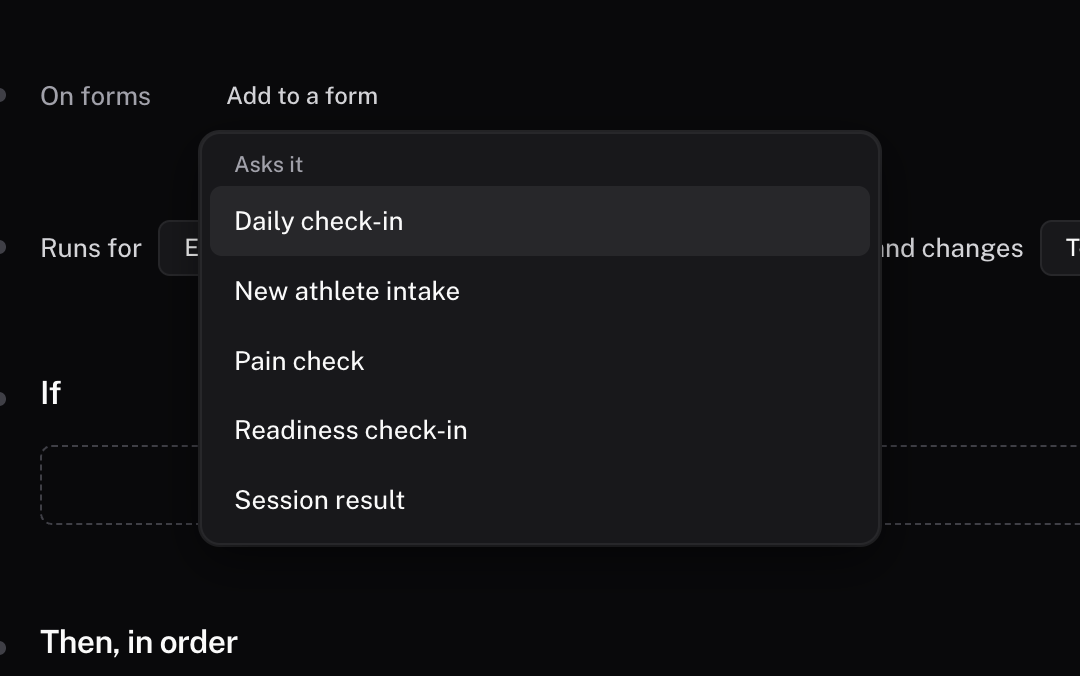
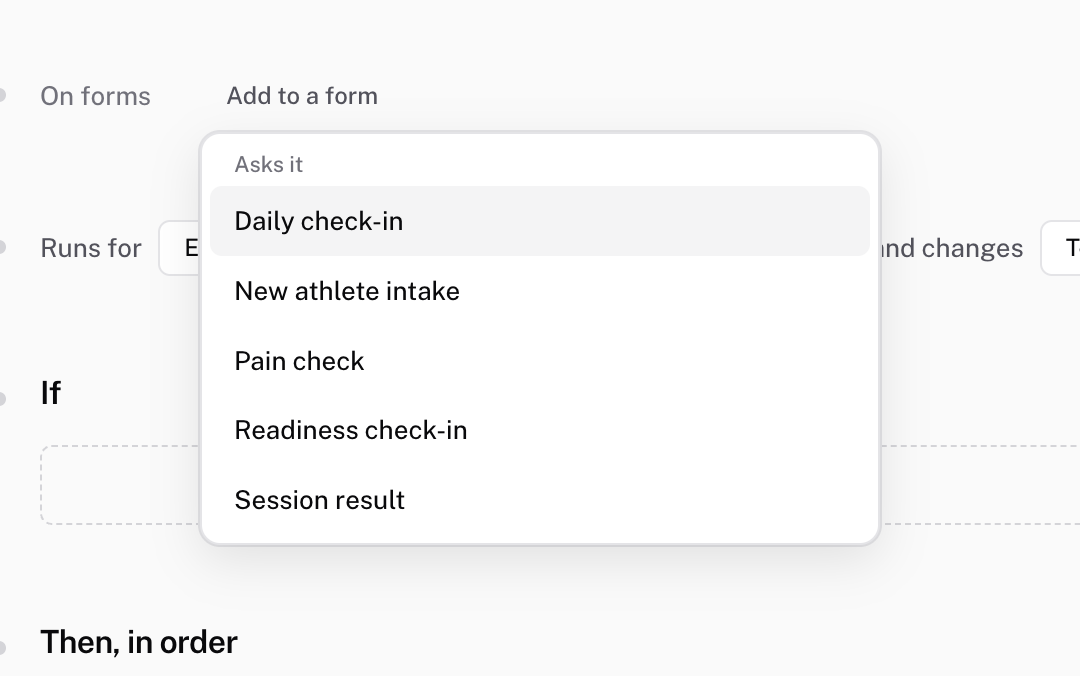 On forms
Pick the session
In the Runs for line, set the last menu to Today's session. A rule can also act on tomorrow's session or the rest of the week.
Set the condition
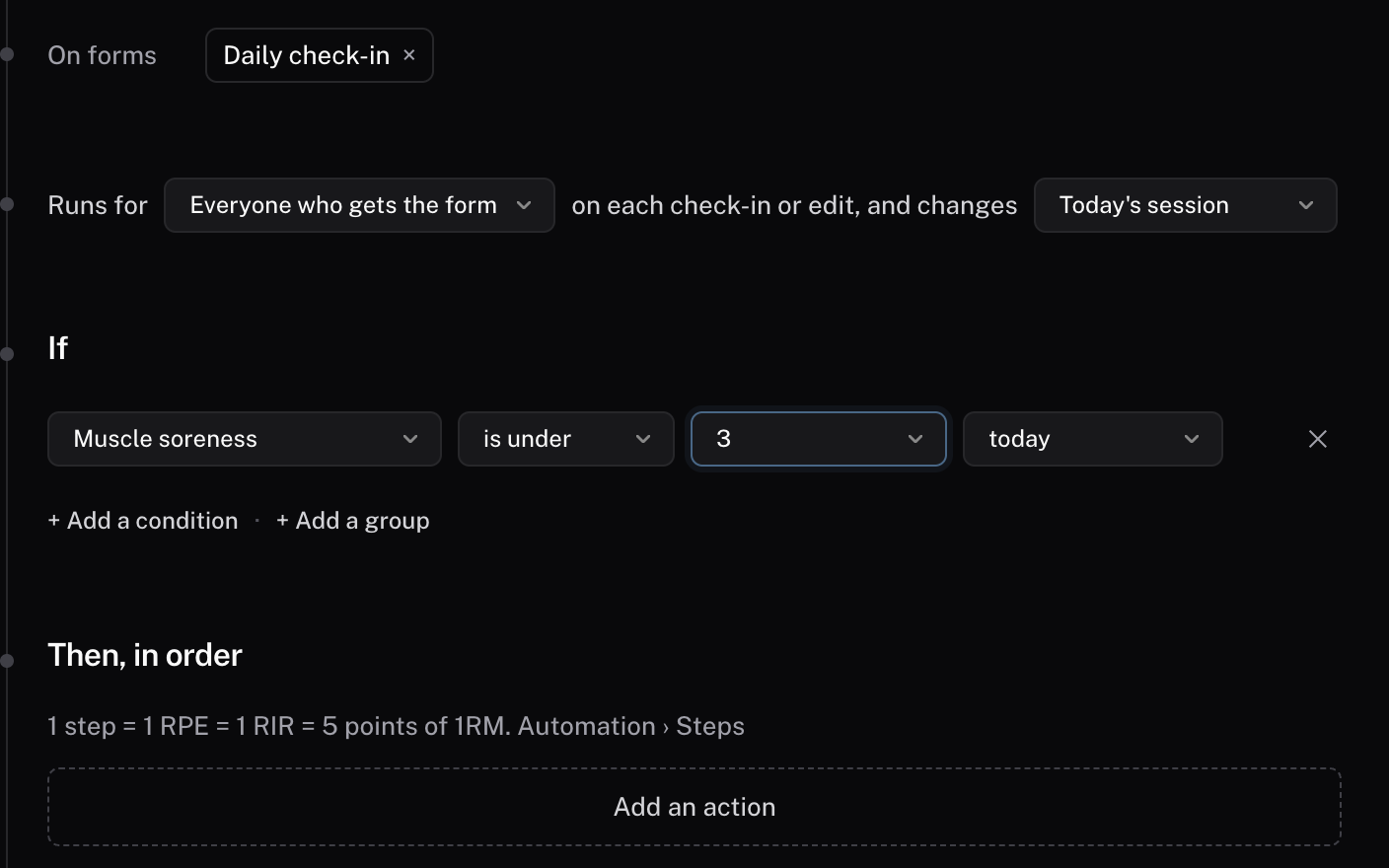
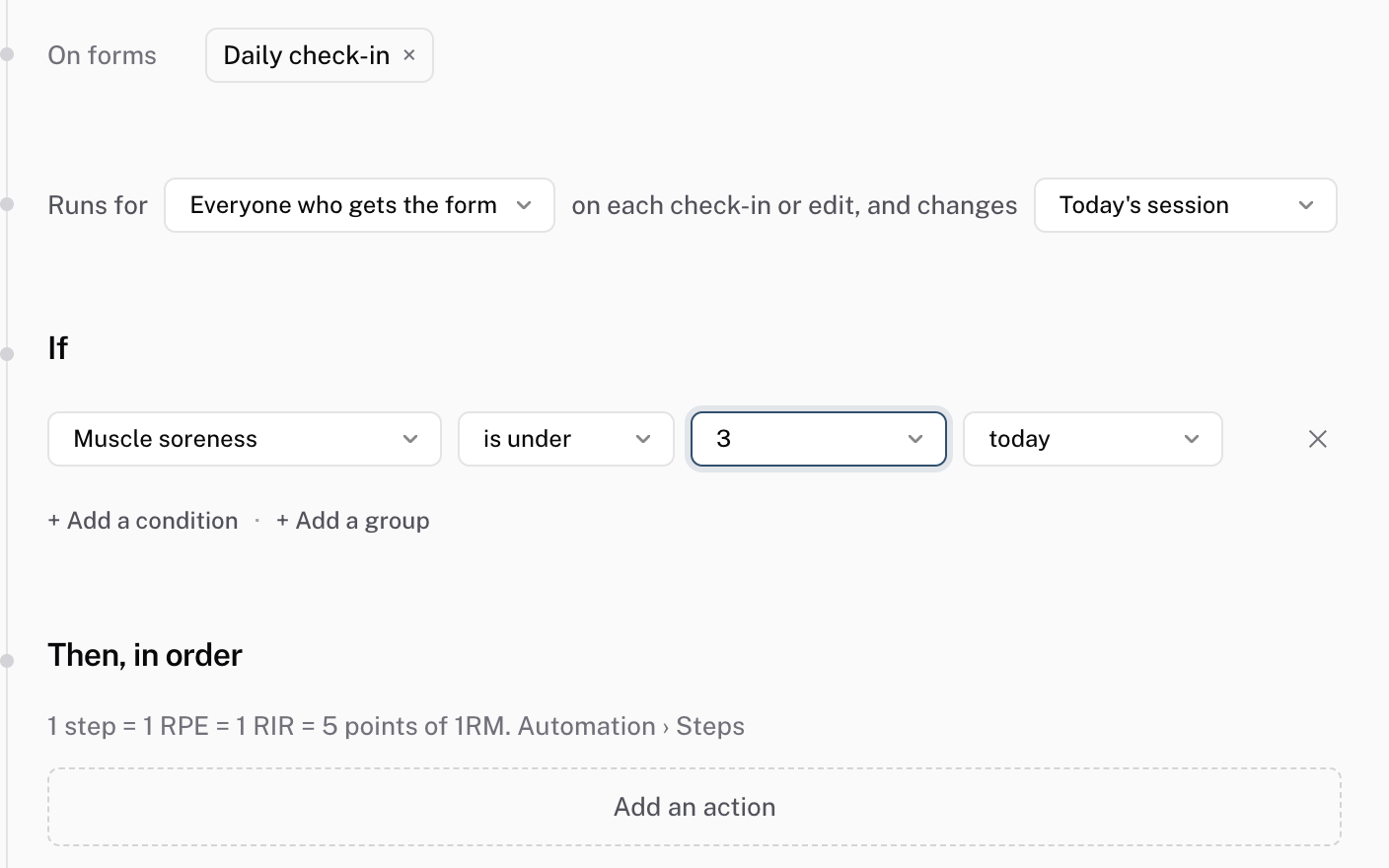
Under If, choose Add a condition and pick the soreness question. Set the comparison to is under and choose 3. Soreness runs from 1 to 5, and 1 is the sorest, so the rule matches a 1 or a 2. A condition can also check whether an answer is below usual, meaning below the athlete's average over the last 28 days, or whether it is flagged.
Add the steps
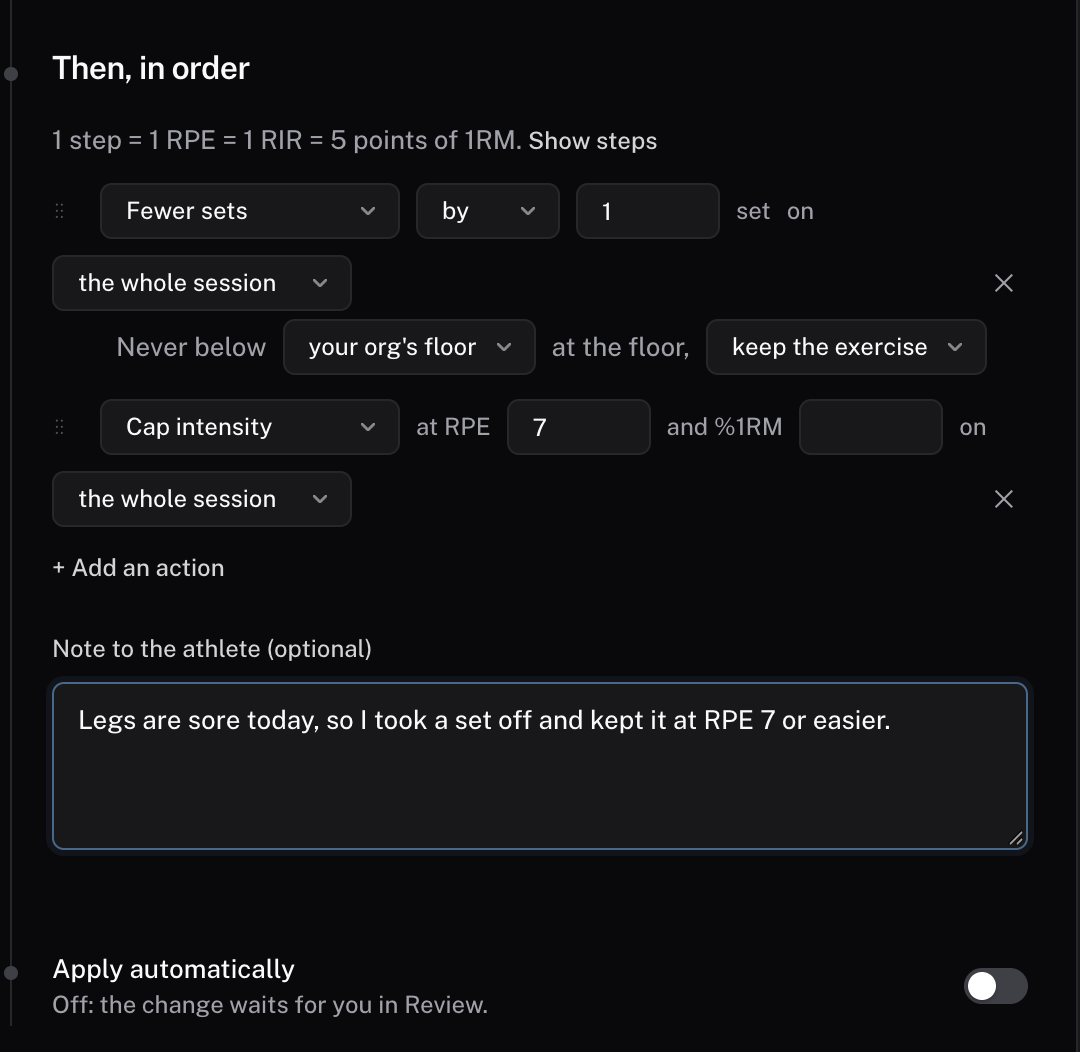
Under Then, in order, choose Add an action and pick Fewer sets, then add Cap intensity at RPE 7. Cap intensity always runs last. Write a Note to the athlete if you want them to read why.
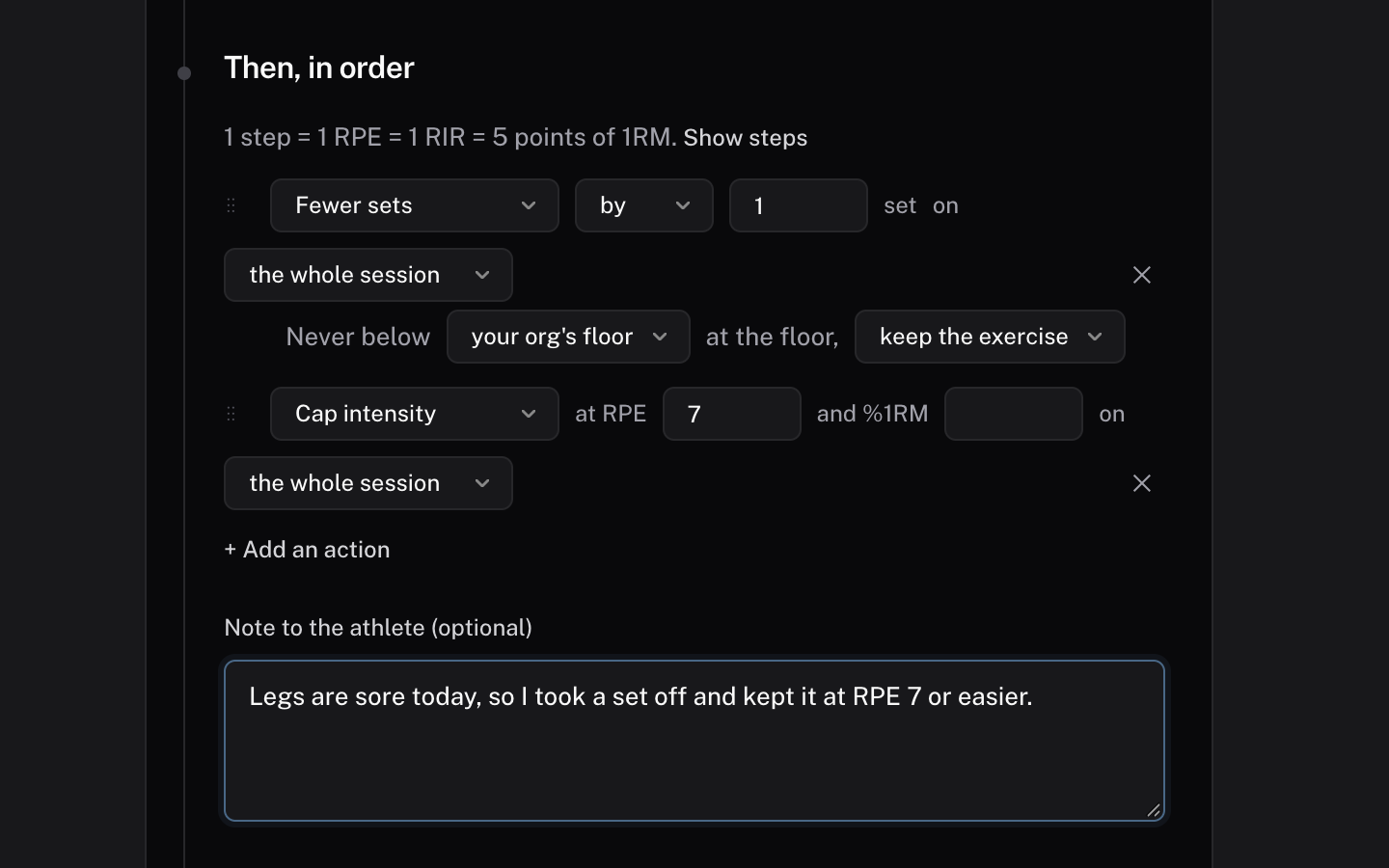
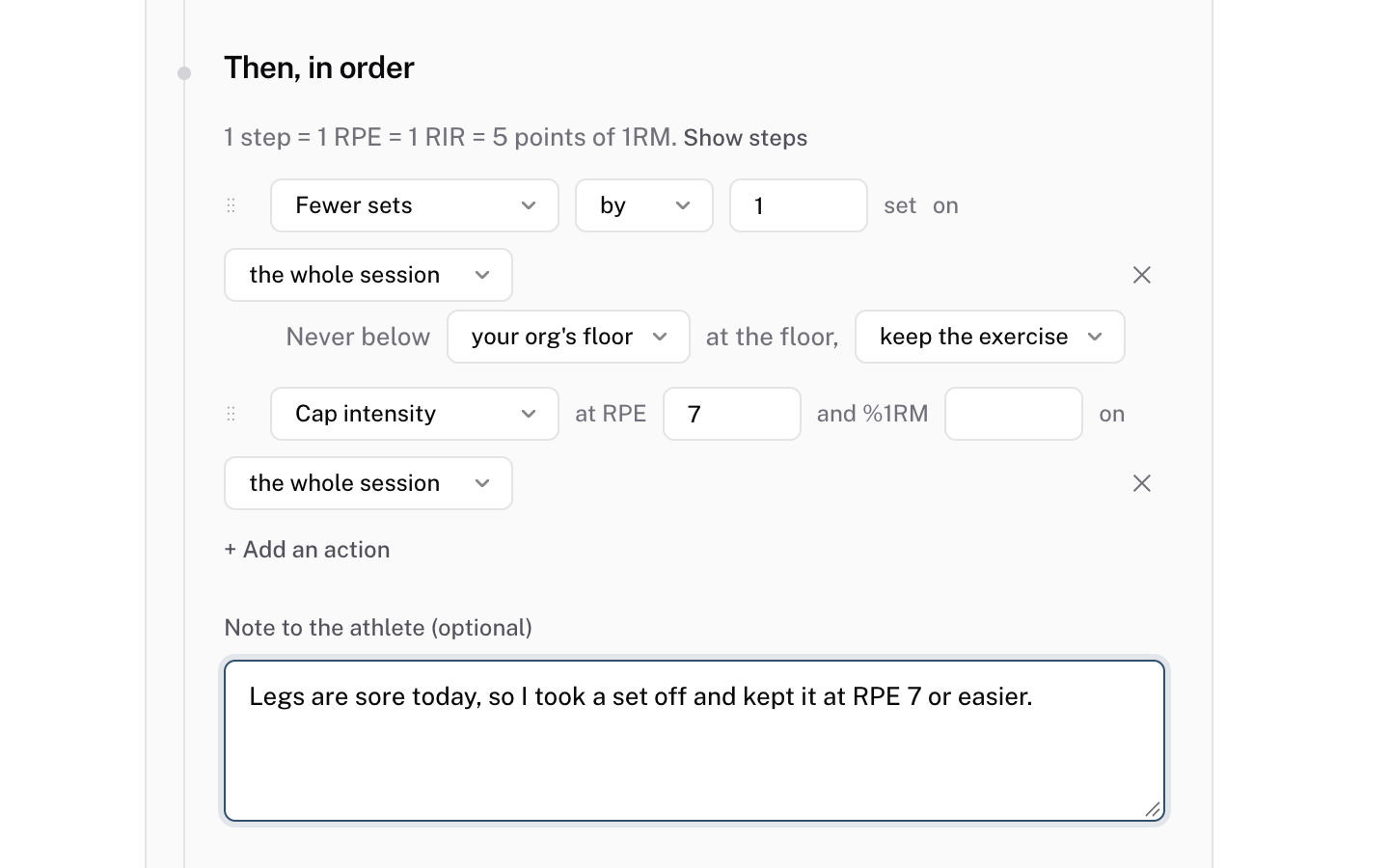 Then, in order
Test it
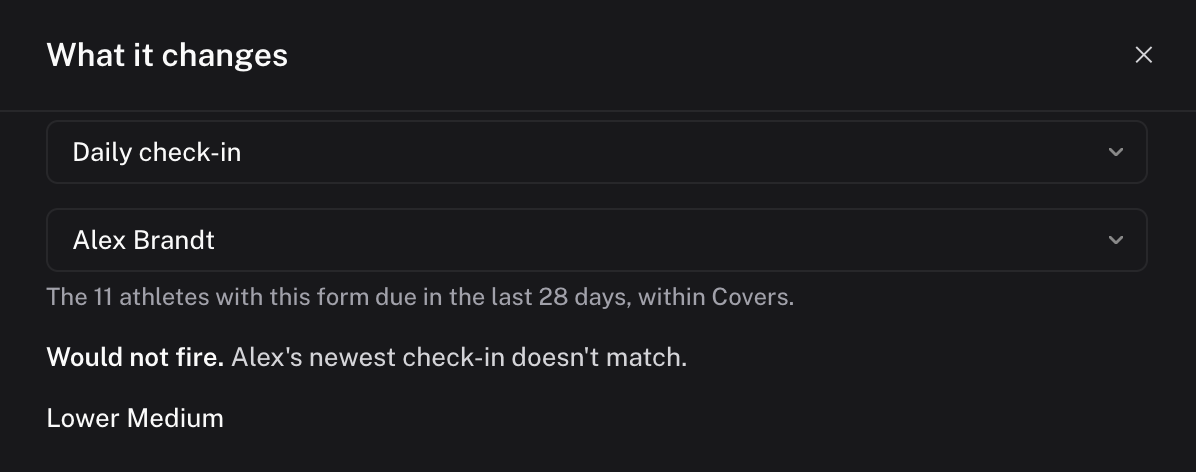
Click What it changes at the top right. It runs the rule on one athlete's newest check-in and says whether it would fire, and what it would change on their session. Pick another athlete from the list to try them. It doesn't change any session. After you create the rule, test a rule replays it over the last 28 days.
Choose how it applies
With Apply automatically off, the change waits for you in Review. On, it applies and shows in Review as applied. Then choose Create rule.
Check it worked
Answer the check-in as a test athlete with soreness at 1. Review shows the change for that athlete's session.
Common questions
Can a rule cut a whole session?
Yes. Skip takes the day's session away, and nothing else in the rule runs that day. Replace session puts another program's session in its place. A rule holds at most one action that acts on the whole session.
Where do I see what a rule changed?
In Review. A change that waits for you shows there with Accept, Decline and Edit. A change that applied automatically shows as Applied automatically with the rule's name.
Can I undo a change that already applied?
Yes. Choose Revert on its row in Review, before the athlete starts the session. If you edited that day after the rule ran, Review tells you the undo can't go through.
Related
Stuck? Message us directly.