Workflows
After every session
When an athlete finishes a session, the app asks how hard it was and takes a note and clips for you. You can add your own form to that screen. Review then shows you the sessions that have something to look at, so a clean session doesn't take your time.
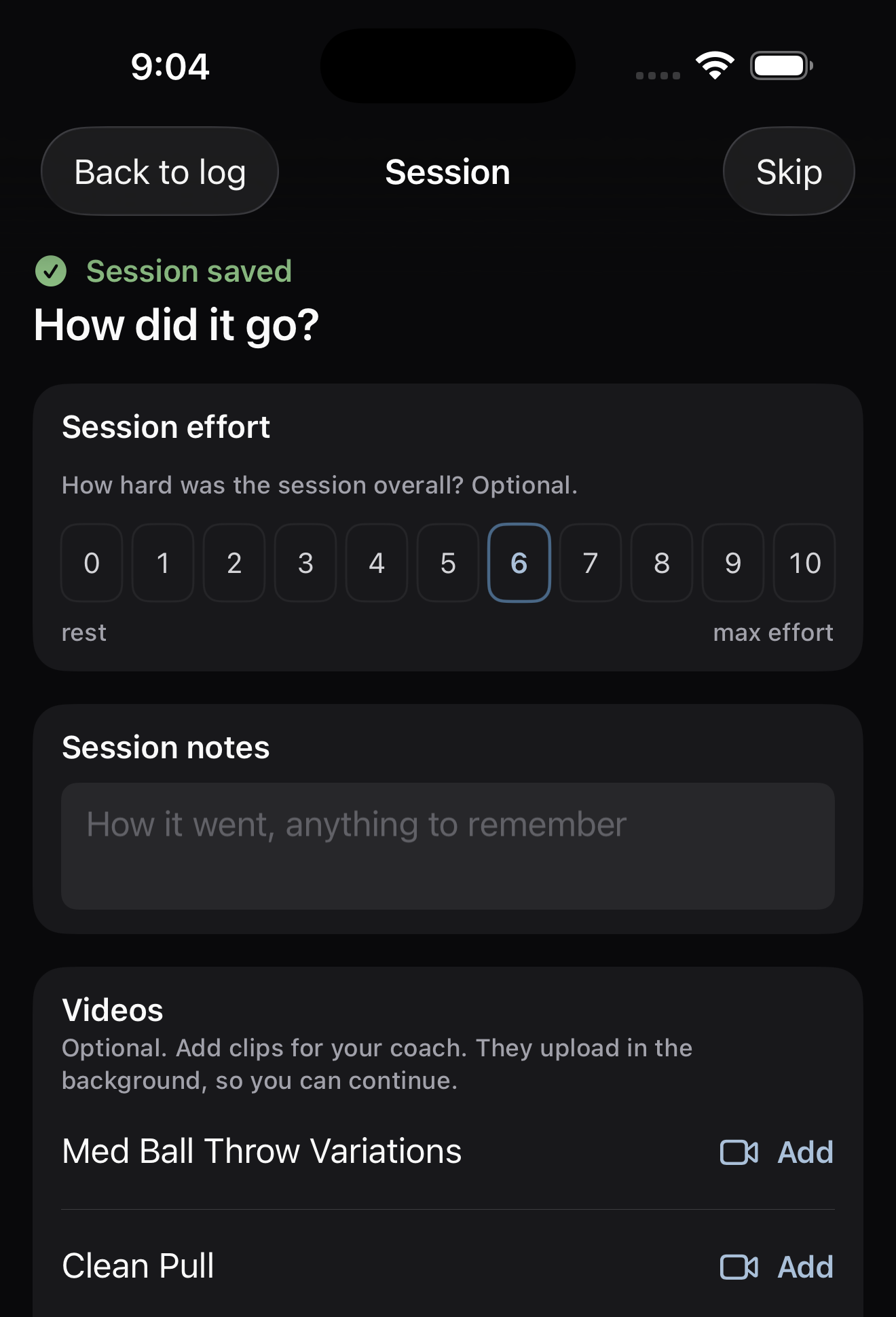
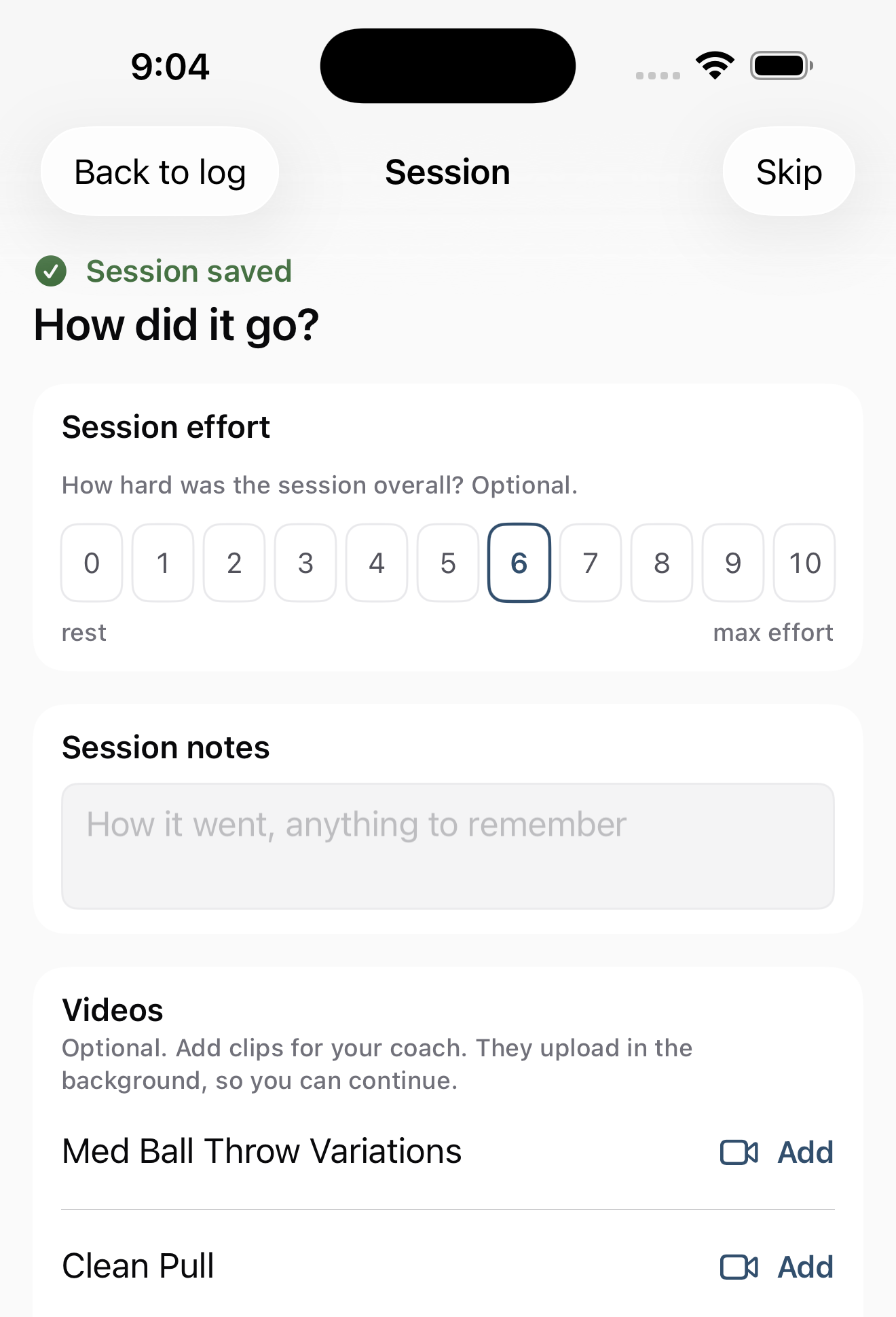 How did it go?
What it is
After Finish, the app saves the session at once and opens one screen. It reads "Session saved" and "How did it go?", and it holds:
- Session effort — "How hard was the session overall?", on a 0 to 10 scale. It's optional.
- Session notes — a note to you, such as how it went.
- Videos — clips for you. They upload in the background, so the athlete can carry on.
- Your after-session forms — any form you send after sessions, each as its own section.
The athlete taps Continue to send it.
Where to find it
You add an after-session form in BUILD > Forms. You read what comes back in COACHING > Review and on each athlete's page.
The parts
An after-session form
Click New form and start from Session effort. It goes out After each session and asks two questions:
- How hard was today's session? — a 0 to 10 scale from Rest to Maximal, with Means set to Session effort.
- Anything to tell your coach? — a short answer.
Any form can go out after sessions. Pick After each session as its timing. A timing such as Every few sessions has Before and After under Around the session. See build a check-in.
Session effort
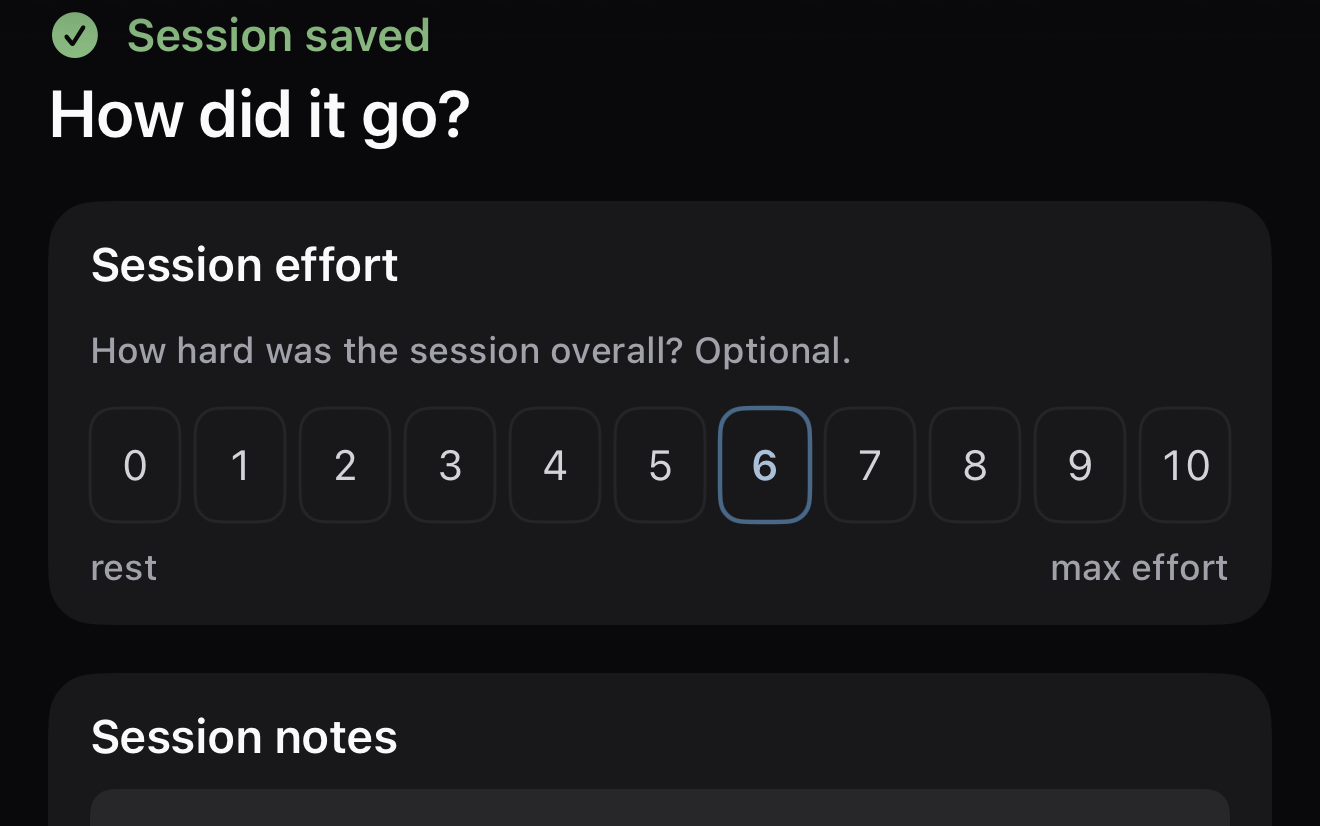
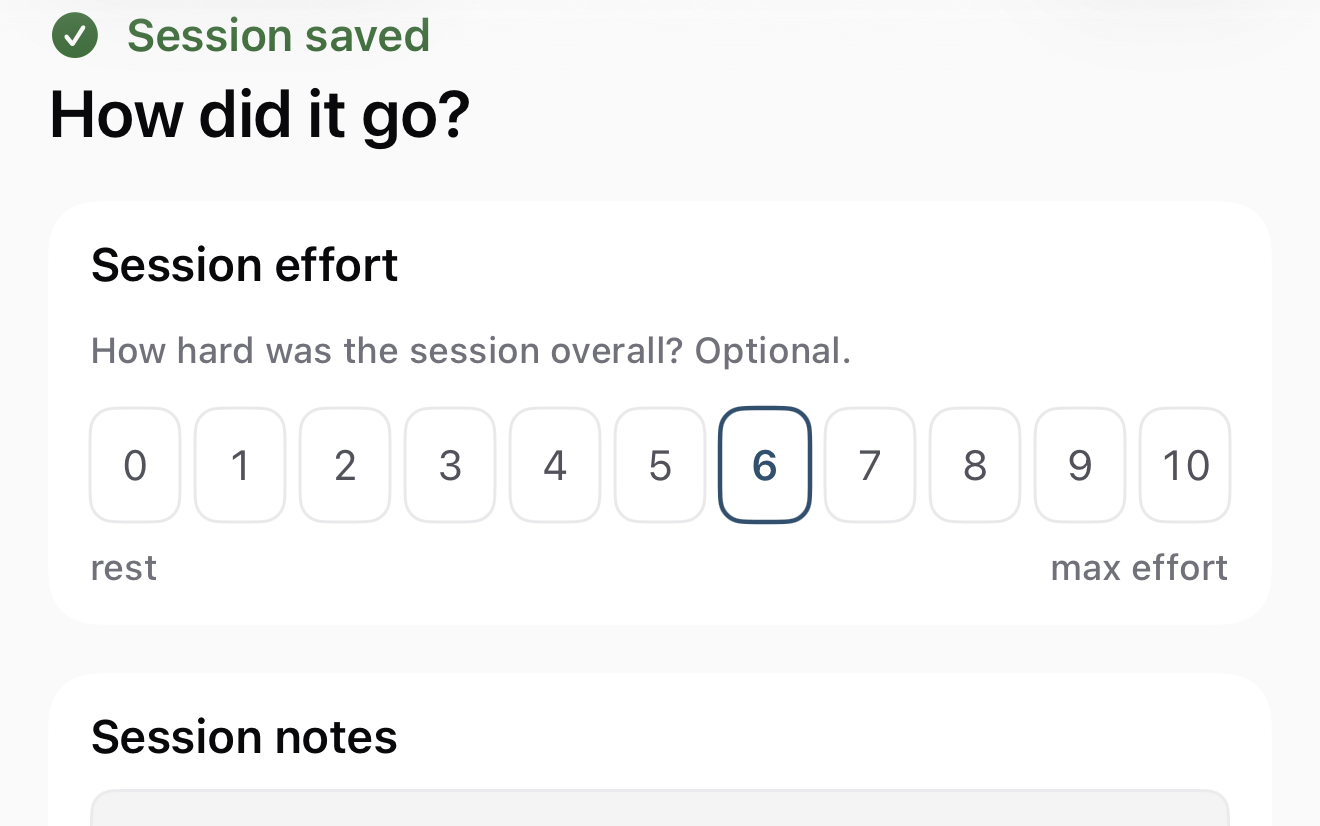
A question with Means set to Session effort fills in from the effort the athlete picked on the finish screen, and it fills the session's RPE. If the question is required and the athlete skipped the effort, the screen asks them to rate it before the form can go.
What reaches you
A logged session becomes a thread in Review only when it has something to look at. Its title reads "Session complete" with the reason:
- Athlete flagged — the athlete messaged you about the session, or reported pain.
- Video review — the athlete sent a clip.
- Skipped sets — an exercise was skipped, or a set wasn't done.
- Effort off target — an RPE or RIR was 2 or more points outside your prescribed range.
- Swapped exercise — the athlete swapped an exercise.
- Note — a note on the session, an exercise, or a set.
A session with none of these opens no thread. A clip or a message later on brings it back. A form after the session opens a thread only when an answer is flagged. Otherwise its answers show on the athlete's row and page.
Limits
- Session effort and the note are optional for the athlete.
- A clip can be up to 10 minutes long.
Common questions
Do I need an after-session form to get the athlete's effort?
No. Every athlete sees Session effort when they finish. A form adds your own questions, and its effort question fills in from the same scale.
Why didn't a finished session show up in Review?
It had nothing to look at. A session with no note, clip, flag, skipped set, swap, or effort off target closes quietly. It is still on the athlete's page.
Related
Stuck? Message us directly.